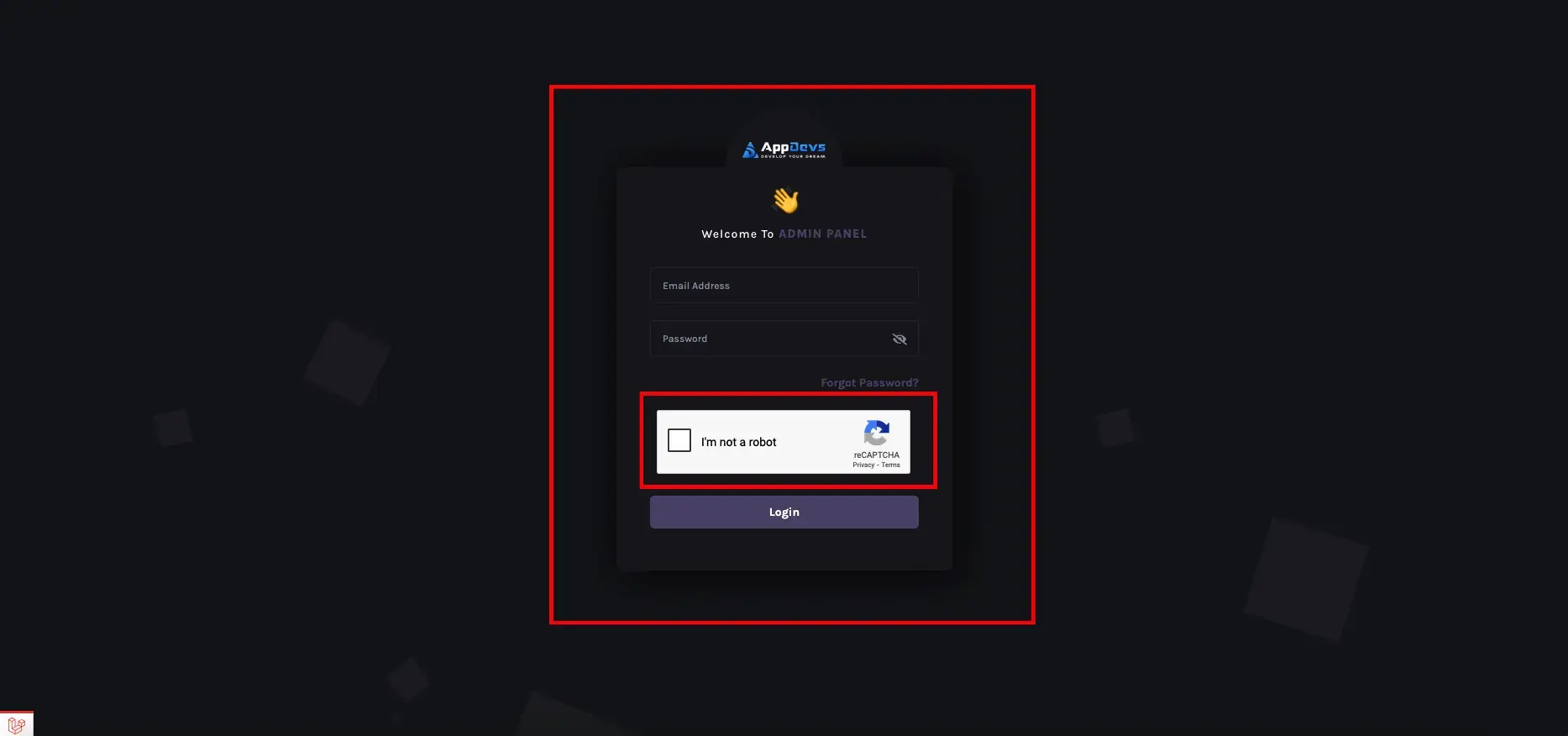








Spam bots can flood your login and registration forms with fake accounts and unauthorized access attempts. To prevent this, Google reCAPTCHA introduces a simple challenge, such as “I’m not a robot,” to ensure only genuine users can complete the task.
If you're using the admin panel shown below, you can enable Google reCAPTCHA for both login and registration in just a few clicks.
Here’s how:
✅ Step 1: Log in to Your Admin Panel
Use your admin email and password to log in.
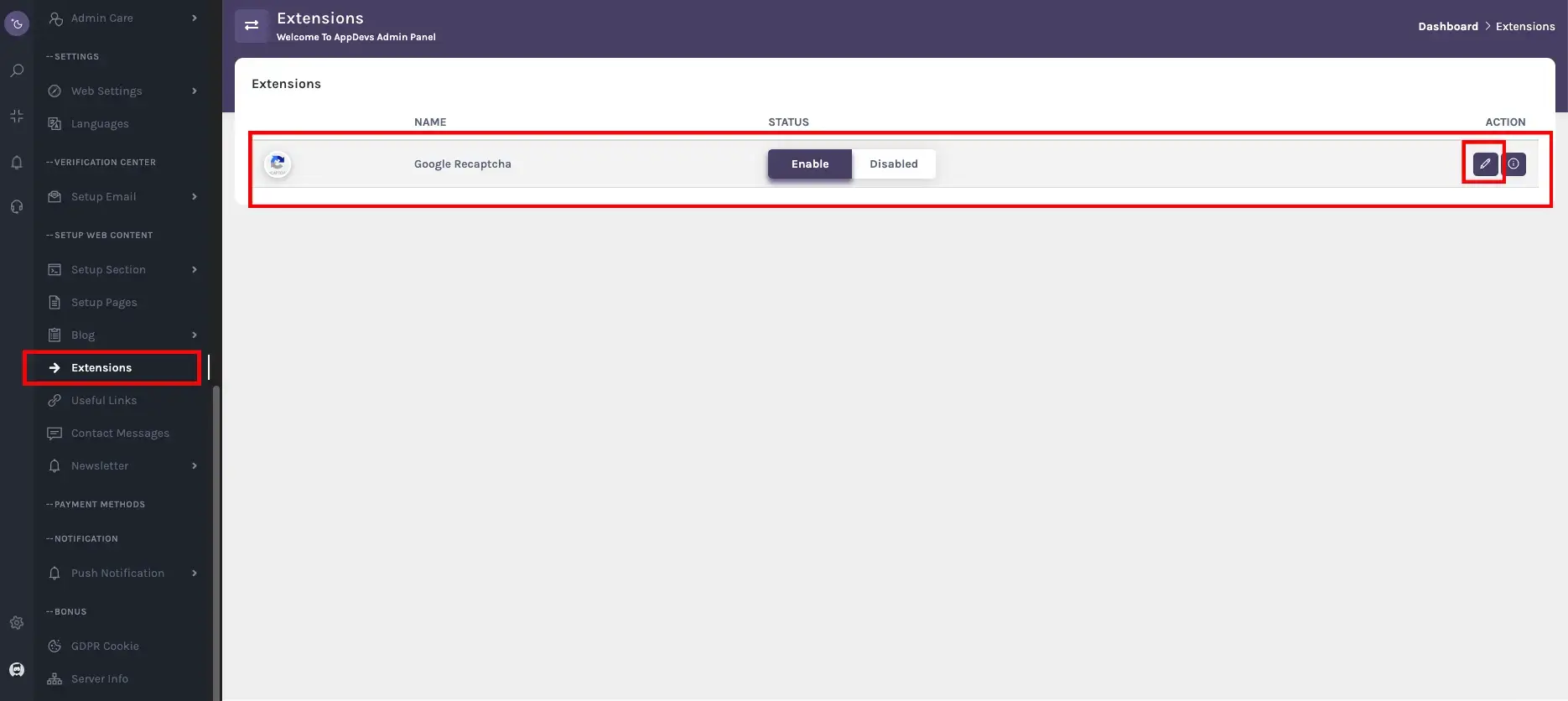
✅ Step 2: Click on “Extensions”
From the left-hand menu, scroll down and click Extensions.
✅ Step 3: Click the Edit Icon Next to Google reCAPTCHA
Find Google reCAPTCHA in the list.
Click the Edit icon (🖋️) on the right-hand side.
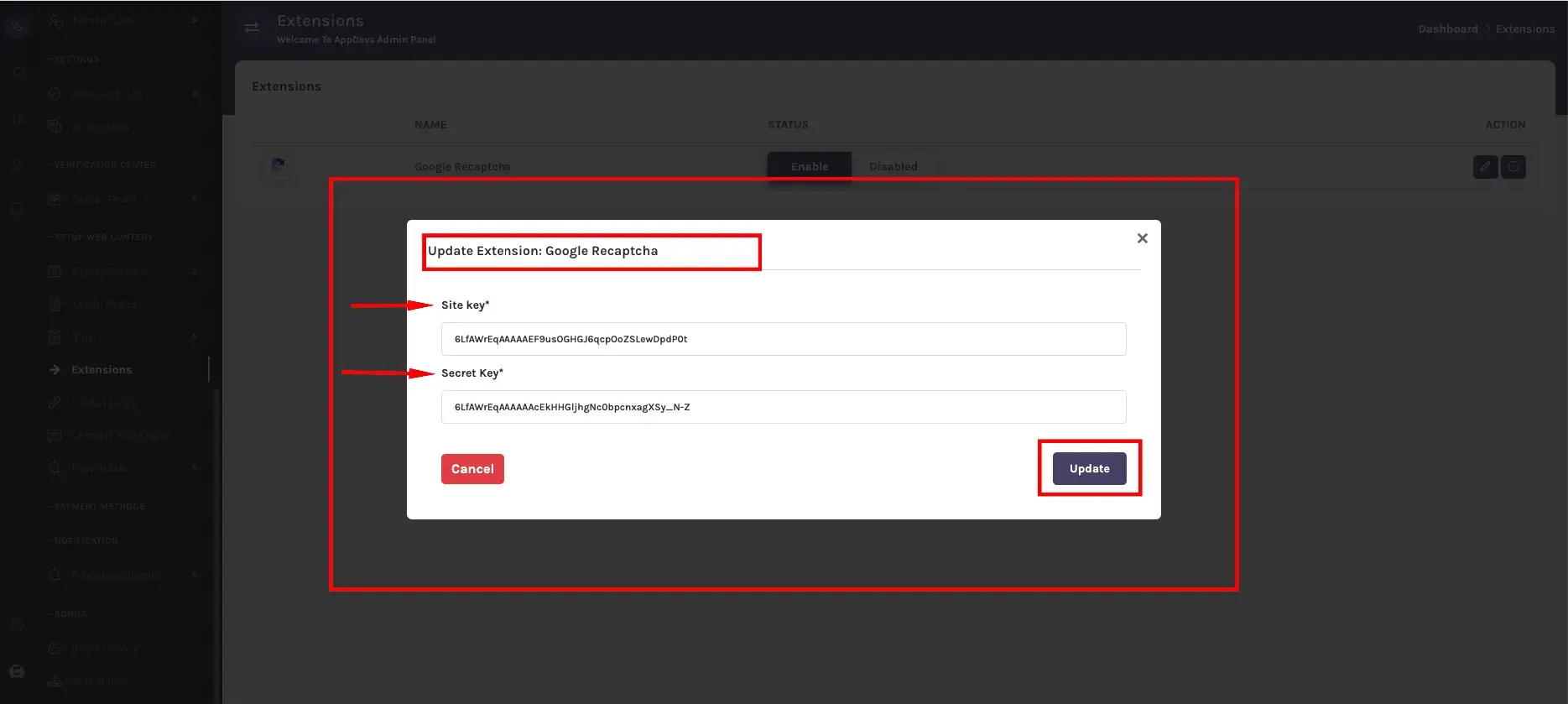
✅ Step 4: Enter Your Site Key and Secret Key
You’ll need two keys from Google:
1. Site Key
2. Secret Key
You can get these keys from the official Google reCAPTCHA website.
Paste them into the fields and click 'Update'.
✅ Step 5: You’re Done!
Once updated, reCAPTCHA will appear on your login form and other supported areas of the site.