








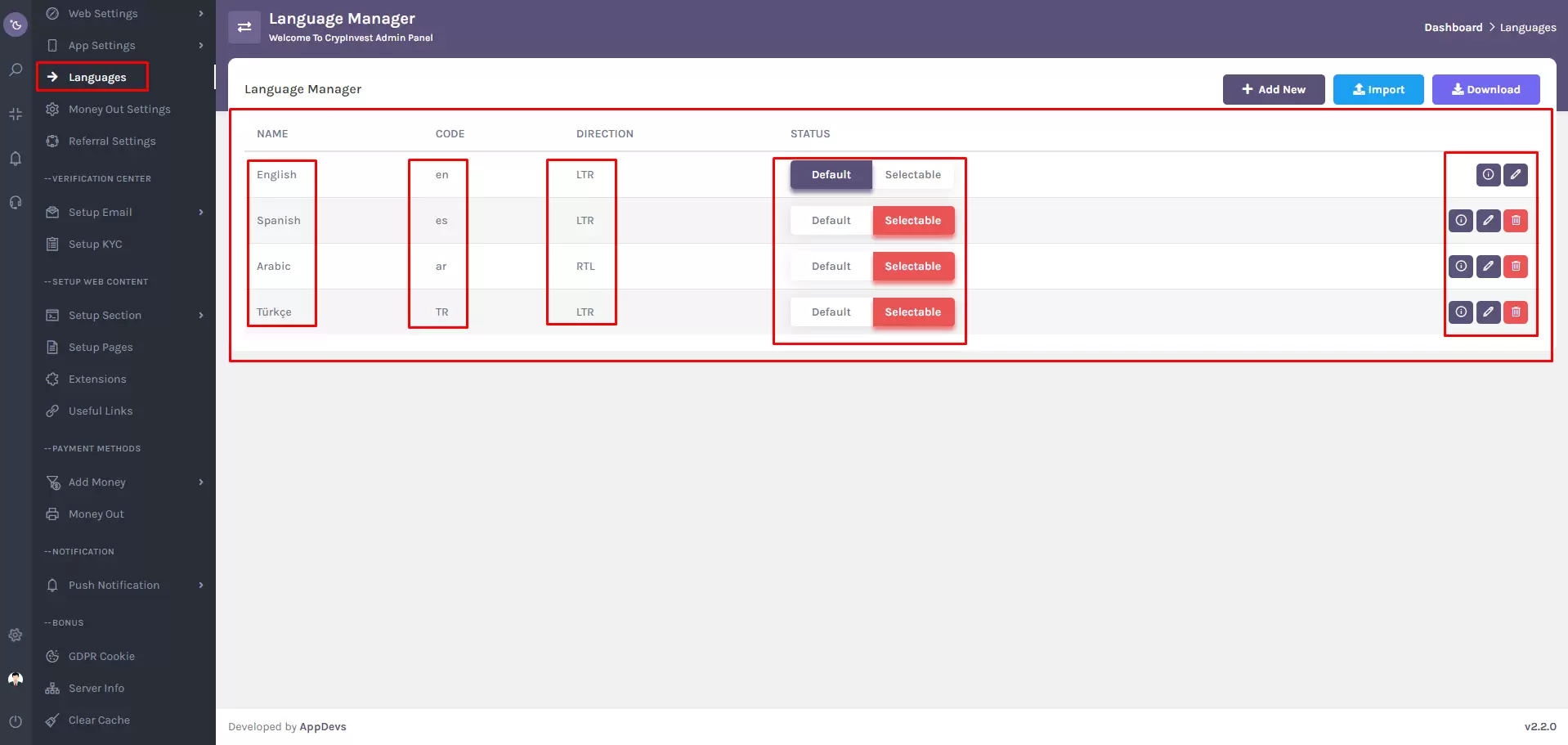
The Language Manager page features a comprehensive table that displays essential information about each language within the system. This table provides administrators with a quick overview of language settings and offers convenient controls for management. Here's a breakdown of the information and controls available in each table row.
Navigation
Manage language from the super admin panel with the provided navigation path:
Settings > Languages
Follow these steps, and you can also search the (Languages) from the upper-admin sidebar search box.
Language Table
Language Name:
Example: English, Español, Français, Deutsch, etc.
Language Code:
Exhibits the language code associated with each language. This code is crucial for system identification and localization purposes.
Example: en (English), es (Español), fr (Français), de (Deutsch), etc.
Language Direction:
Indicates the text direction for the language, showing whether it is set to Right-to-Left (RTL) or Left-to-Right (LTR).
Example: LTR for most languages, RTL for Arabic, Hebrew, etc.
Status
1. Switch (Default Language or Selectable Language): A switch control determines whether the language is set as the platform's default language or merely a selectable option.
2. Default Language: The language set as the default for users who haven't explicitly chosen a preference.
3. Selectable Language: Users can choose this language as their preferred display language.
Actions
Info Button:
Displays additional information about language translation. Clicking provides details on translating content from English (or the default language) to the selected language.
Example: Translate English content to Español.
Edit Button:
Opens an editable modal allowing administrators to modify the Language Name, Language Code, and Language Direction for the selected language.
Example: Change "English" to "British English," update the language code, or switch from LTR to RTL.
Delete Button:
Initiates the deletion of the selected language. A confirmation prompt may appear to prevent accidental deletions.
Note: Deleting a language may affect user preferences and content associated with that language. And remember, the default language cannot be deleted.
Usage Guidelines
1. Default Language: Only one language can be set as the default. This language is applied to users who haven't specified a language preference.
2. Selectable Language: Users can choose from the list of selectable languages to personalize their experience.
3. Edit with Caution: Modifying language details may impact user experience and content. Exercise caution when editing language settings.
4. Deletion Warning: Deleting a language will permanently remove it from the system. Confirm deletion when prompted.
By leveraging the Language Table controls, administrators can efficiently manage language settings and ensure a seamless, localized experience for users.
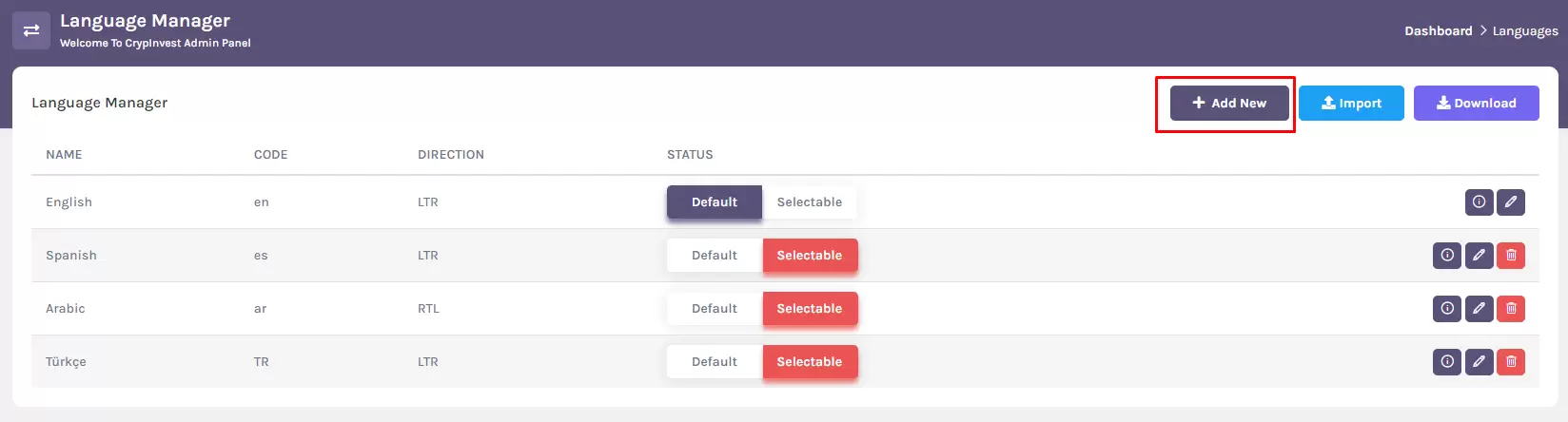
How to Add a New Language
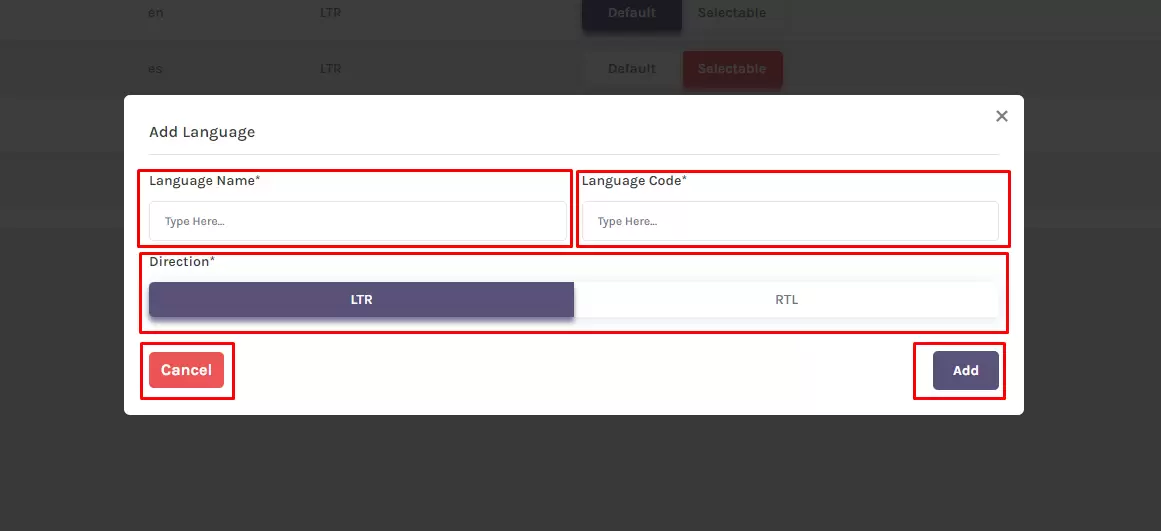
The Add Language modal within the Language Manager provides a straightforward way to incorporate new languages into your platform. By filling in essential details, administrators can enhance the inclusivity of the user experience. Below are the components and functionalities of the Add Language modal.
Language Name:
Input Field: Enter the full name of the language. This is the display name that users will see when selecting their preferred language.
Example: English, Español, Français, Deutsch, etc.
Language Code:
Input Field: Specify the language code, adhering to standard language code formats. This code is crucial for system identification and localization purposes.
Example: en (English), es (Español), fr (Français), de (Deutsch), etc.
Text Direction:
Switch (RTL, LTR): Toggle between Right-to-Left (RTL) and Left-to-Right (LTR) text direction based on the language's writing style. This ensures proper text alignment for a seamless reading experience.
Example: For languages like Arabic or Hebrew, choose RTL. For most others, select LTR.
Add Language Button:
Button: Initiates the addition of the new language with the provided details. Administrators can click this button after filling in the Language Name, Language Code, and selecting the desired text direction.
Note: An added language will be reflected in the Language Manager, making it available for users to select.
Cancel Button:
Button: Allows administrators to discard changes and close the modal without adding a new language. Useful for canceling the process if needed.
How to Download the Language File
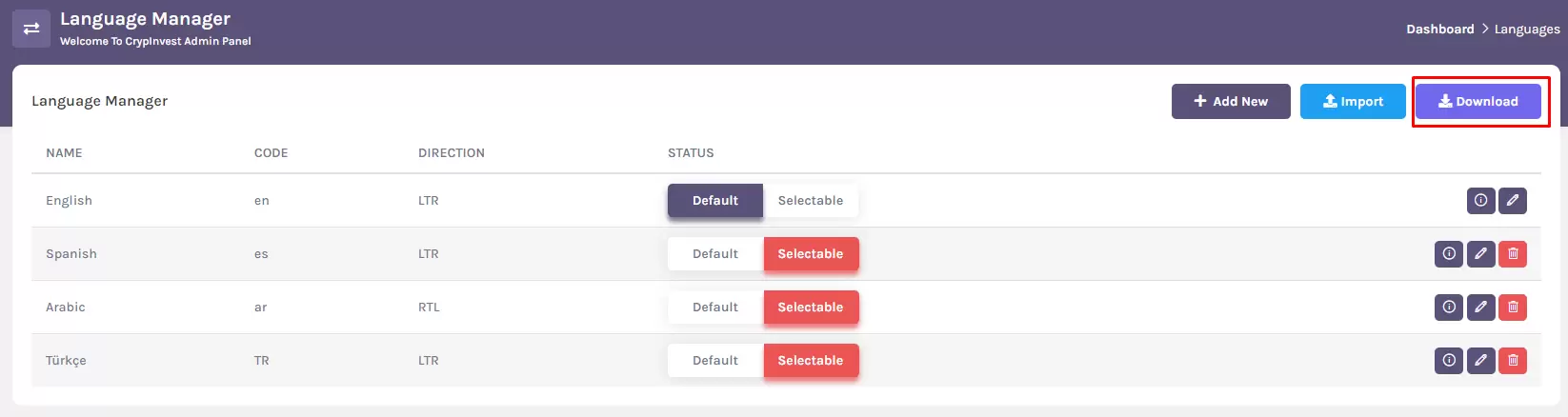
The Download Language File feature in the Language Manager provides administrators with the ability to download the language-related content for the default language in a structured file format. This facilitates a convenient way to review, modify, or share language data. Here's an overview of the download functionality.
Download Button
Button:
Clicking this button initiates the download process for the language file associated with the default language.
The file will be downloaded in a structured format (.xlsx or .csv), ensuring compatibility with common spreadsheet applications.
Usage Guidelines
1. Default Language: The downloaded file contains language content for the default language set in the system.
2. File Format: The file is downloaded in either Excel (.xlsx) or CSV (.csv) format, making it accessible for review and modification using standard spreadsheet applications.
3. Review and Modification: Administrators can use the downloaded file to review existing content, make modifications, and prepare updates for subsequent imports.
4. Deletion Warning: Deleting a language will permanently remove it from the system. Confirm deletion when prompted.
Note: Ensure that any modifications made to the downloaded file adhere to the expected structure to ensure successful re-importing.
How to Import Language
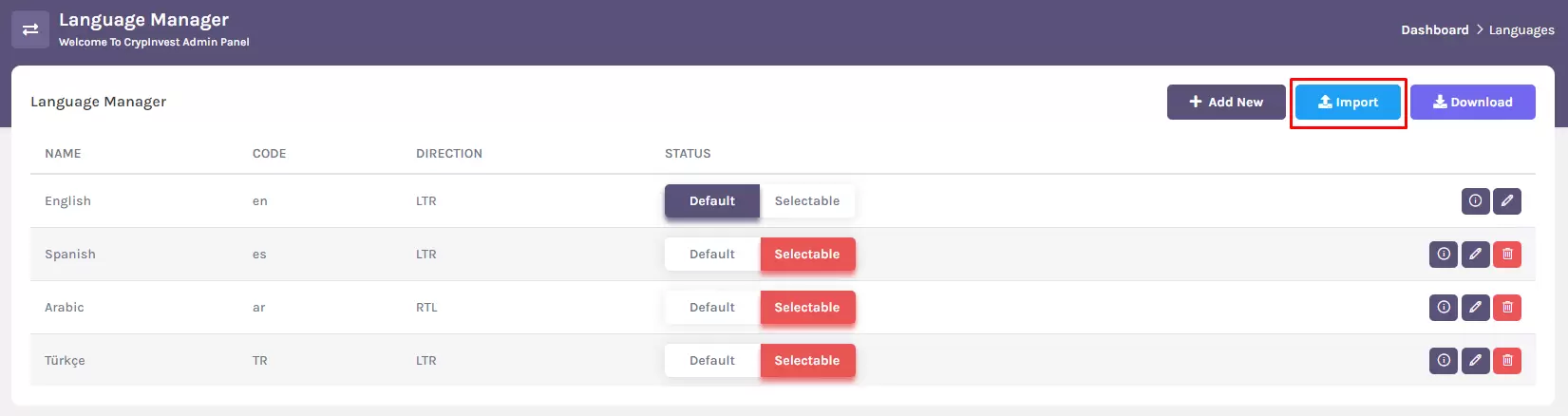
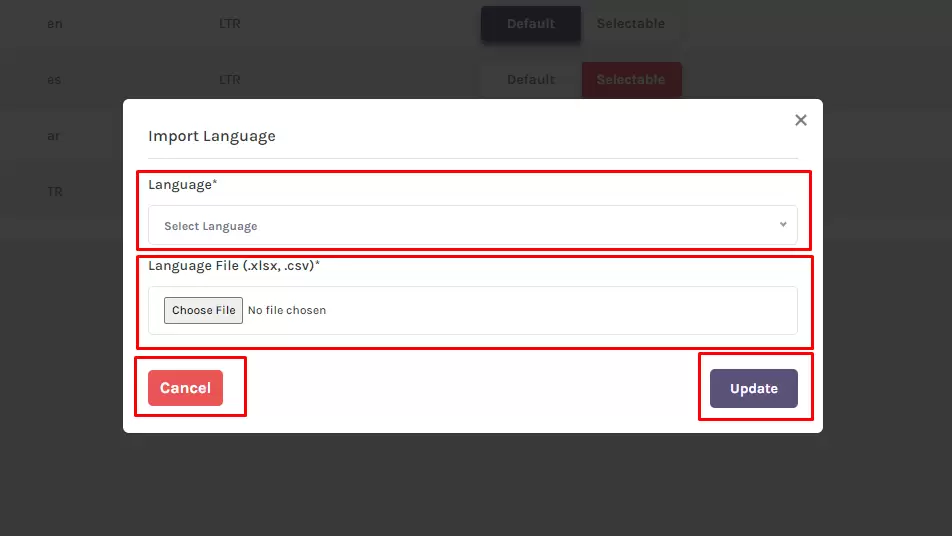
The Import Language modal within the Language Manager streamlines the process of importing language-related data into the system. This feature allows administrators to add or update language content using a structured file effortlessly. Here's a detailed explanation of the options available within the modal.
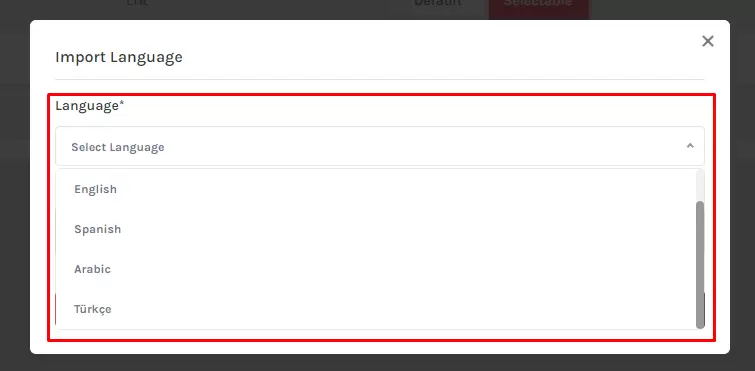
Select Language:
Dropdown Menu (Select Language):
Presents a list of all added languages as options in a dropdown menu.
Administrators can choose the target language for the imported content.
Example: English, Español, Français, Deutsch, etc.
Language File Upload:
File Input (Supported formats: .xlsx, .csv):
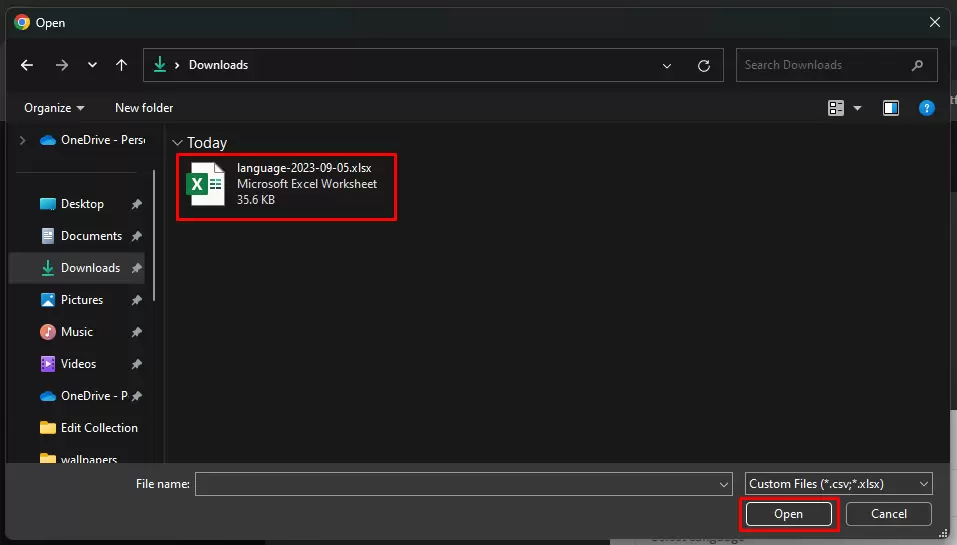
Provides an input field for uploading language-related files in either Excel (.xlsx) or CSV (.csv) format.
Administrators should ensure that the file structure aligns with the system's requirements for successful import.
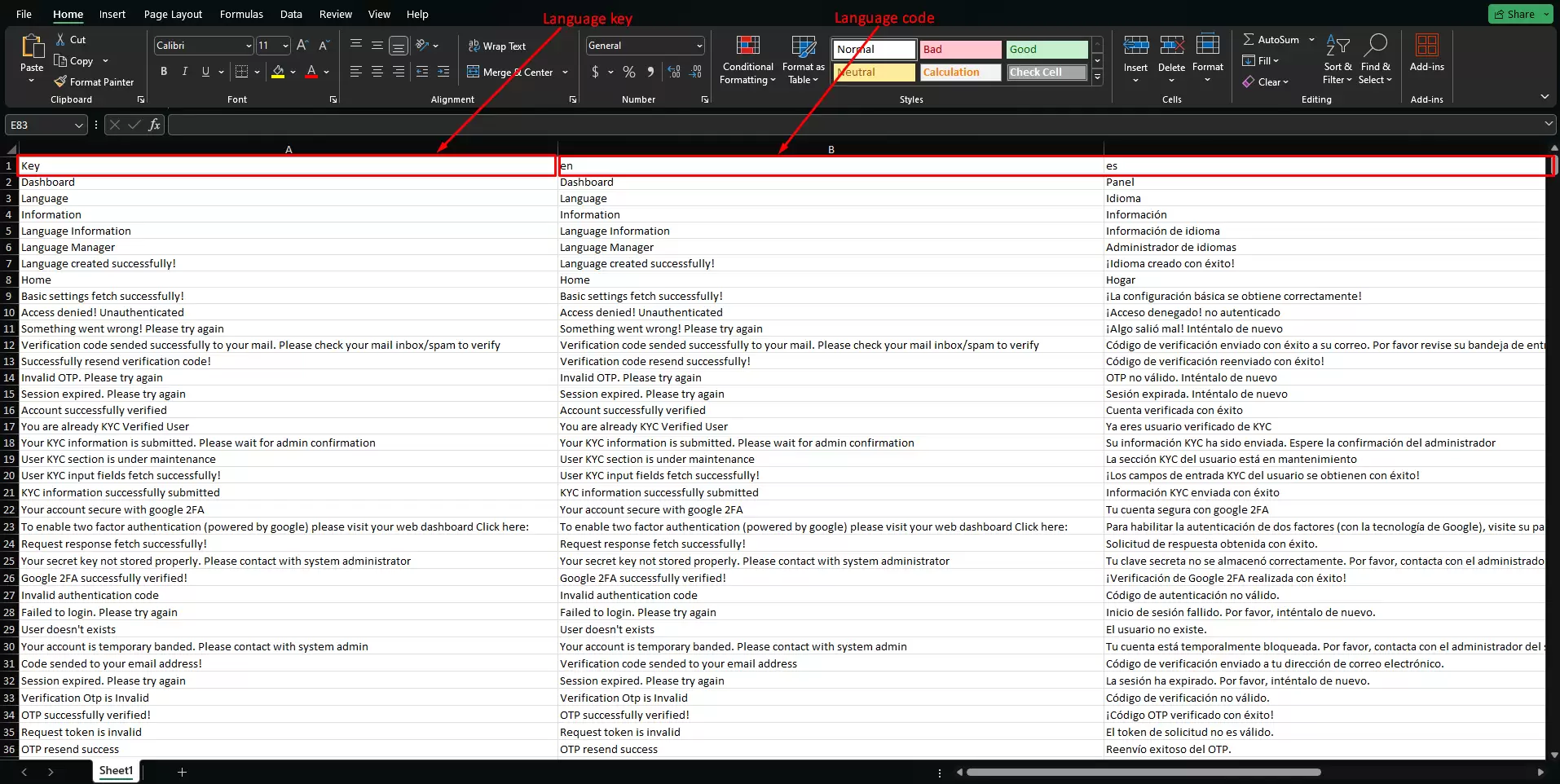
Note: The file should include columns for Language Key, English (or default language) content, and corresponding translations.
Update Language Button:
Button:
Initiates the import process, updating or adding language content based on the selected options. The system will validate the uploaded file and update the language content accordingly.
Note: Ensure the file adheres to the supported formats and follows the required structure.
Cancel Button:
Button:
Allows administrators to discard the import process and close the modal without making any changes.
Language Manager Feature and Information
The Language Manager empowers administrators to seamlessly control and customize the linguistic aspects of the platform. With this feature, you can effortlessly manage multiple languages, ensuring a globally inclusive user experience.
Language Selection:
Easily switch between supported languages to cater to a diverse user base. Users can choose their preferred language from a user-friendly language selector, ensuring a personalized and accessible interface.
Localization:
Customize text elements, labels, and messages for each supported language, allowing you to adapt the platform to specific cultural nuances. This ensures that users feel at home in their preferred language environment.
Content Translation:
Streamline the translation process by integrating services or providing a manual translation option. Effortlessly translate content such as articles, announcements, and user-generated materials to enhance global reach.
Language-specific Settings:
Language settings are based on language preferences, creating a more personalized experience for users. This may include date formats, number representations, or other locale-specific configurations.
Language Switcher Widget:
Language switcher widget directly into the user interface, allowing users to dynamically change their language settings without navigating away from the current page.
Multi-language Support for Content Management:
Extend language support to your content management system, enabling administrators to manage and publish content in multiple languages seamlessly.