




This tutorial provides a step-by-step guide to configuring two types of notifications within the super-admin panel:
Browser Push Notifications: Deliver real-time notifications directly to users' browsers.
Broadcasting/Internal Notifications: Send system-wide alerts within the admin panel, user panel, and support ticket chat interface.
Navigation Path
To access the push notification settings:
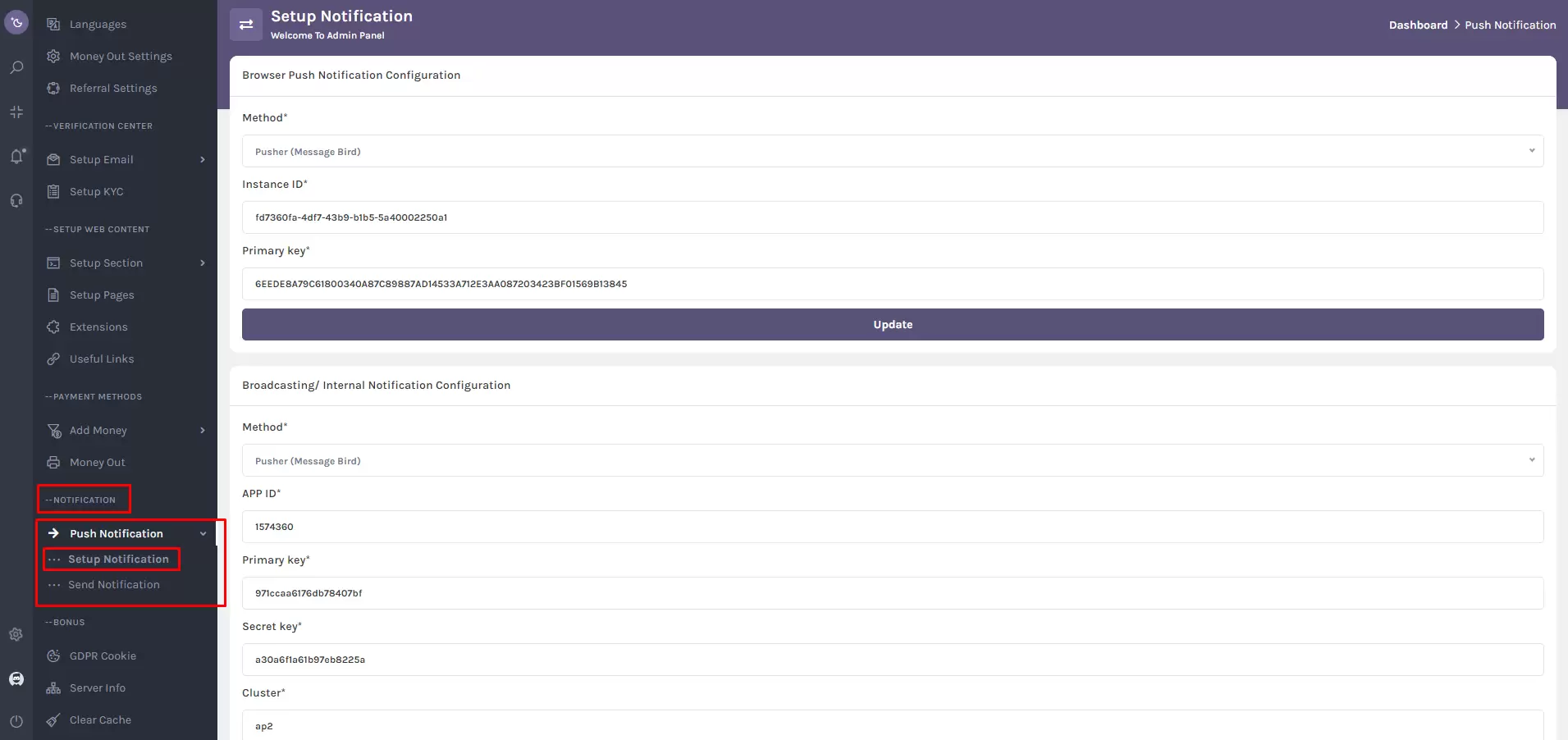
Go to:
Notification > Push Notification > Setup Notification
Alternatively, search "Setup Notification" using the super-admin sidebar search box.
Browser Push Notification Configuration
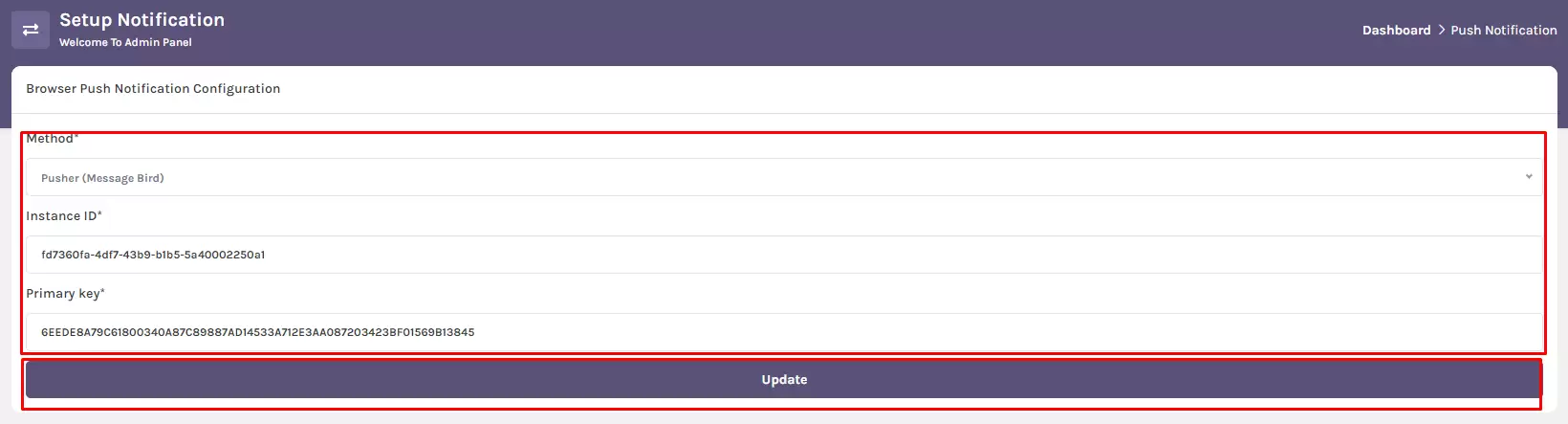
To configure browser-based push notifications:
1. Select Notification Method
From the dropdown menu, choose the notification method.
Note: Only Pusher (MessageBird) is currently supported.
2. Input Credentials
Instance ID: Enter your Pusher account's “Beams” Instance ID.
Primary Key: Enter the corresponding “Beams” Primary Key.
3. Update Configuration
Click the “Update” button to save your configuration.
How to Retrieve the Instance ID and Primary Key:
Follow these steps to get your Pusher Beams credentials:
1. Create a Pusher account
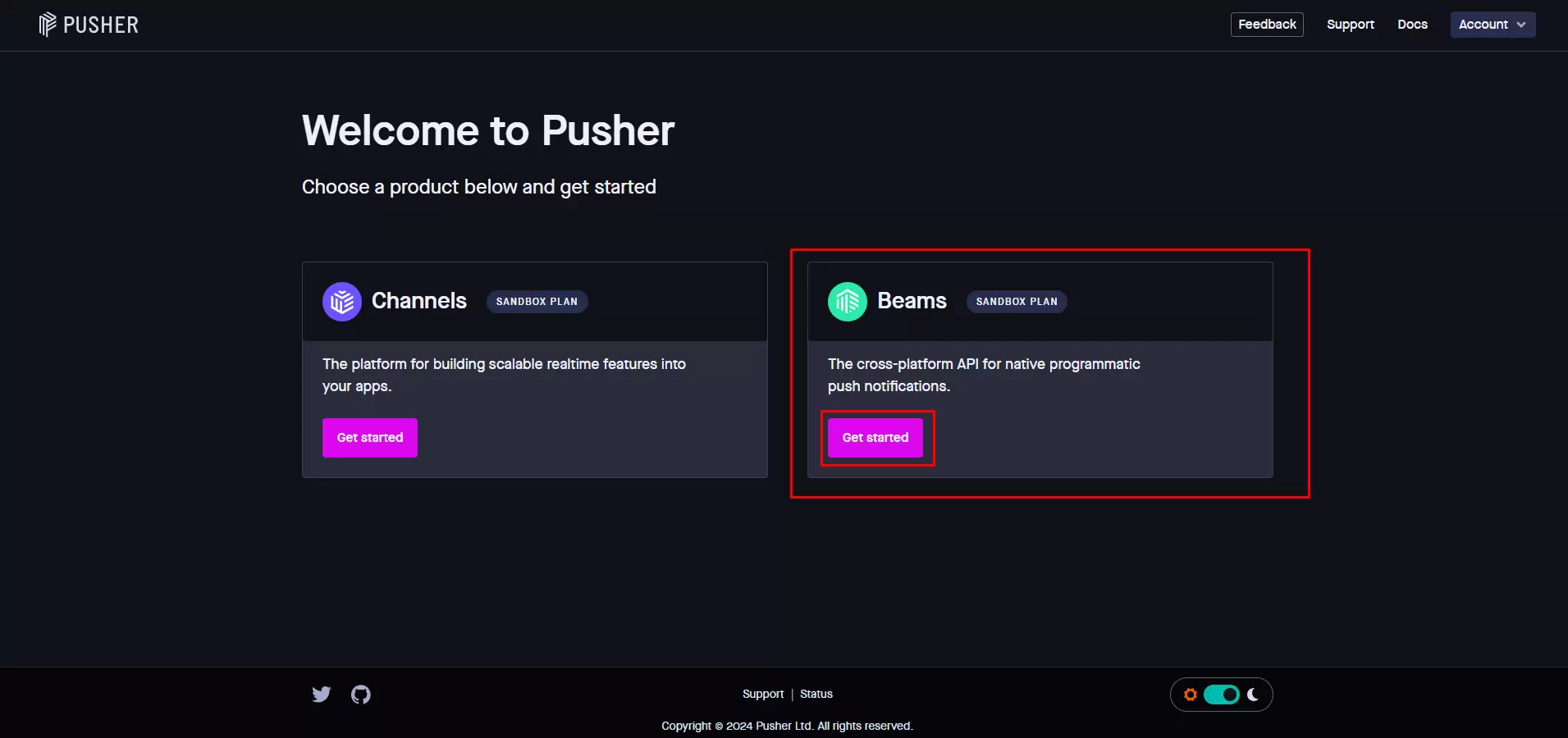
2. Click the "Get started" button in the Beams widget.
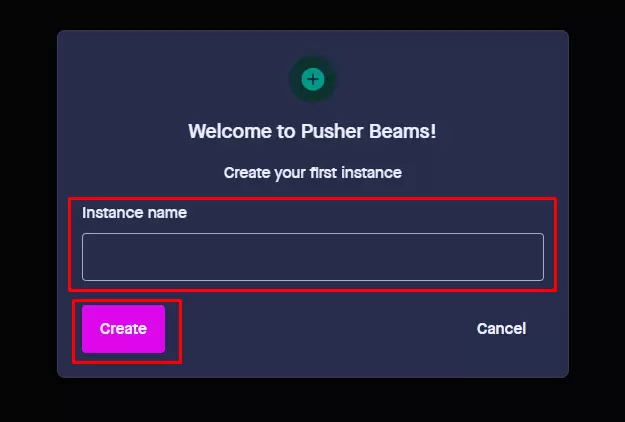
3. Create an instance by entering your desired instance name.
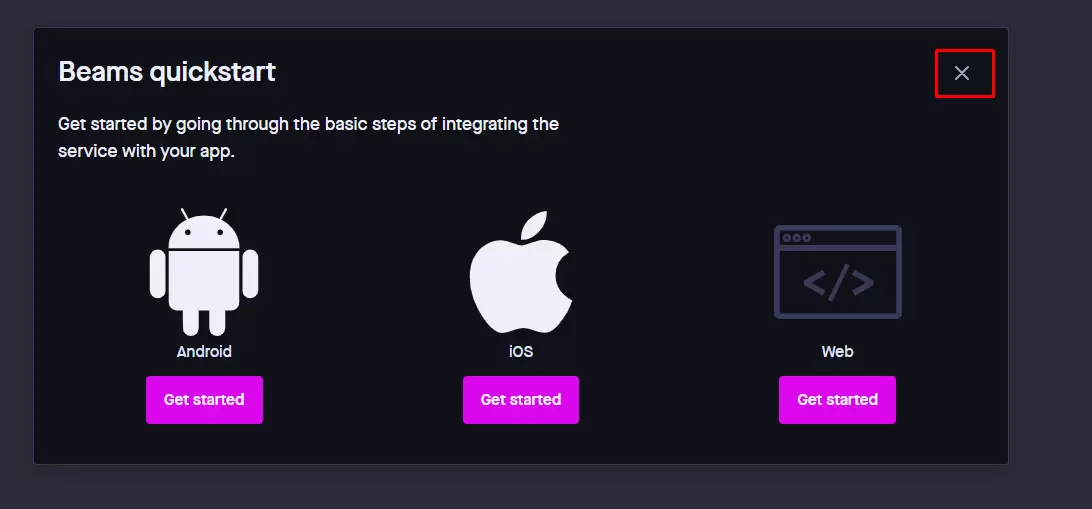
4. Close the Beams Quickstart popup by clicking the cross icon.
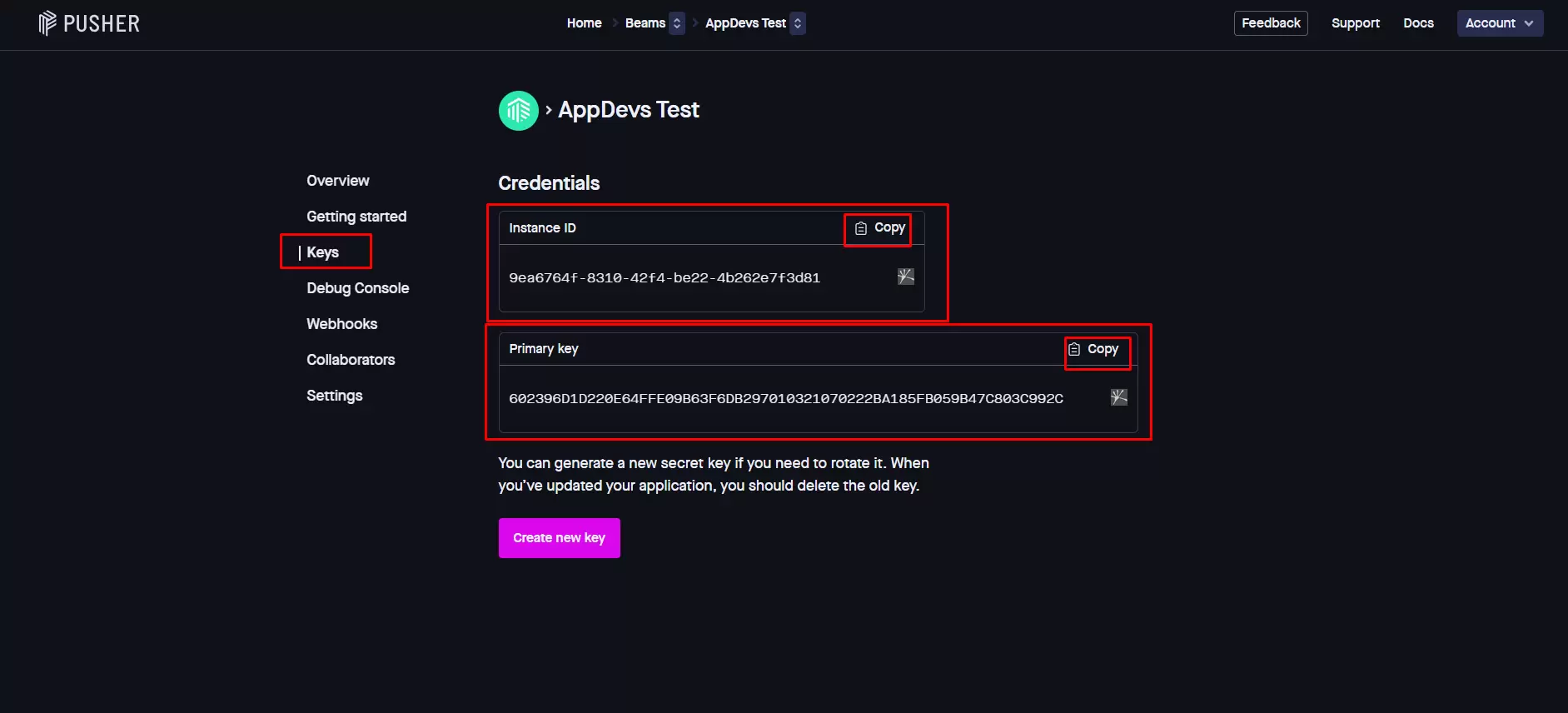
5. Navigate to the "Keys" tab.
6. Copy the Instance ID and Primary Key, then paste them into your configuration settings.
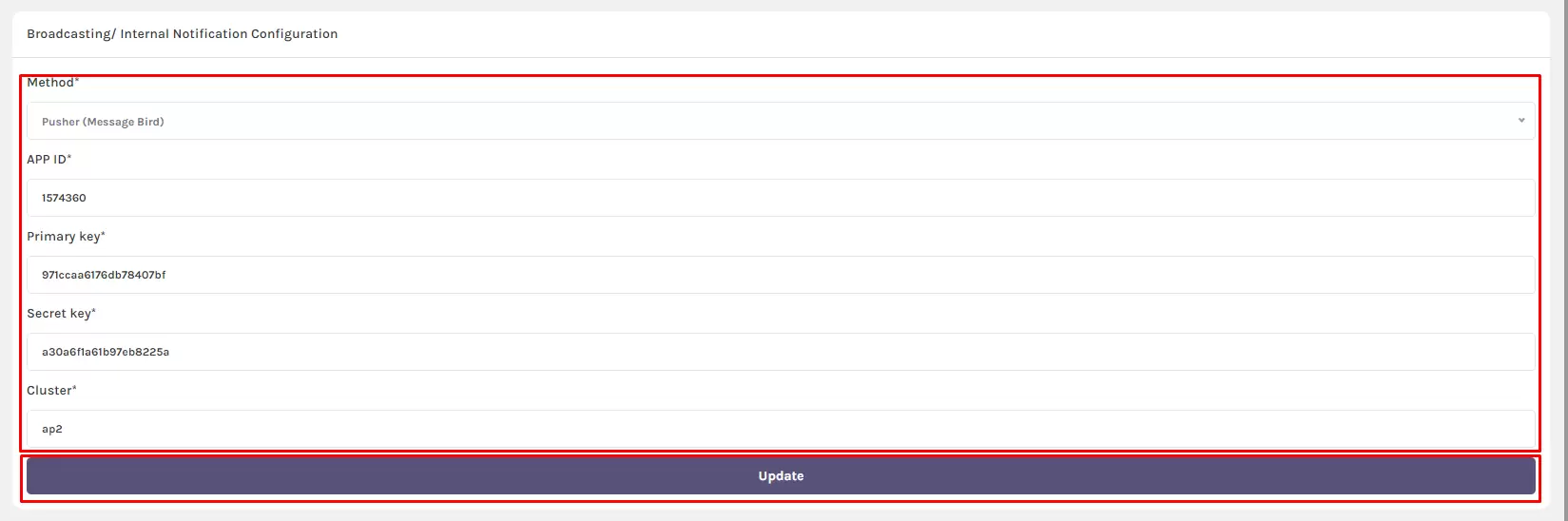
Broadcasting/Internal Notification Configuration
To set up internal system notifications:
1. Select Notification Method
Choose the notification method from the dropdown.
Note: Only Pusher (MessageBird) is currently supported.
2. Input Credentials
- APP ID: Enter the “Channels” APP ID from your Pusher account.
- Primary Key: Enter the “Channels” Primary Key.
- Secret Key: Enter the “Channels” Secret Key.
- Cluster: Enter the “Channels” Cluster.
3. Update Configuration
Click the “Update” button to apply your settings.
How to Retrieve APP ID, Primary Key, Secret Key, and Cluster:
- Create a Pusher account
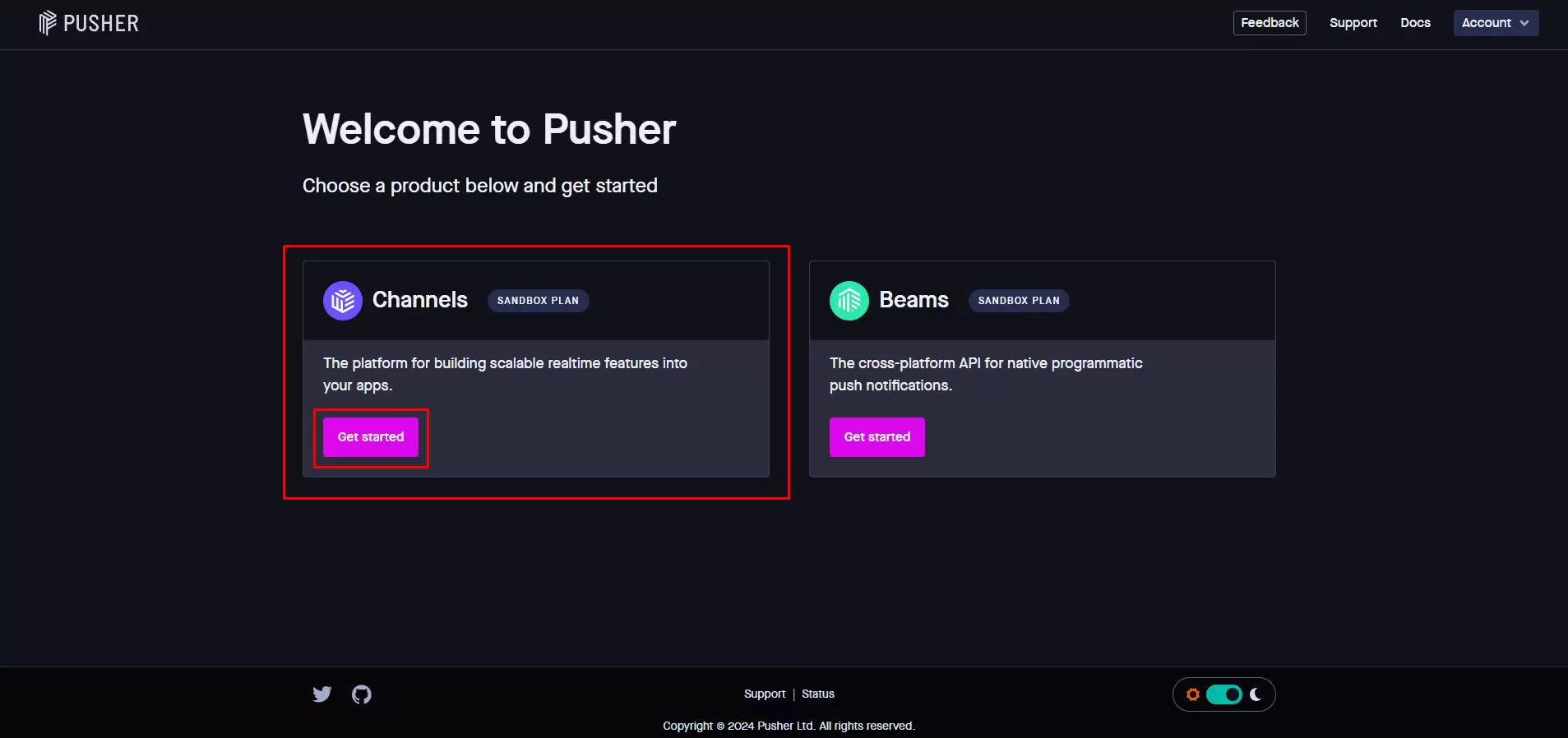
- Click the "Get started" button in the Channels widget.
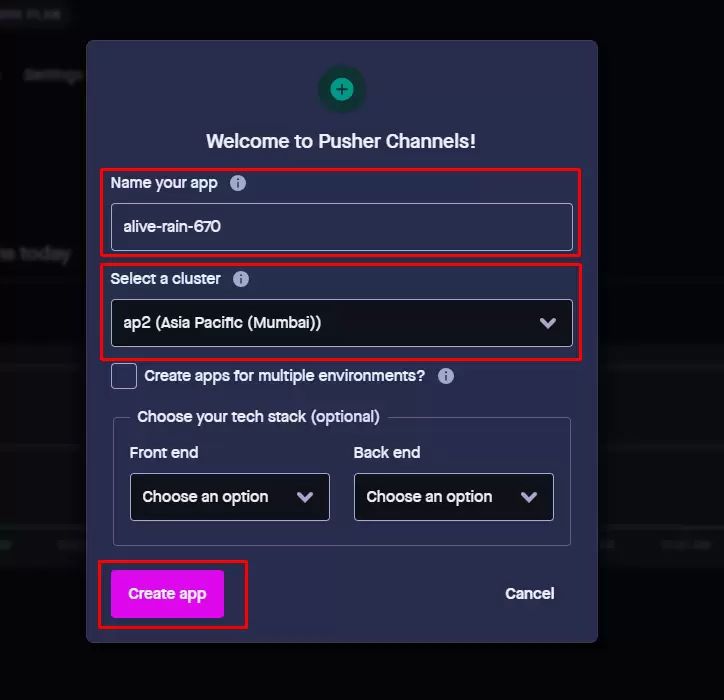
- Create a new app by:
- Entering the app name
- Selecting a cluster
- Clicking the "Create" button
- Close the Channels Quickstart popup by clicking the cross icon.
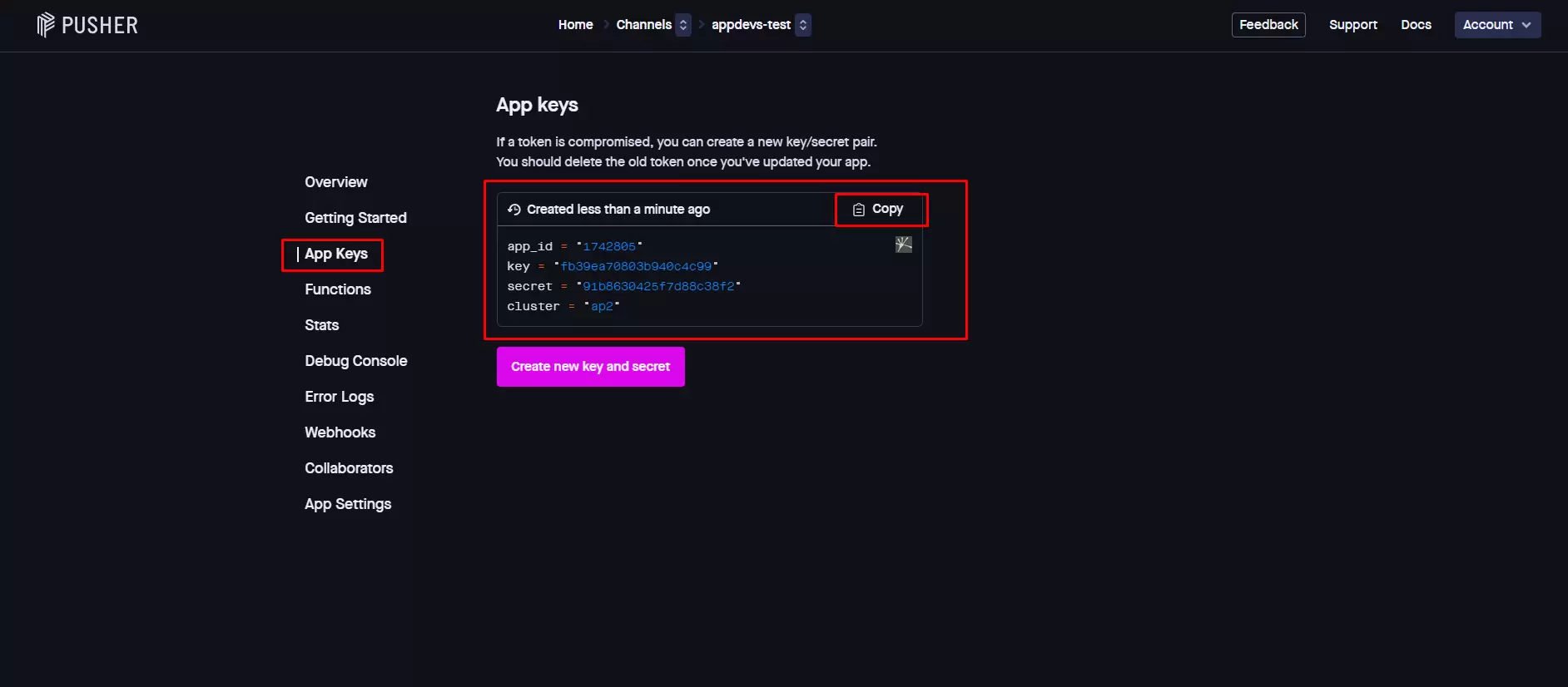
- Navigate to the "App Keys" tab.
- Copy and paste the following into your configuration:
- APP ID
- Primary Key
- Secret Key
- Cluster
Note:
If you encounter any issues during the setup or need further assistance, please reach out to the support team for help.