









This tutorial provides a step-by-step guide on how to configure the KYC (Know Your Customer) setup using the super-admin panel. This feature allows you to define the data collection process required for user identity verification.
Navigation Path
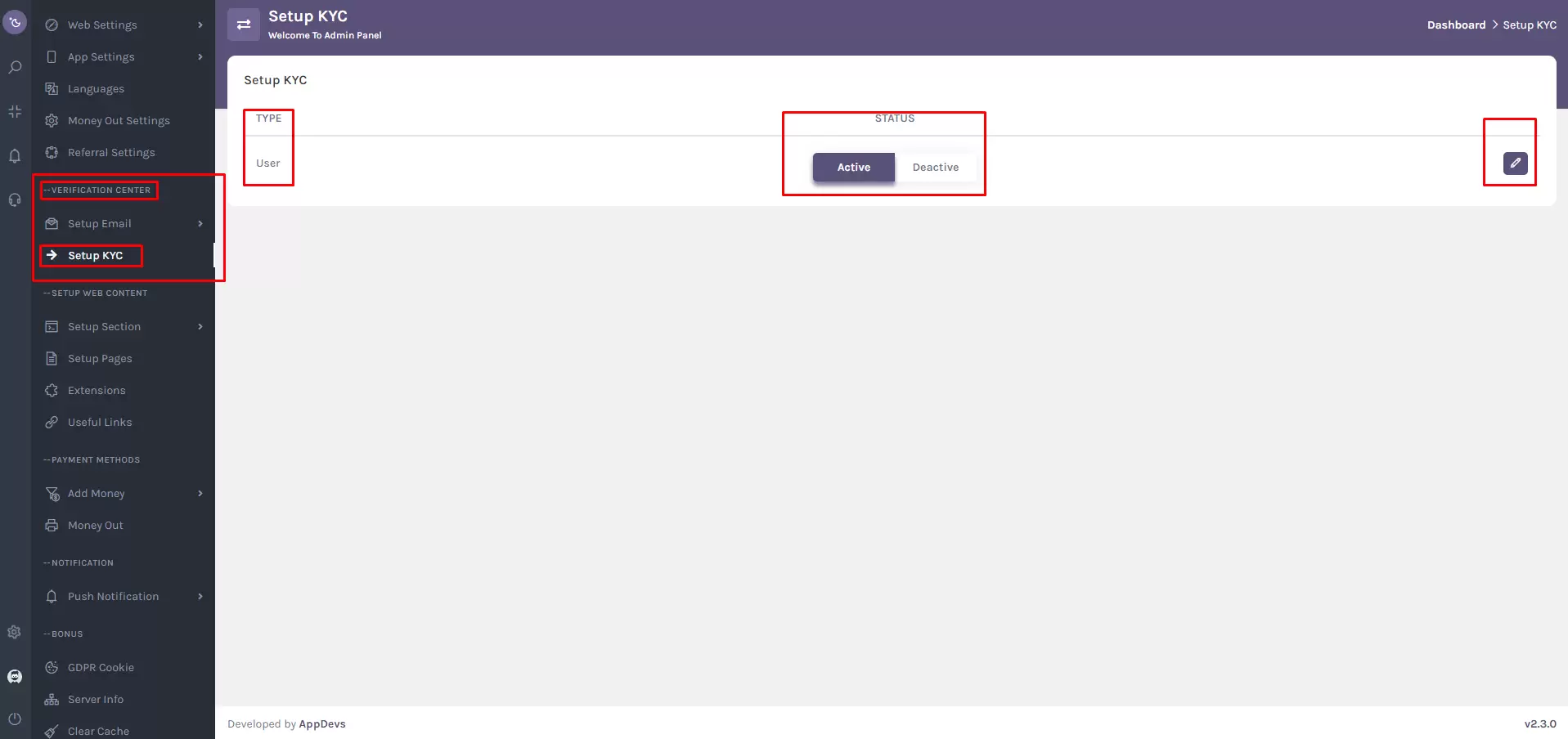
To access the KYC setup page:
Go to:
Verification Center > Setup KYC
Alternatively, you can search for “Setup KYC” using the super-admin panel’s sidebar search box.
Set up KYC Page Overview
On the Setup KYC page, you’ll find a table interface with the following options:
- Type: [Dropdown menu to select the KYC type]
- Status: [Toggle switch: Active/Deactive]
- Action: [Edit Button—Click to open the KYC Data Form page.]
KYC Data Form Configuration
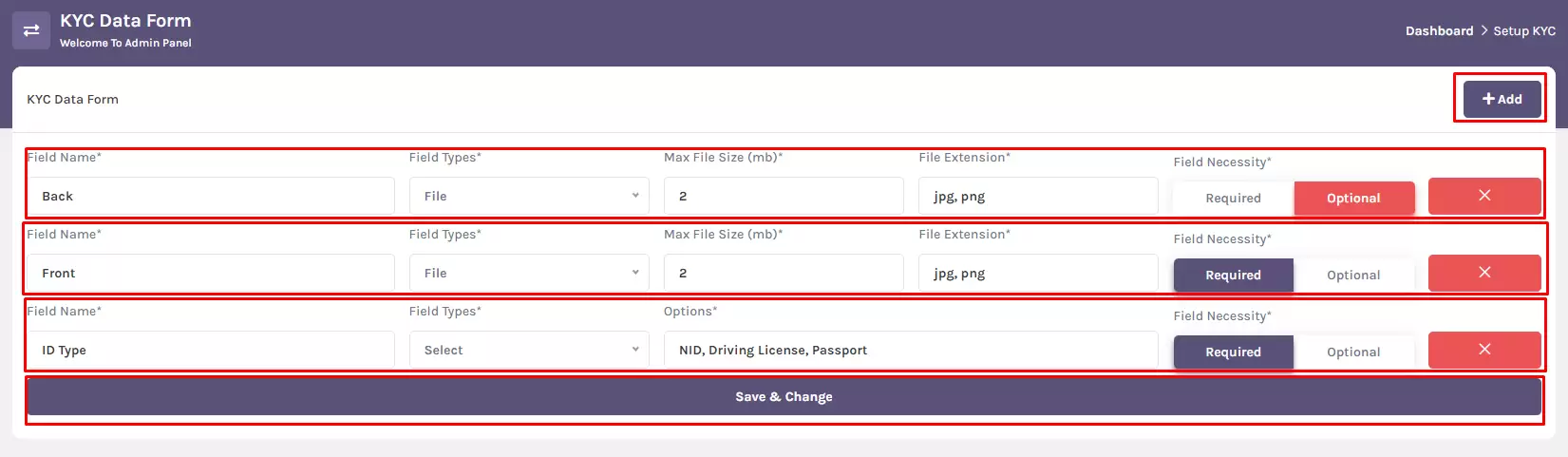
Once on the KYC Data Form page, you can define what information should be collected from users. The following fields are available for configuration:
- Field Name: [Input field—Enter the name of the data field.]
- Field Type: [Dropdown menu—select from input text, file, text area, or select]
- Max File Size (MB): [Input field—Define the maximum file upload size]
- File Extension: [Input field—Specify allowed file types (e.g., jpg, png)]
- Field Necessity: [Toggle switch—Required/Optional]
- Action: [Cross button—Click to delete the row]
Adding New Fields
To add a new KYC field:
- Click the “Add” button to insert a new row.
- Fill in the following details:
- Field Name
- Field Type
- Max File Size (MB)
- File Extension
- Field Necessity
- Repeat the process to add multiple rows as needed.
Saving Configuration
After completing your KYC field setup:
Click the “Save & Change” button to apply and save your settings to the user panel.
Note:
This configuration tool allows you to fully manage and customize how user identity data is collected. If you need further assistance, feel free to contact support.