








This guide provides detailed steps to help you edit web content, specifically the Banner Section, using the super-admin panel.
Navigation Path
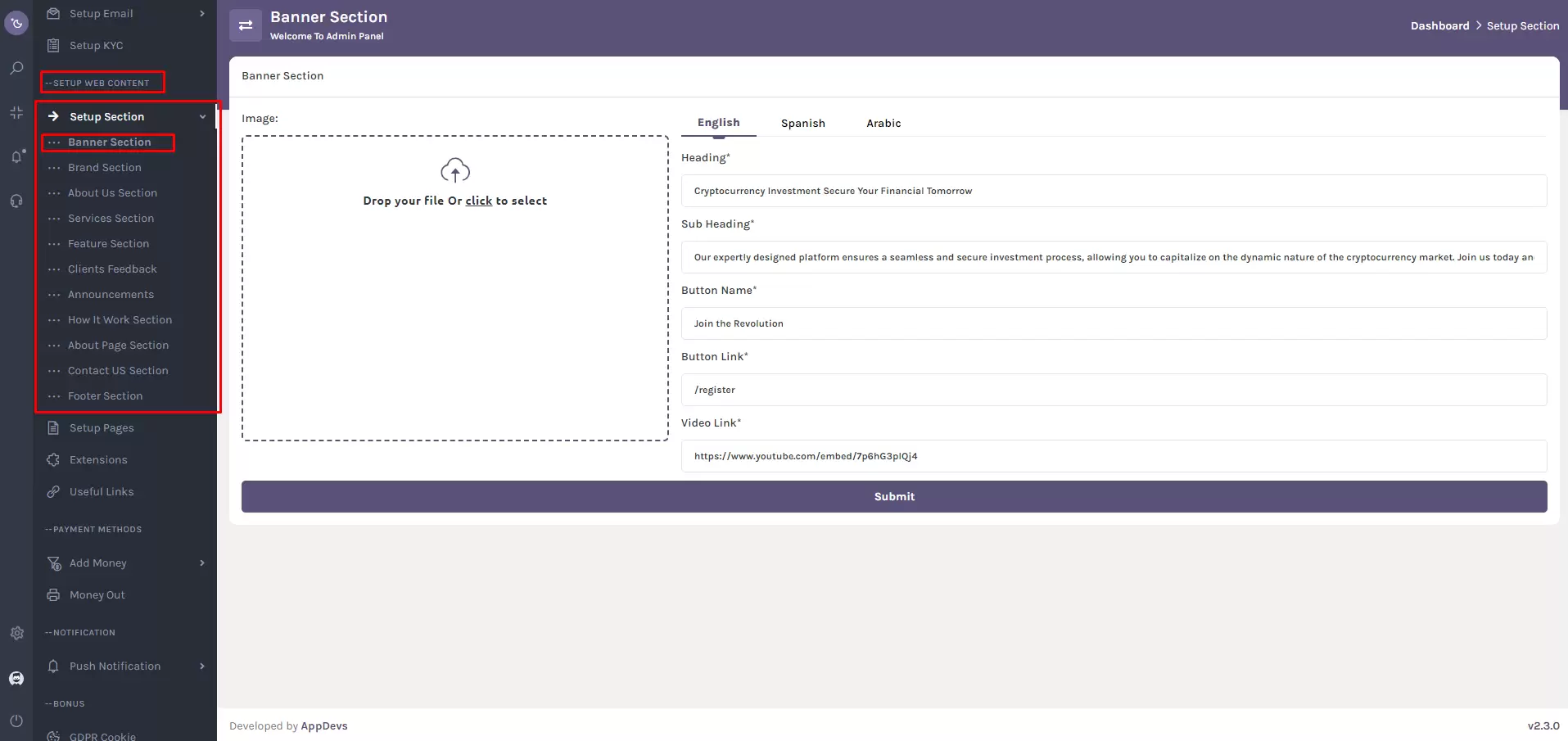
Go to:
Setup Web Content > Setup Section > Banner Section
Alternatively, use the sidebar search in the super-admin panel to find “Banner Section.”
Editing the Banner Section
Follow these steps to update your website banner:
Access Banner Editing Interface
- Inside the “Setup Web Content” module, click on “Setup Section.”
- Select “Banner Section” to access its editing interface.
Updating Banner Image
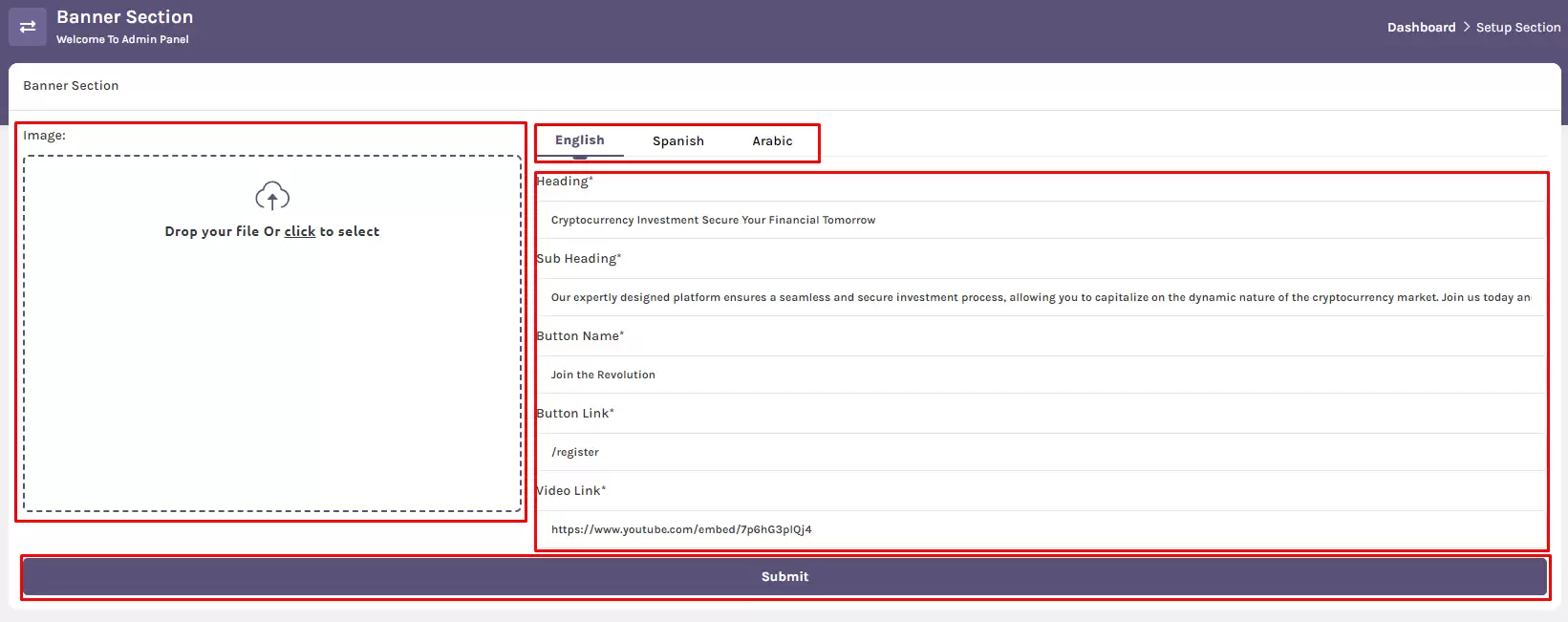
- Use the image upload input with drag-and-drop functionality to change the banner image.
- Replace the current banner thumbnail with a new image effortlessly.
Configuring Multilingual Content
The Banner Section supports content updates in multiple languages, including
- English
- Spanish
- Arabic
Each language tab allows you to customize the banner independently.
Input Fields (Per Language)
For each language tab, fill in the following fields:
- Heading
Enter the primary heading text for your banner. - Sub-heading
Add supporting text to complement the heading. - Button Name
Specify the button label (e.g., “Get Started,” “Learn More”). - Button Link
Provide the destination URL that the button should redirect to. - Banner Video Button Link (optional)
If applicable, include a link to a video associated with the banner.
Submitting Changes:
- Review all entered content across language tabs.
- Click the “Submit” button to save your changes.
Final Confirmation:
After submission, a confirmation pop-up will appear, indicating that your banner content has been successfully updated and is now live on the website.
Note:
The super-admin panel enables efficient management of visual elements and localized content. For assistance, feel free to contact the support team.