







The Business Color Scheme feature in the super-admin panel allows platform administrators to define and customize the system-wide color palette, reinforcing brand consistency across the entire interface. In addition to aesthetic customization, administrators can also control basic functional configurations from a centralized location.
Navigation
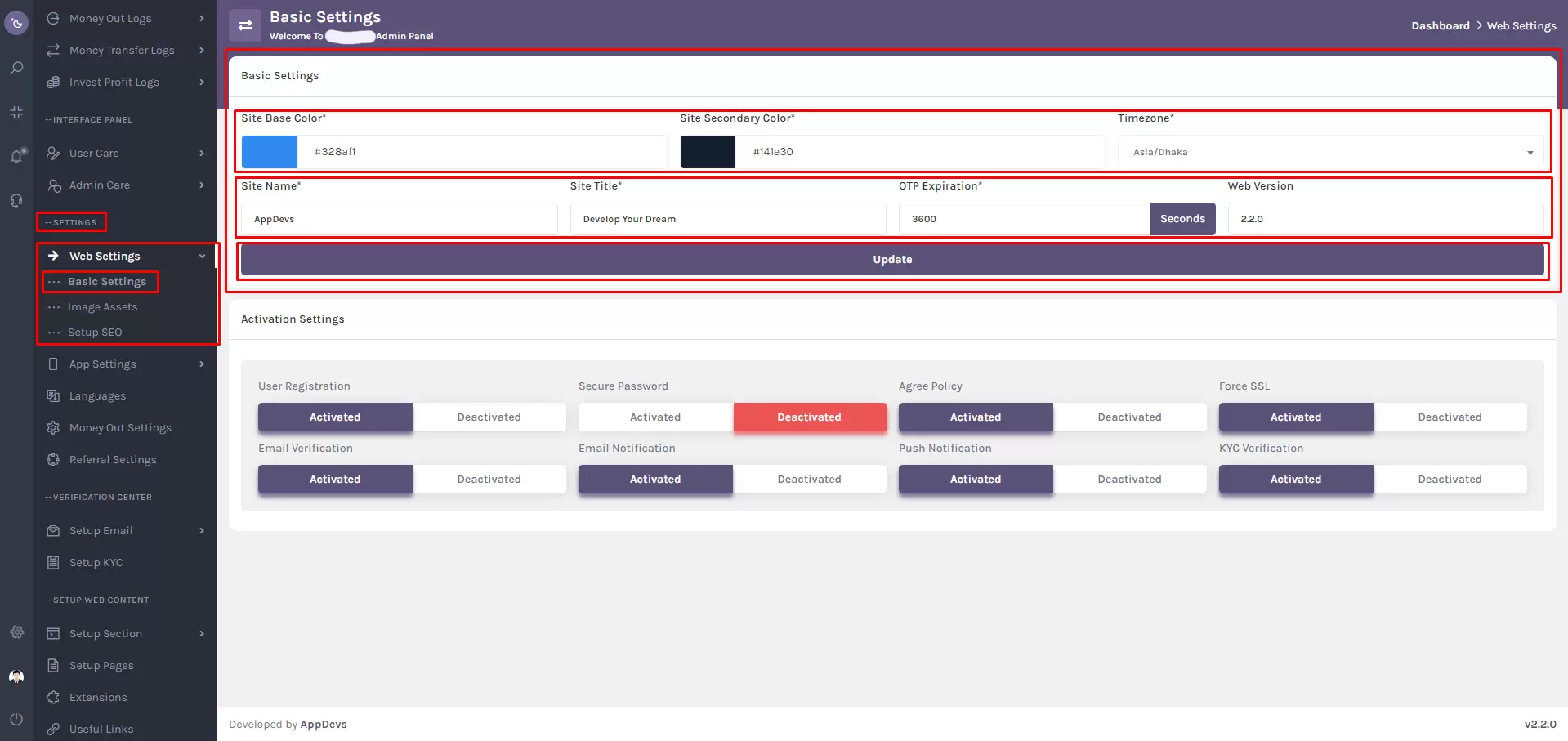
To customize your business colors and basic settings, navigate to:
Settings > Web Settings > Basic Settings
Alternatively, use the sidebar search box in the super-admin panel and search for “Basic Setting.”
Basic Settings Configuration
1. Site Base Color: Use the integrated color picker to define the primary color for your platform. This color influences key UI components, ensuring a cohesive brand identity.
2. Site Secondary Color: Select a complementary secondary color to enhance the visual appearance. This will be used for buttons, highlights, and accent elements.
3. Time zone: Choose your platform's time zone from a searchable dropdown list to align scheduled tasks and timestamps with your operational region.
4. Site Name: Enter the name of your platform in the input field. This will appear across the platform in key display areas.
5. Site Title: Update the site title, which often appears in browser tabs and metadata.
6. OTP Expiration: Define how long One-Time Passwords (OTPs) remain valid. This setting affects processes such as user registration and password recovery.
7. Web Version: Maintain your website version by updating this field. Helpful for tracking deployments and communicating updates.
Note: Always click the “Update” button to save your changes.
⚙️ Activation Settings
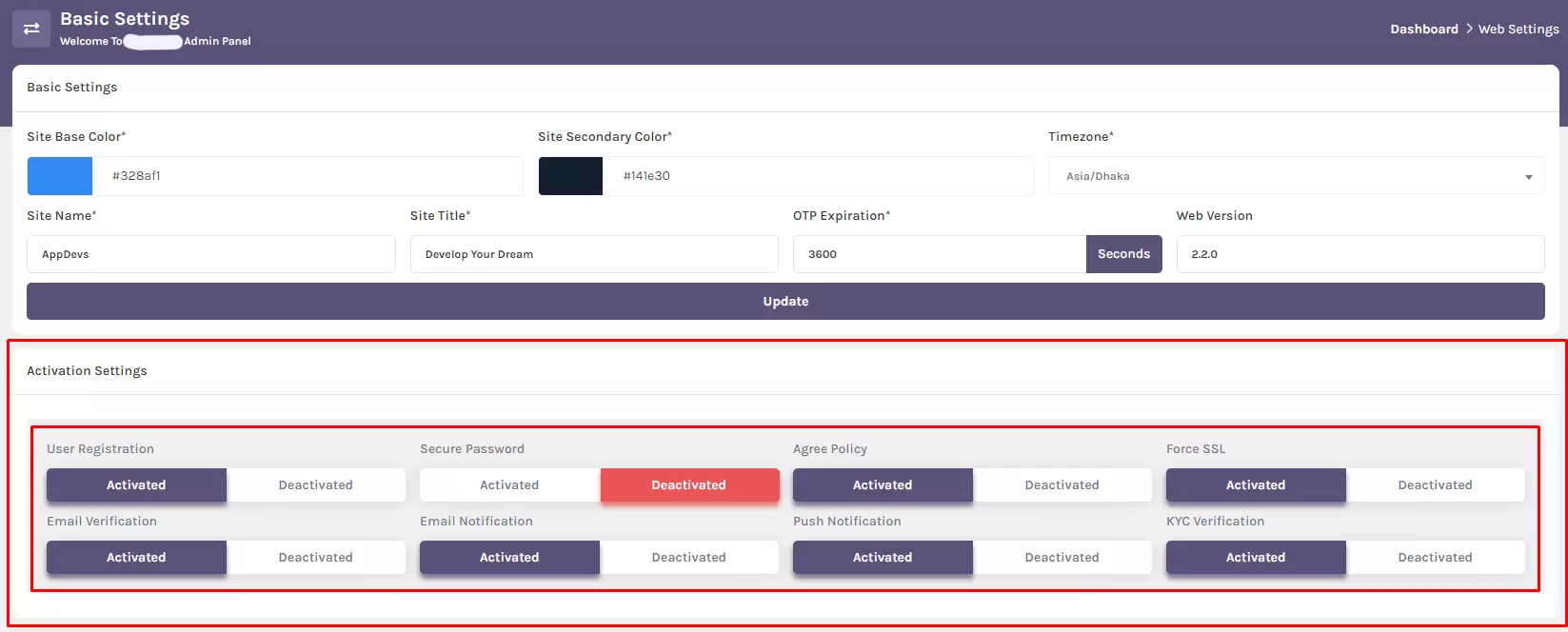
These toggles enable or disable critical platform behaviors:
- User Registration: Enable or disable user sign-ups.
- Secure Password: Enforce secure password policies or allow basic ones.
- Agree Policy: Require users to accept policy terms during registration.
- Force SSL: Enforce HTTPS to secure all site traffic.
- Email Verification: Require users to verify their email upon registration.
- Email Notification: Control if users receive system email alerts.
- Push Notification: Enable browser-based push alerts for users.
- KYC Verification: Mandate identity verification during user onboarding.
Reminder: After configuring activation settings, click "Update" to apply your changes.