



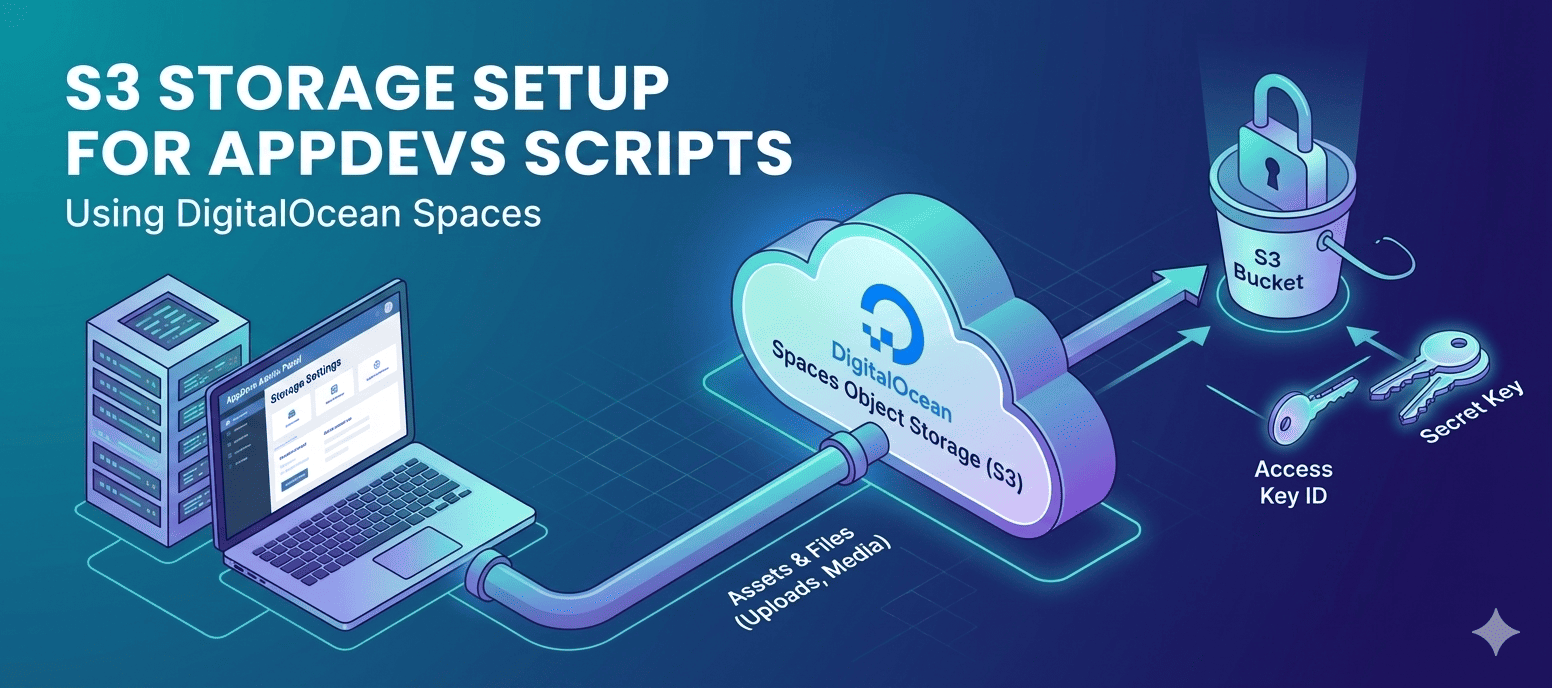
AppDevs has recently released an update for the storage settings. Using this, you can use a third-party storage to store your project’s assets.
With this setup, you can store external files (such as uploads, media, and exports) in DigitalOcean Spaces (S3-compatible storage) instead of keeping them on the application server. This helps keep your project more secure and easier to manage, because storage can be controlled independently and credentials can be rotated when needed.
Before you start
You’ll need:
- A DigitalOcean account
- A Spaces Bucket
- A Spaces Access Key ID + Secret Key
- Your AppDevs Admin Panel access (to update storage settings)
You’ll later enter these values into the script:
ACCESS_KEY_IDSECRET_KEYREGION(example:sgp1)BUCKET_NAMEENDPOINTURL(bucket base URL or CDN URL)
Step 1: Log in to DigitalOcean
Log in to your DigitalOcean account using your own credentials (email & password).
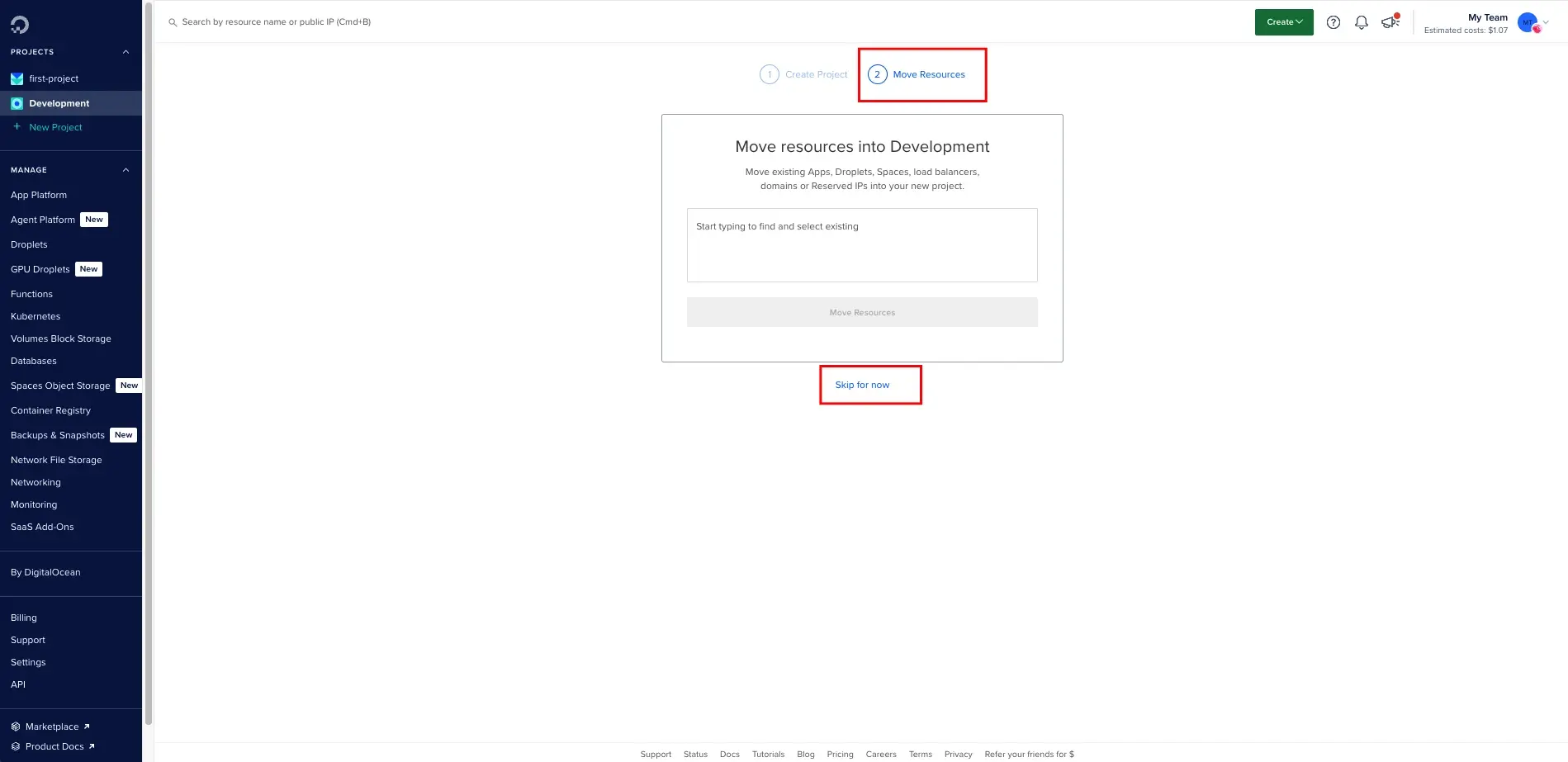
Step 2: Create a Project (optional)
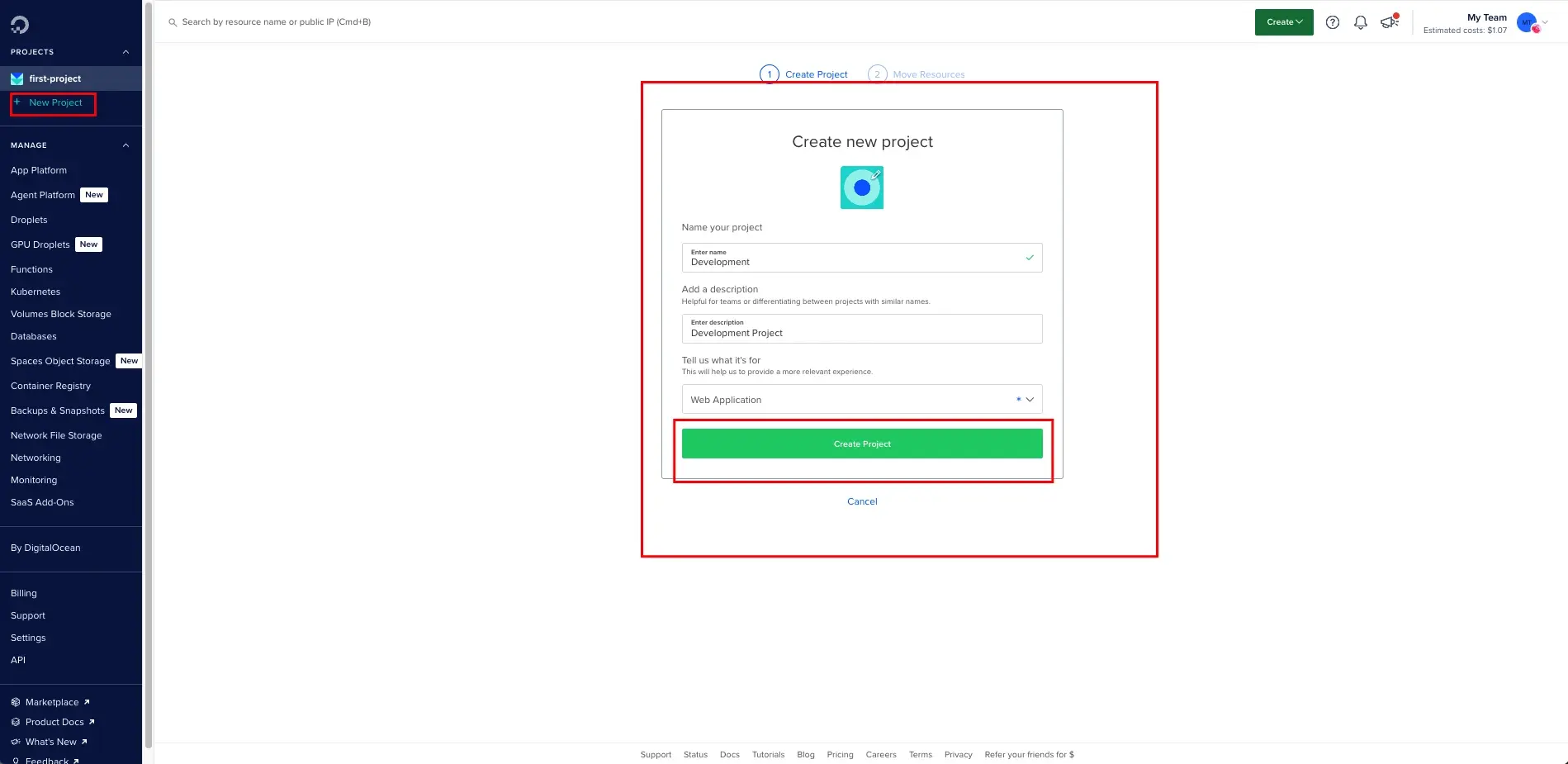
If you don’t already have a project (or want a clean setup), create one:
- Click New Project. Fill in:
- Project name
- Description
- Purpose → select Web Application
- Click Create Project
Note: If you already have a project, you can reuse it and continue to the next step.
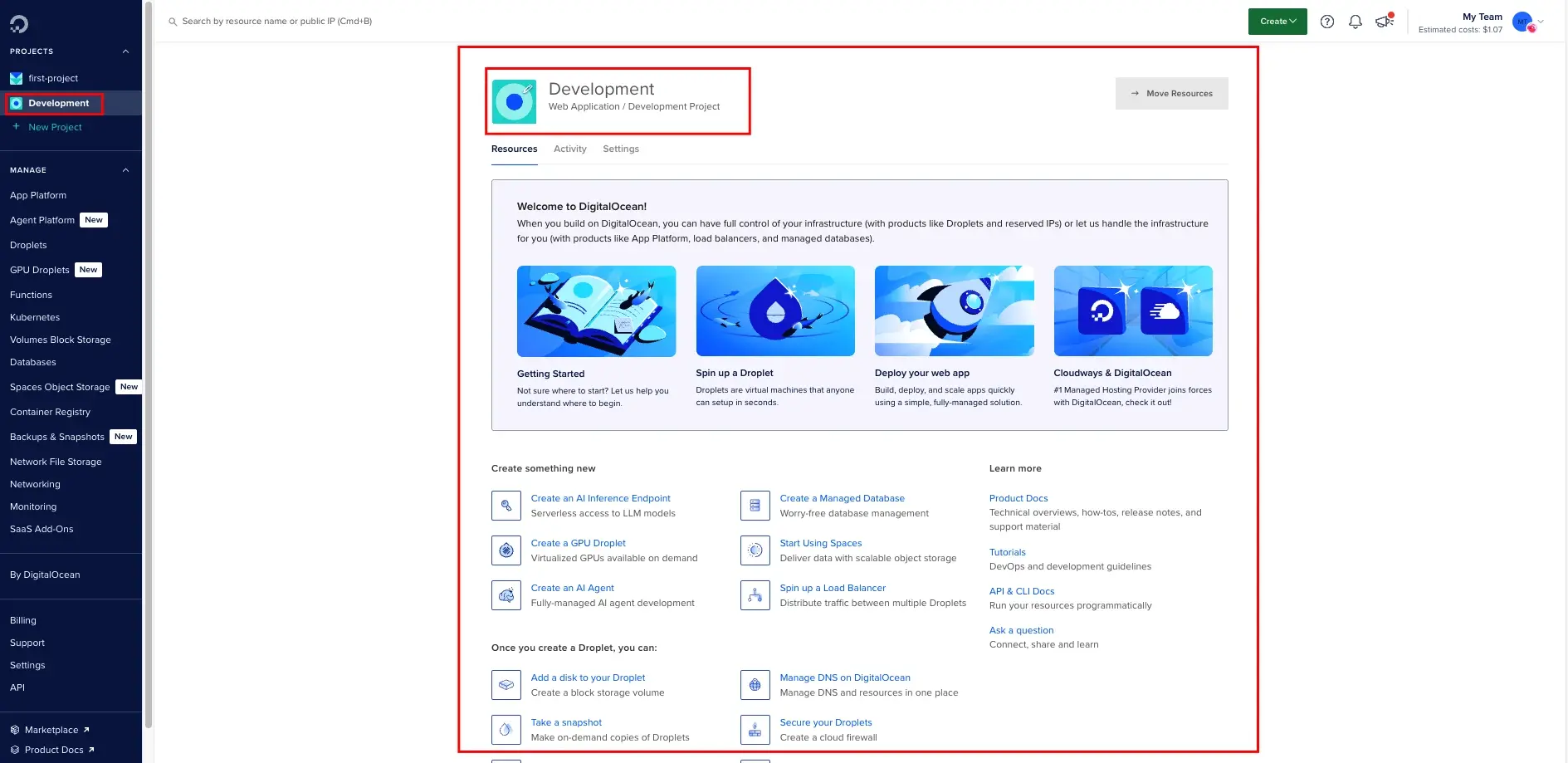
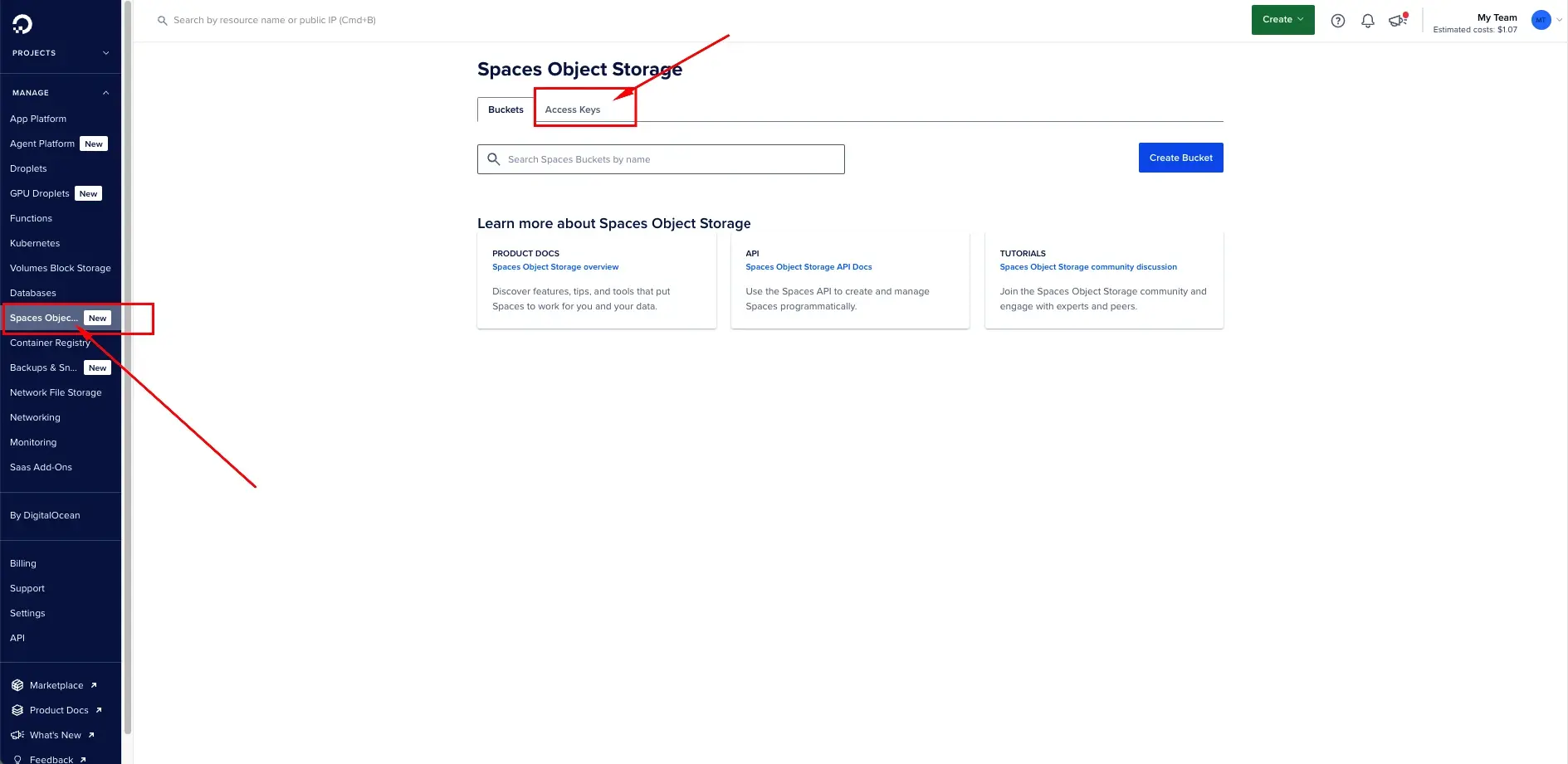
Step 3: Open Spaces Object Storage
From the left sidebar, go to Spaces Object Storage
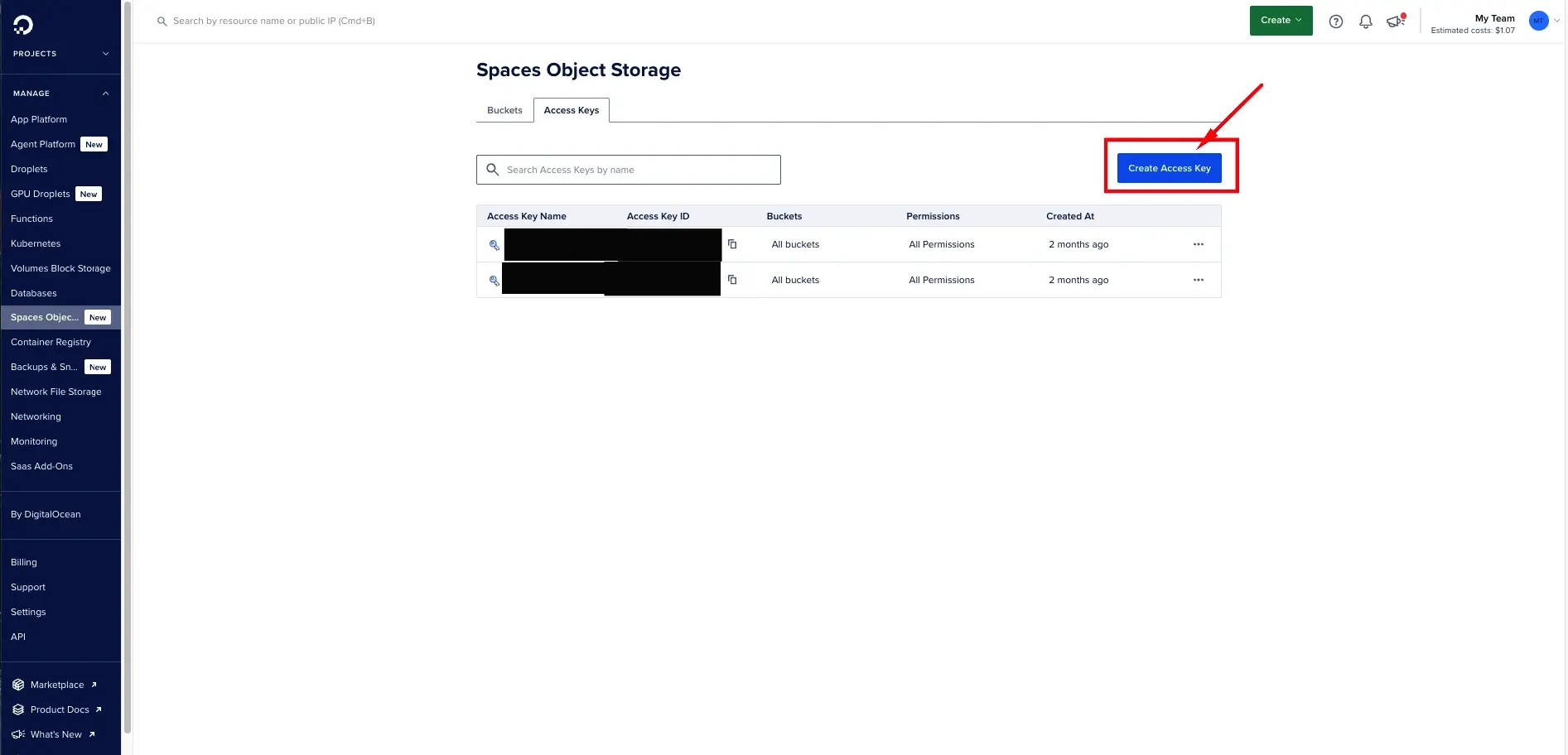
Step 4: Create Access Keys (ACCESS_KEY_ID + SECRET_KEY)
Spaces requires an access key pair to authenticate with S3-compatible storage.
- Click the Access Keys tab. Either:
- Use an existing key from the list, or
- Click Create Access Key to generate a new one.
- If needed, use the three-dot (⋮) menu to regenerate a key.
Security note: Treat the Secret Key like a password. Don’t store it in chat messages, tickets, or frontend code. Place it only in your Admin Panel/environment secrets.
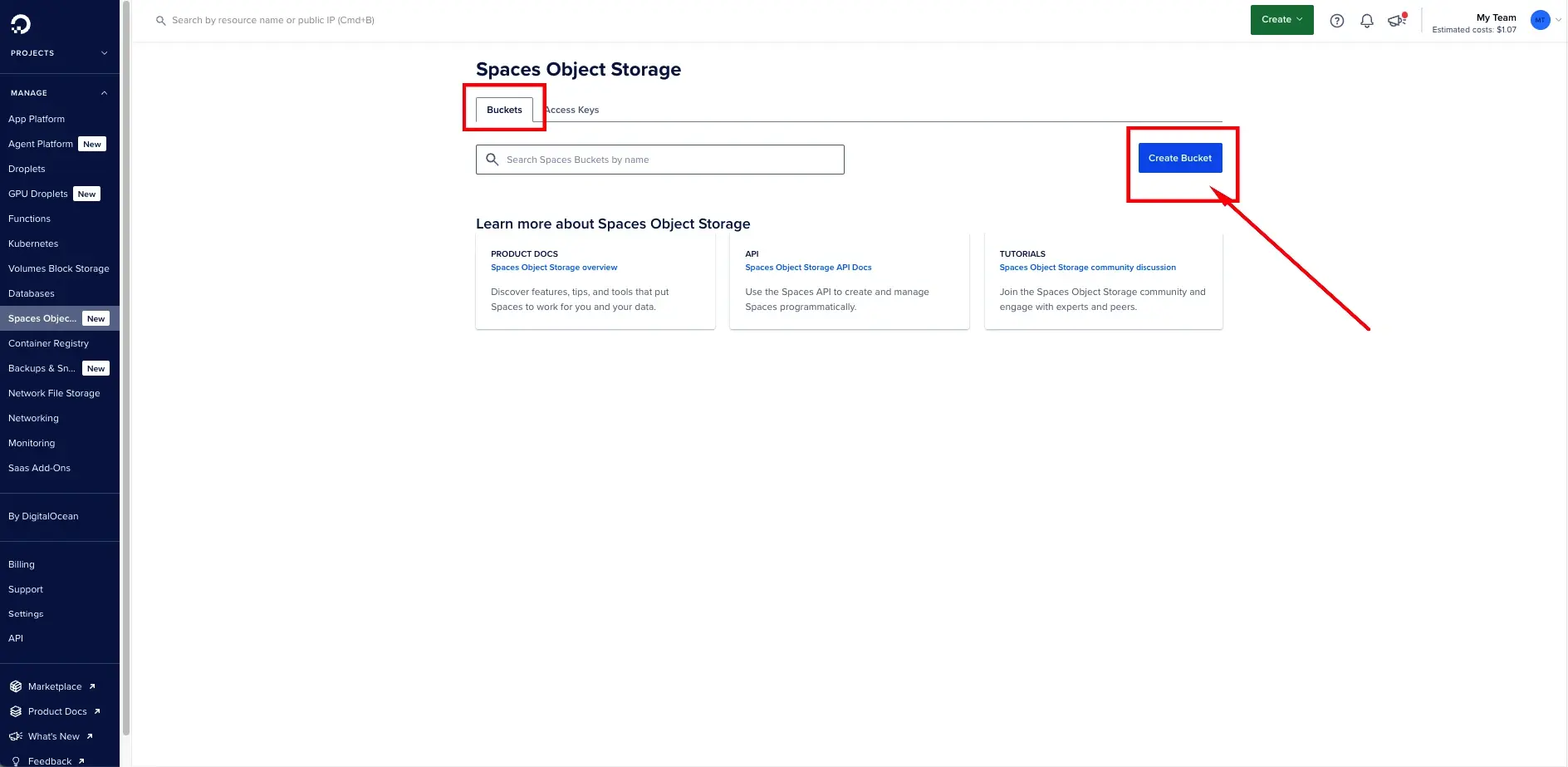
Step 5: Create a Spaces Bucket
A bucket is where all your uploaded files and assets will live.
- Go back to the Buckets tab
- Click Create Bucket
Choose region + storage type.
- Select the datacenter region (example shown: Singapore
sgp1) - Choose a storage type (Standard Storage is common)
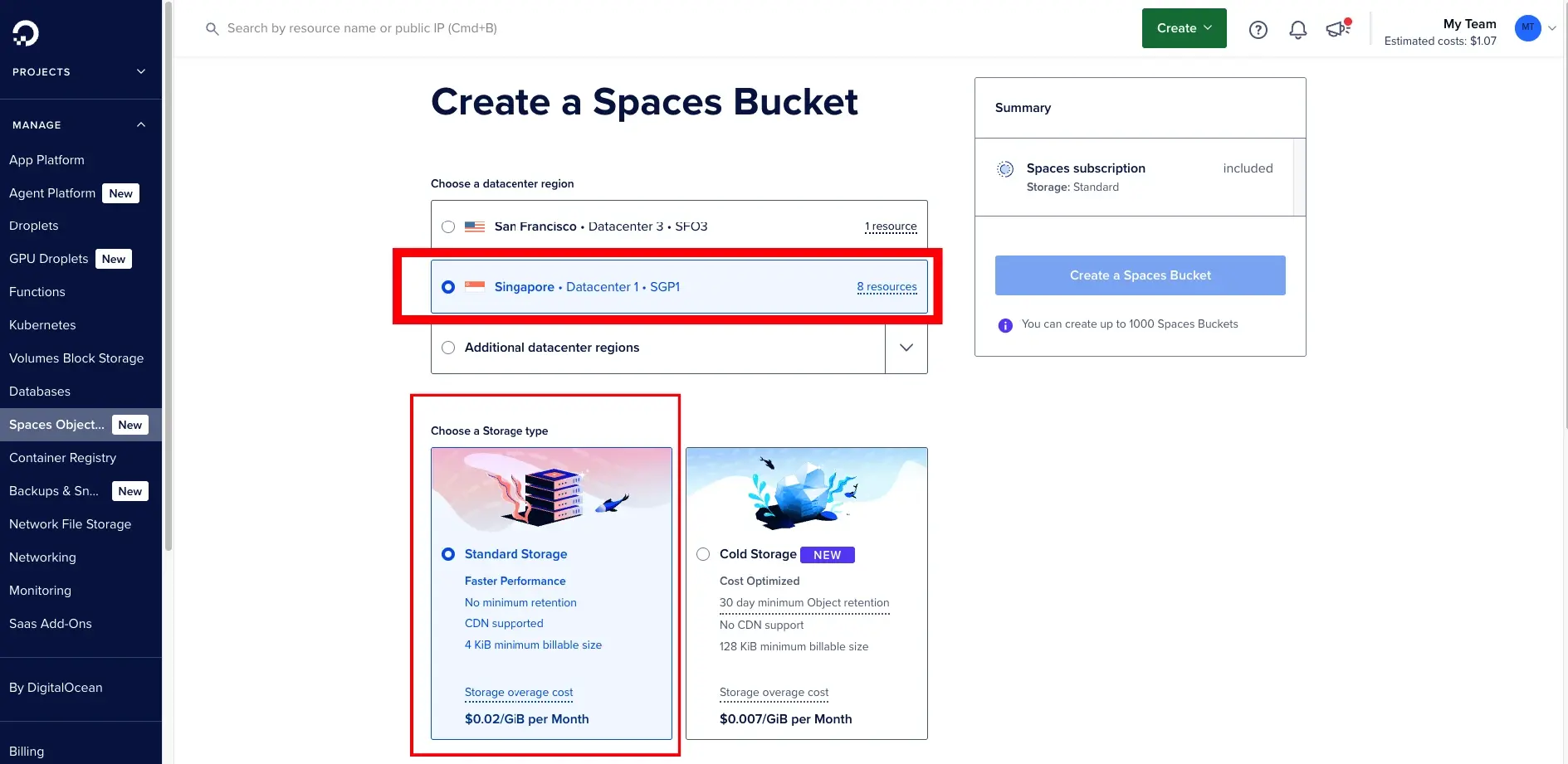
Finalize bucket settings
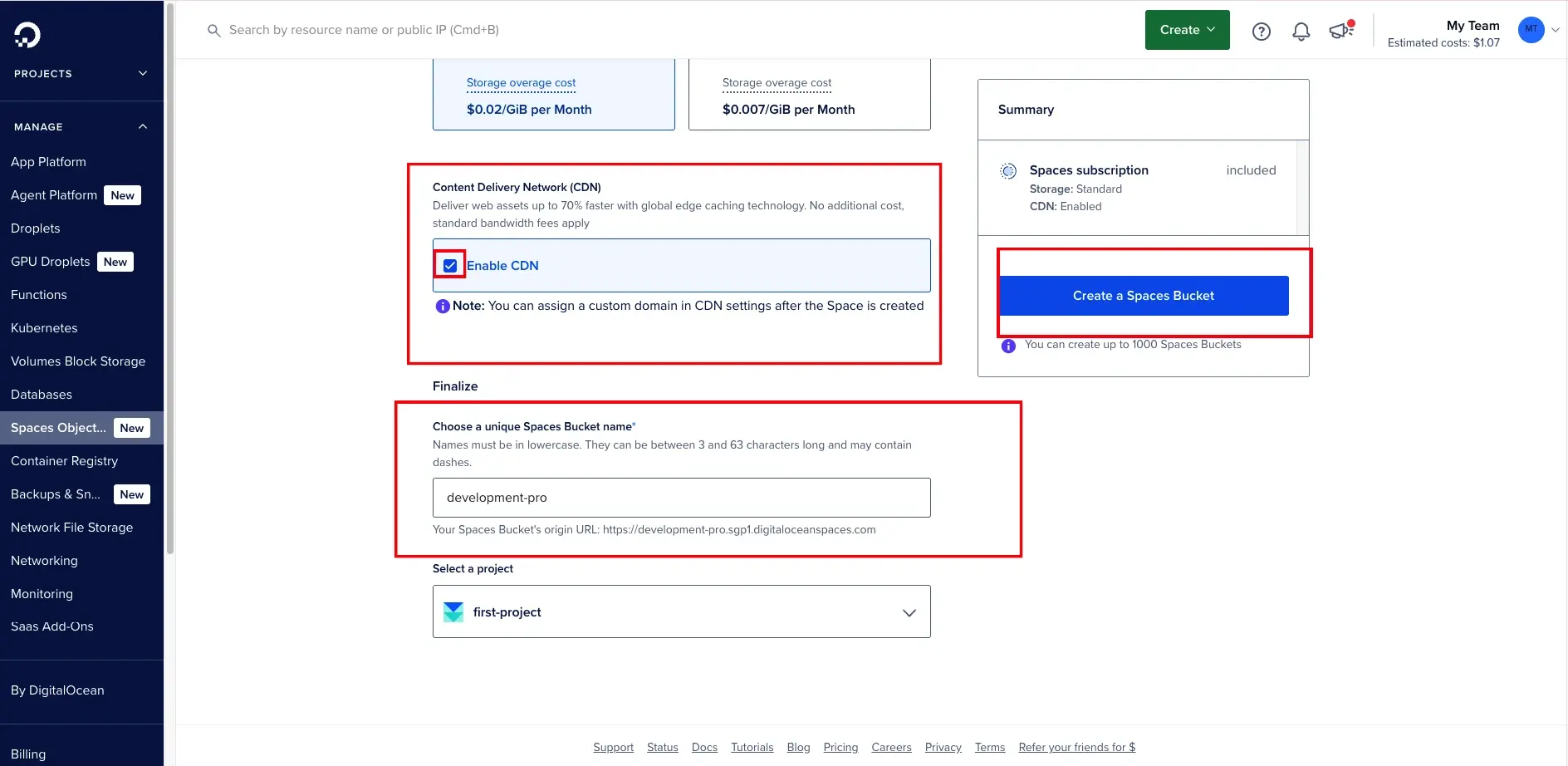
- (Optional) Enable CDN if you want faster global delivery for public assets
- Enter a bucket name
- Select the correct Project
- Click Create a Spaces Bucket
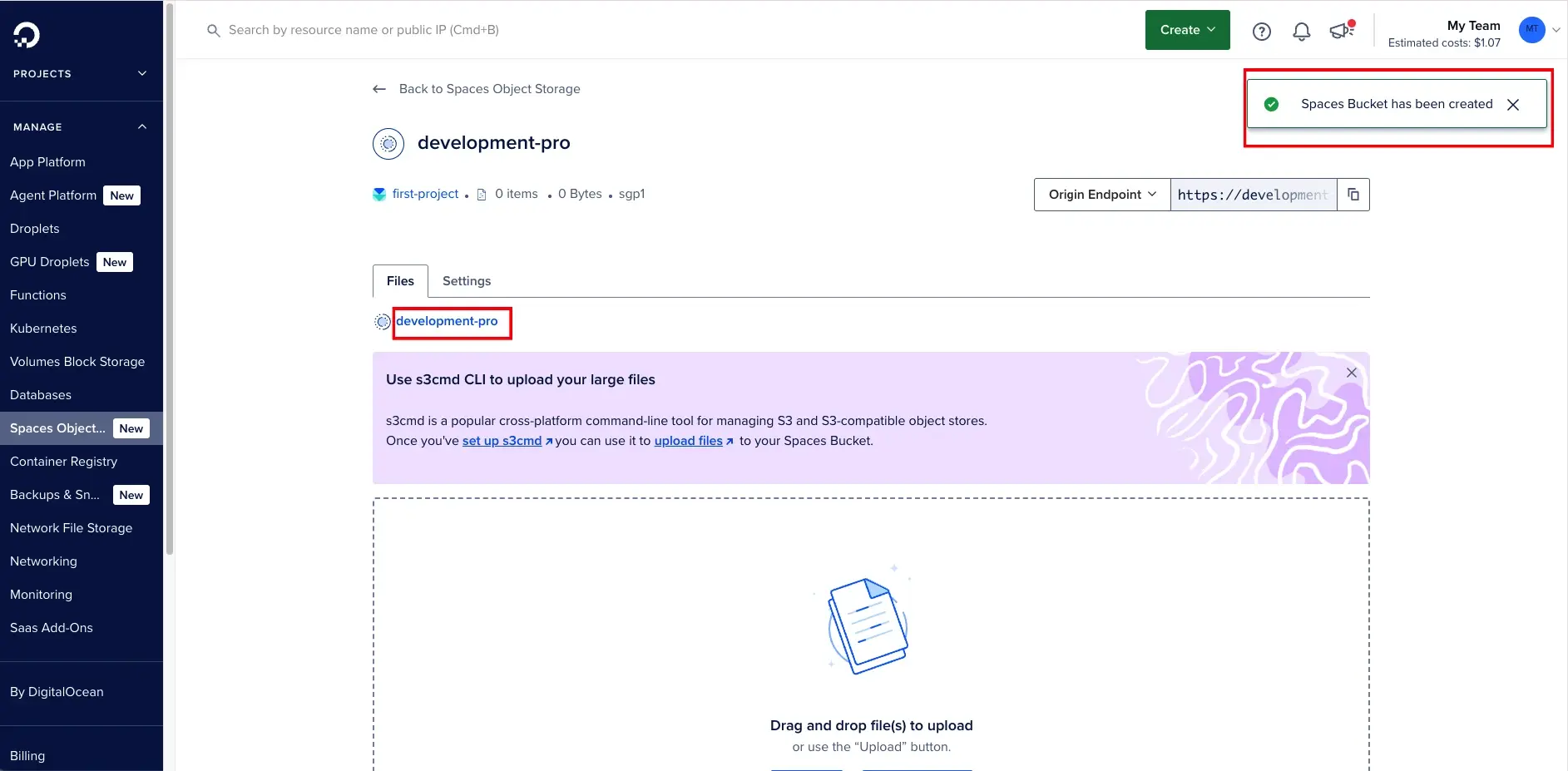
After creation, DigitalOcean shows a success message and the bucket details, including the Origin Endpoint.
Step 6: Add Spaces credentials to the AppDevs Script
Once your bucket and keys are ready, configure your application:
- Log in to your AppDevs Admin Panel
- Go to: Dashboard → Storage Settings.
- Set Storage Method to S3 Storage
- Fill in the fields using the mapping below
- Click Update
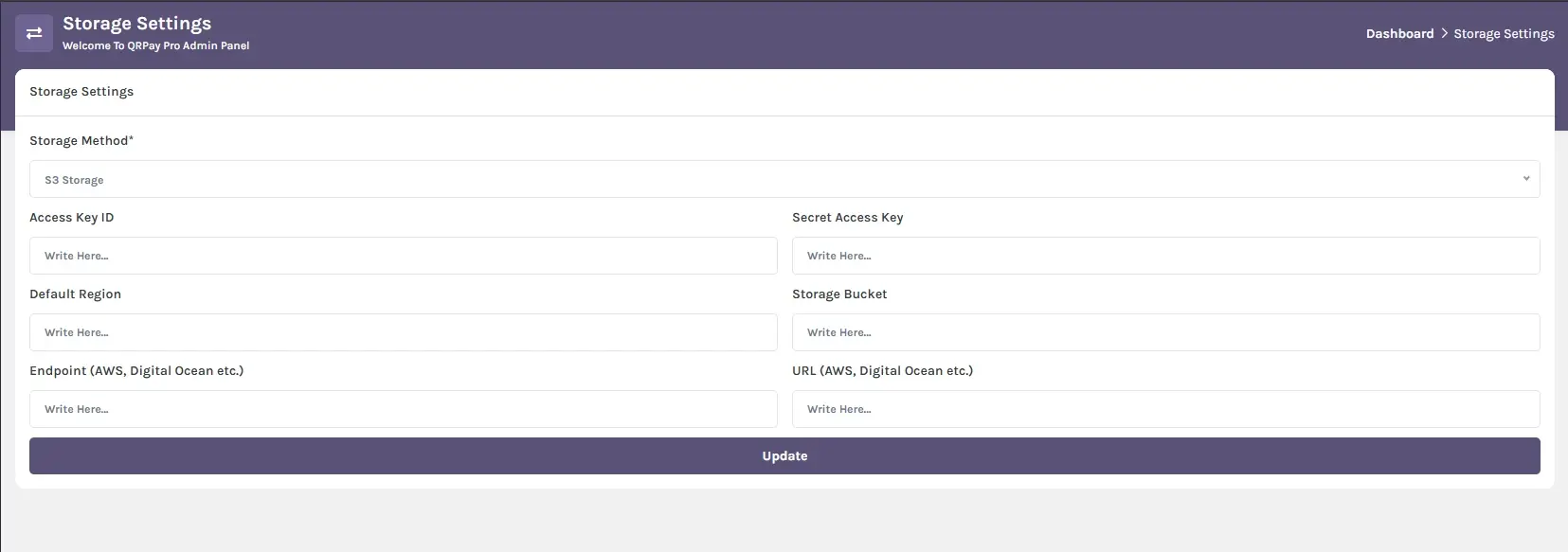
Field mapping (DigitalOcean Spaces)
Storage Method
S3 Storage
Access Key ID
- Your DigitalOcean Spaces Access Key ID
Secret Access Key
- Your DigitalOcean Spaces Secret Key
Default Region
- The bucket’s region slug, for example:
sgp1(Singapore)nyc3,sfo3,fra1, etc.
Storage Bucket
- Your bucket name (example:
development-pro)
Endpoint (AWS, Digital Ocean, etc.)
- Use the Spaces region endpoint host:
sgp1.digitaloceanspaces.com- (or your selected region)
Step 7: Upload existing assets (required to prevent missing files)
After switching to Spaces, your application will start looking for assets in the bucket. To make sure nothing breaks, you must copy existing files from:
- Storage
/app/public
Upload all contents (keep folder structure the same) to your Spaces bucket. This ensures existing:
- images
- documents
- media uploads
…continue to load correctly after the storage switch.