








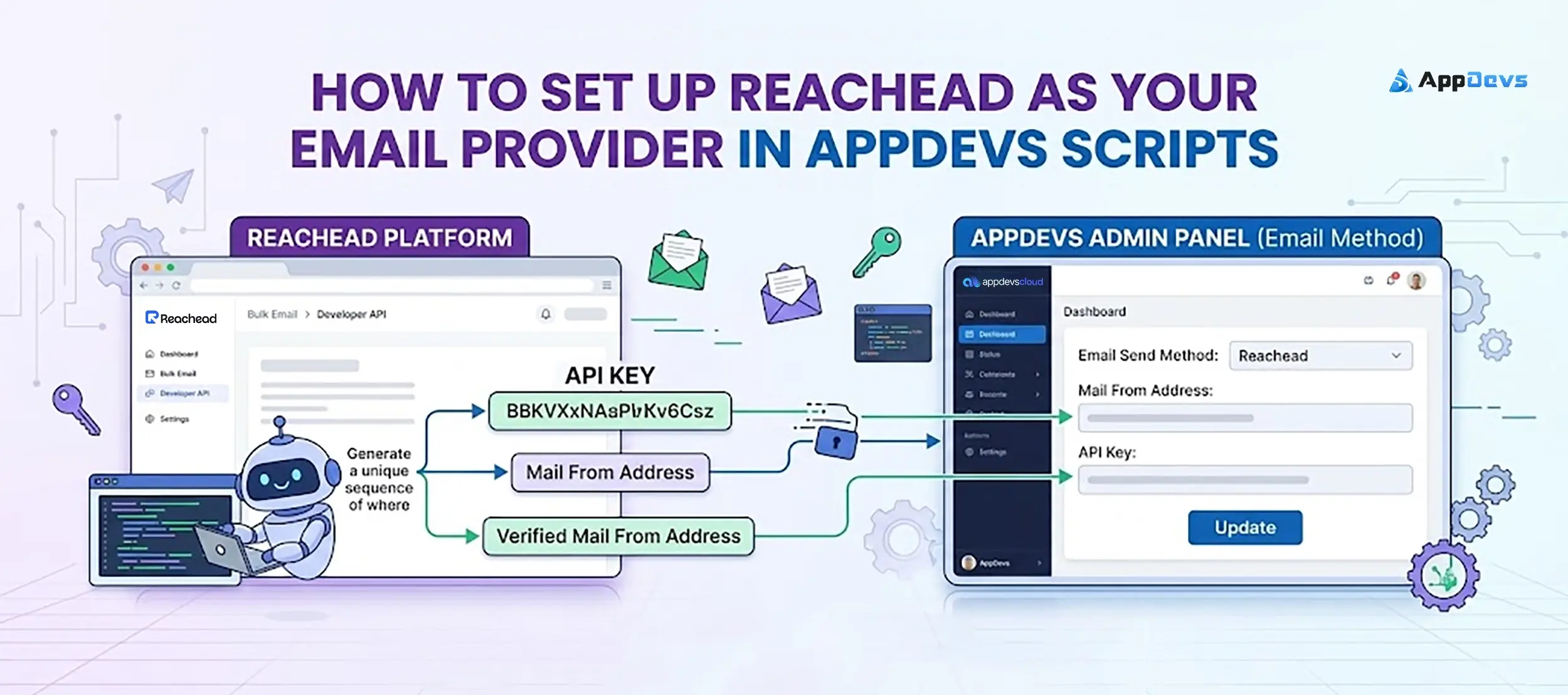
AppDevs has recently released an update for the email settings. You can now use Reachead as the email provider for your project.
Reachead is the AppDevs outreach and email platform. With this setup, your script sends its system emails (such as verification codes, password resets, and notifications) through the Reachead Developer API. You only need two values: a Mail From Address and an API Key. There is no SMTP host, port, or encryption setting to configure.
Before you start
You'll need:
- A Reachead account
- A verified sending address in Reachead (the address your emails will be sent from)
- Your AppDevs Admin Panel access (to update the email settings)
You'll later enter these values into the script:
- Mail From Address
- API Key
Step 1: Sign up or log in to Reachead
Go to reachead.com and create an account, or log in if you already have one. After logging in, you'll land on your Reachead Portal.
Note: Your Mail From Address must be one of your verified sending addresses in Reachead. If you haven't verified one yet, set it up from Bulk Email > Sending Domains before moving on.
Step 2: Create a Developer API Key
The API key connects your AppDevs script to Reachead so it can send emails on your behalf.
- From the left sidebar, go to Bulk Email > Developer API.
- Click Create Key.
- Copy the new key and store it somewhere safe. You'll need it in the next step.
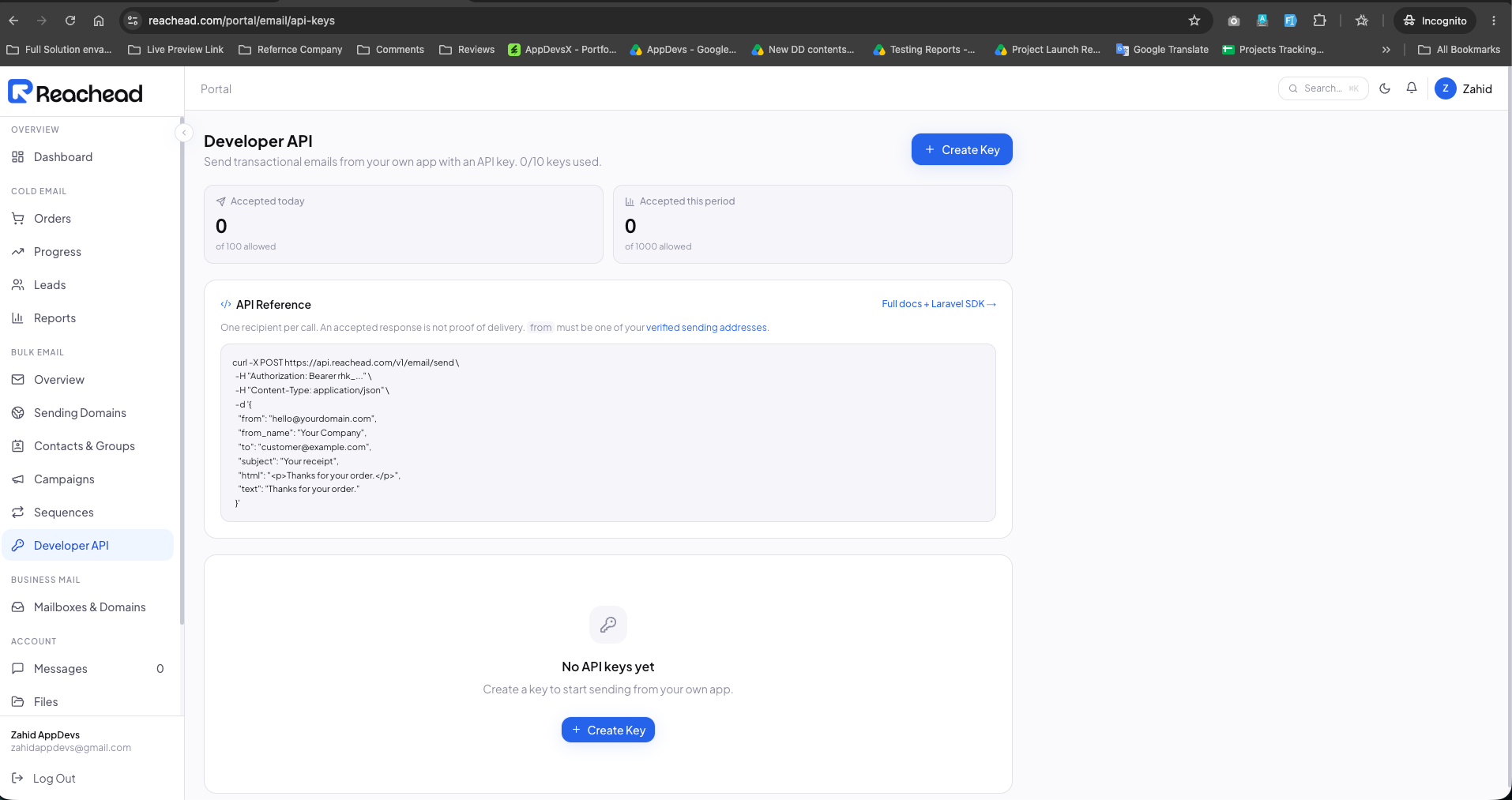
The Developer API page also shows how many emails were accepted today and in the current period, along with your plan's limits. You can come back here anytime to check your usage.
Security note: Treat the API key like a password. Don't share it in chat messages, tickets, or frontend code. Place it only in your Admin Panel.
Step 3: Add Reachead to the AppDevs Script
Once your API key is ready, configure your application:
- Log in to your AppDevs Admin Panel.
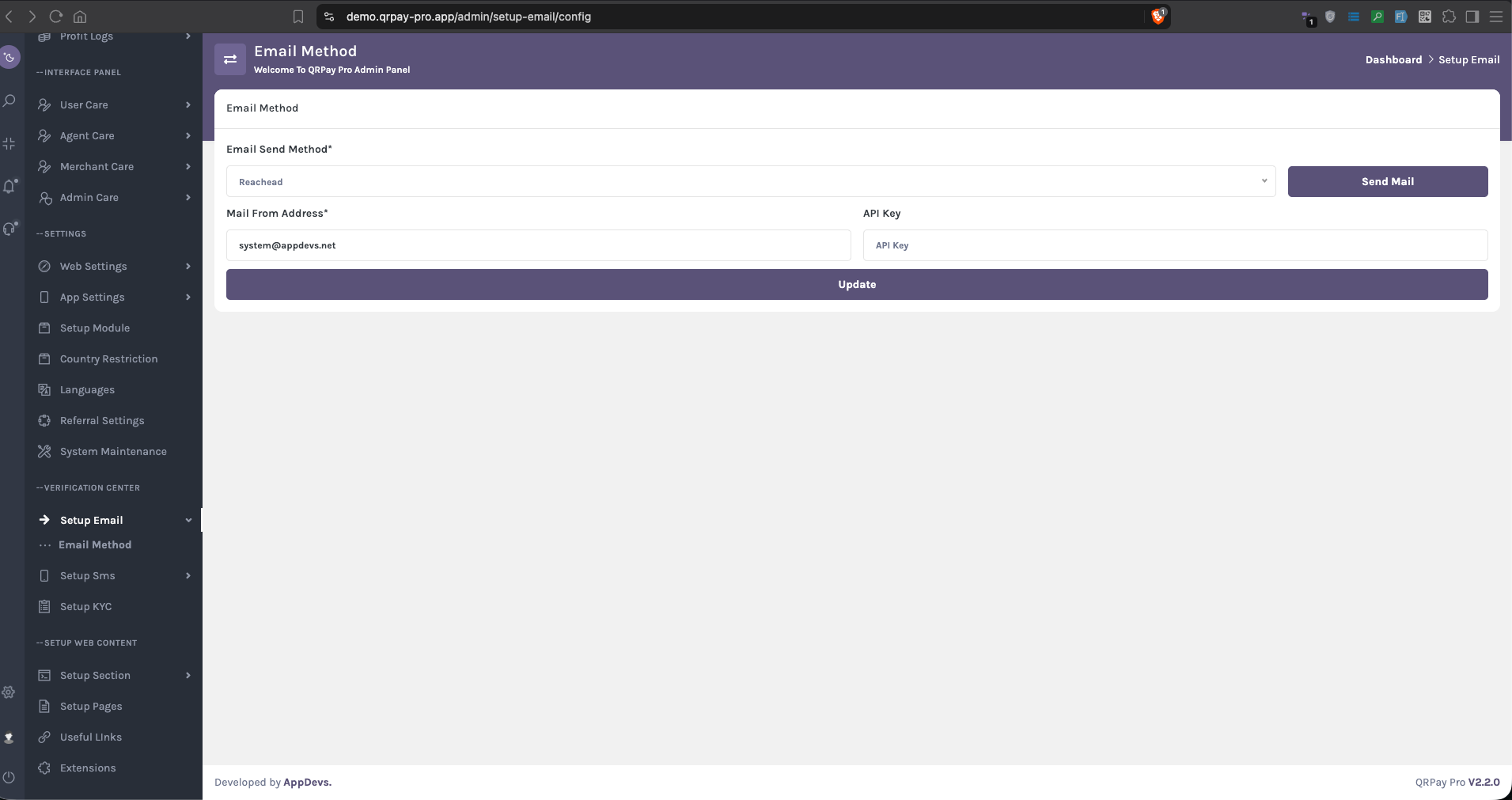
- Go to: Setup Email > Email Method. You can also search "Email Method" from the admin sidebar search box.
- Set Email Send Method to Reachead.
- Fill in the fields using the mapping below.
- Click Update.
Step 4: Send a Test Email
Before going live, send a test email to make sure everything is connected correctly.
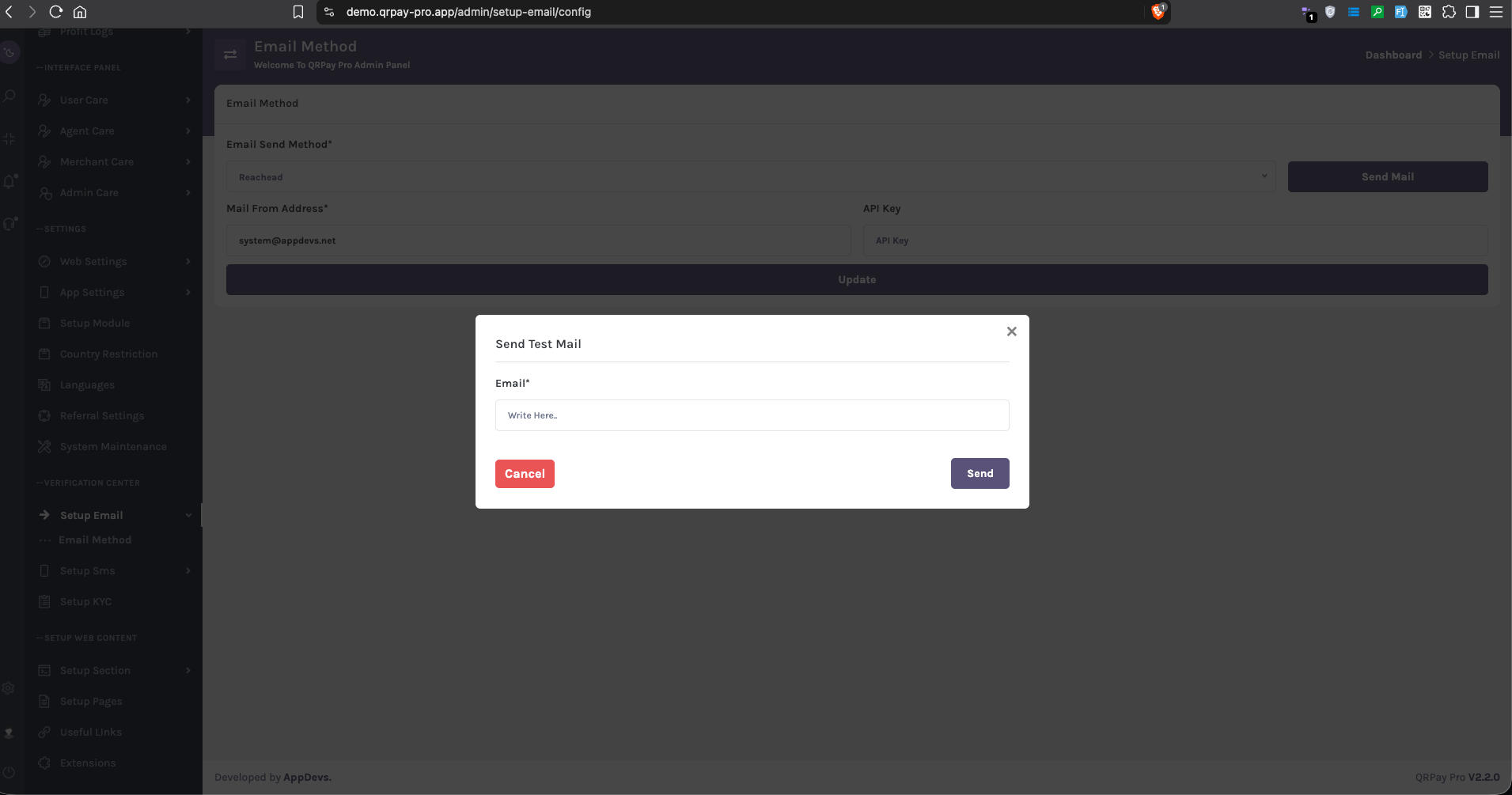
- On the same Email Method page, click Send Mail.
- In the Send Test Mail popup, enter an email address you can check.
- Click Send.
- Open that inbox and confirm the test email has arrived. If you don't see it, check the spam folder too.
You're Ready to Go
Once the test email arrives, your setup is complete. Your project will now send all its system emails through Reachead.
If the test email doesn't arrive, check the following:
- API Key: Make sure the full key was copied with no extra spaces.
- Mail From Address: It must match a verified sending address in your Reachead account.
- Sending limits: Check the Developer API page in Reachead to see if you've reached your daily or period limit.
Still having trouble? Contact the AppDevs support team and we'll help you get it set up.