








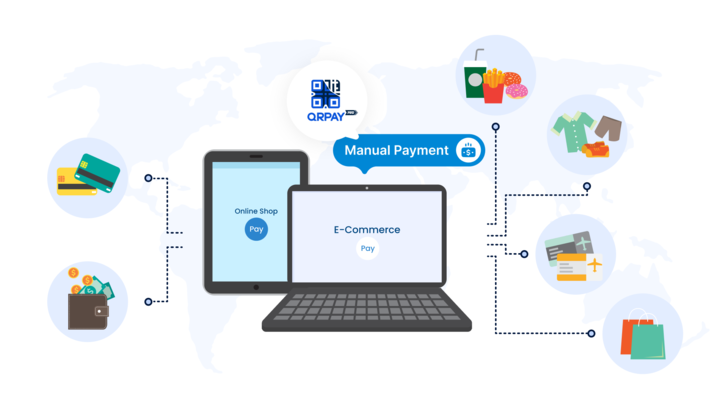
When people hear about digital wallets, they often imagine everything happening automatically — APIs, instant transfers, and online banks. But what if your business doesn’t have access to those APIs? Or what if you want your users to deposit or withdraw money through local banks that aren’t yet connected to your system?
That’s where QRPay Pro’s Manual Payment Gateway comes in — an underrated but extremely powerful feature that gives admins complete flexibility.
What is the Manual Payment Gateway?
The Manual Payment Gateway is a built-in feature of QRPay Pro that allows admins to set up custom deposit and withdrawal methods without relying on bank APIs or automatic gateways.
Think of it as a bridge:
- Users can still deposit or withdraw money.
- Admins can still track everything securely.
- And it works perfectly even with local banks or payment services that don’t provide APIs.
Real-Life Example: Deposit Money Using a Local Bank
Let’s imagine you want your users to deposit money into their QRPay wallet using a local bank.
Here’s how it works:
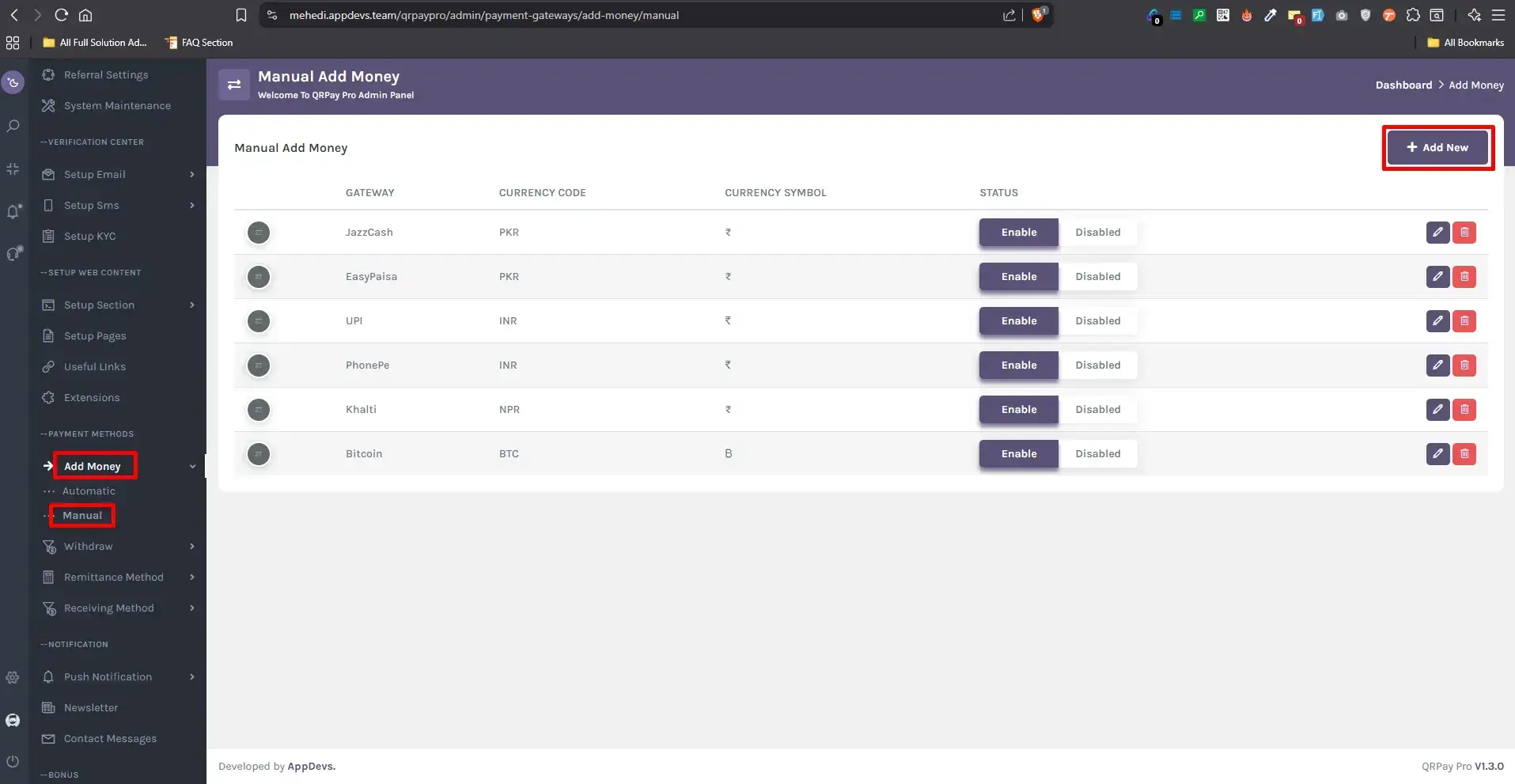
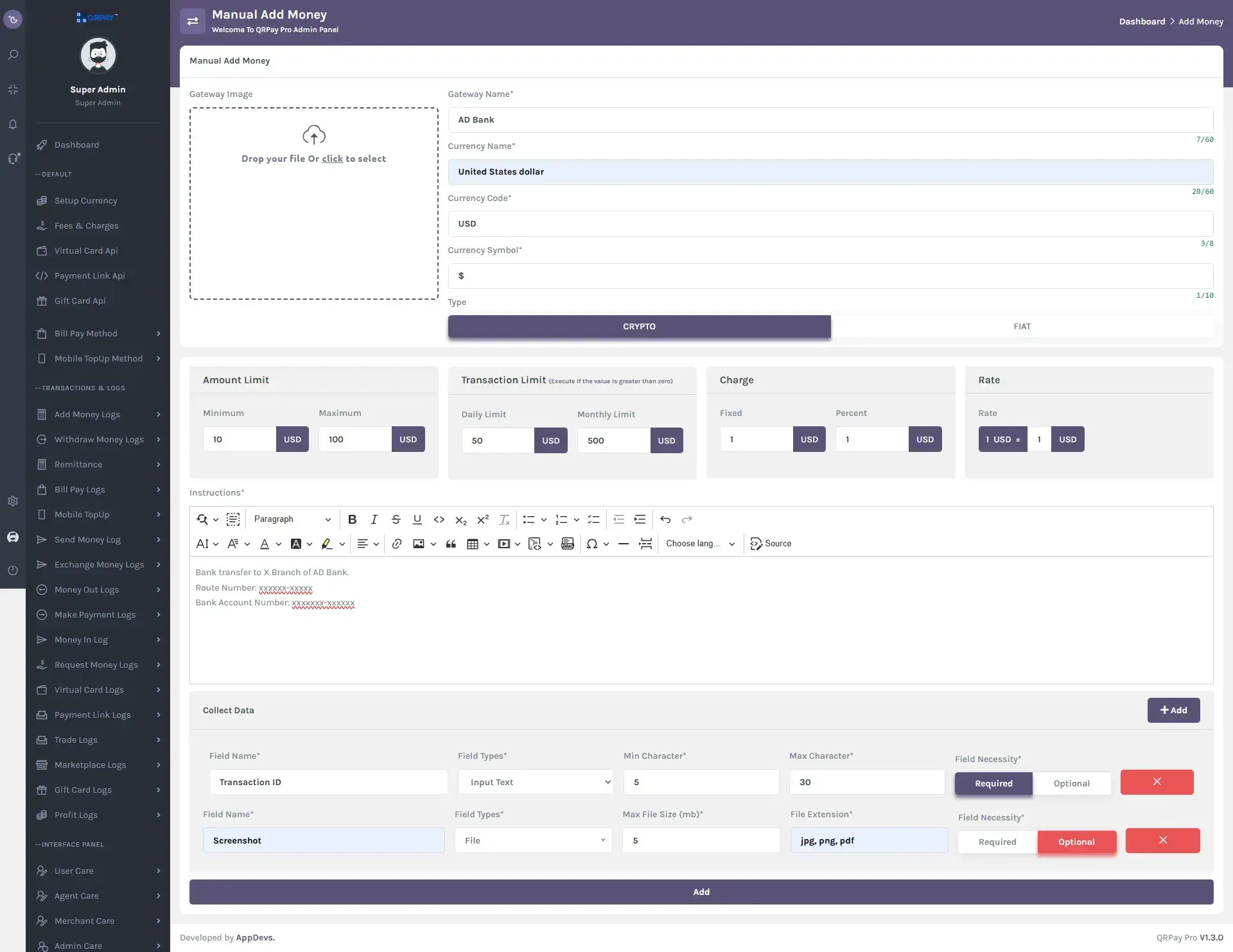
1. Admin Setup:
The admin creates a manual deposit gateway in the system by providing:
- Gateway Name
- Currency details (name, symbol, type)
- Instructions (e.g., “Send money to this bank account number”)
- Collect Data fields (like asking users for a Transaction ID or a screenshot of their bank transfer receipt)
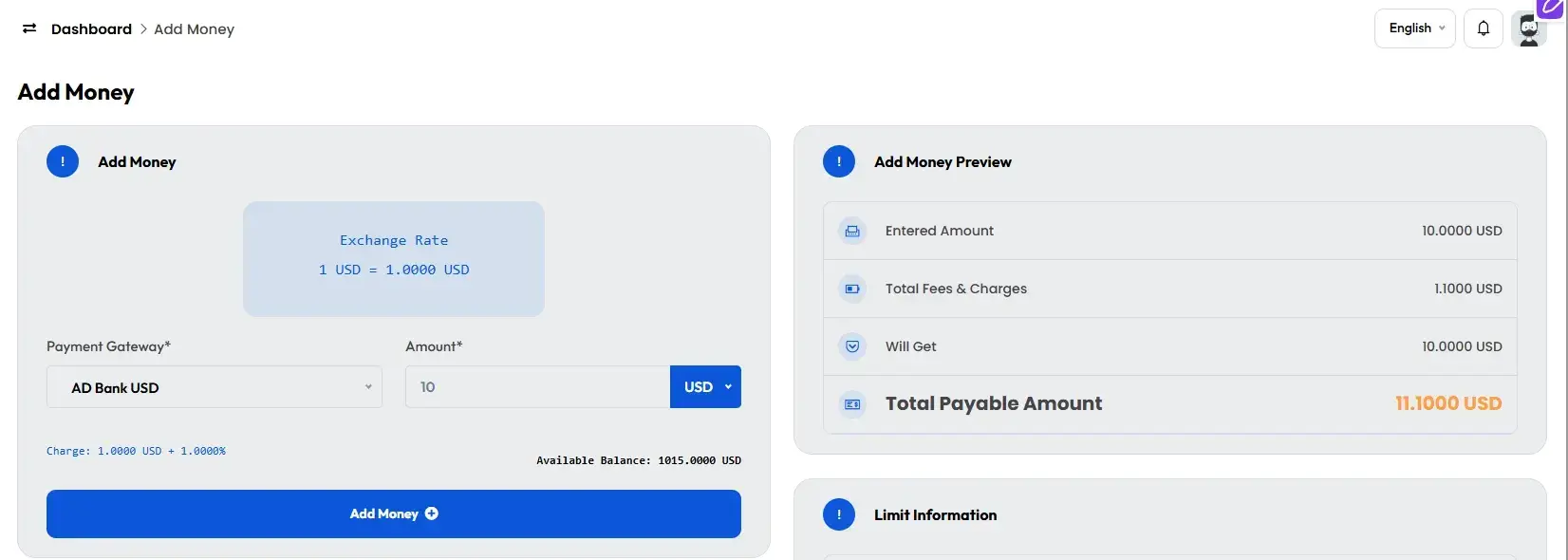
2. User Action:
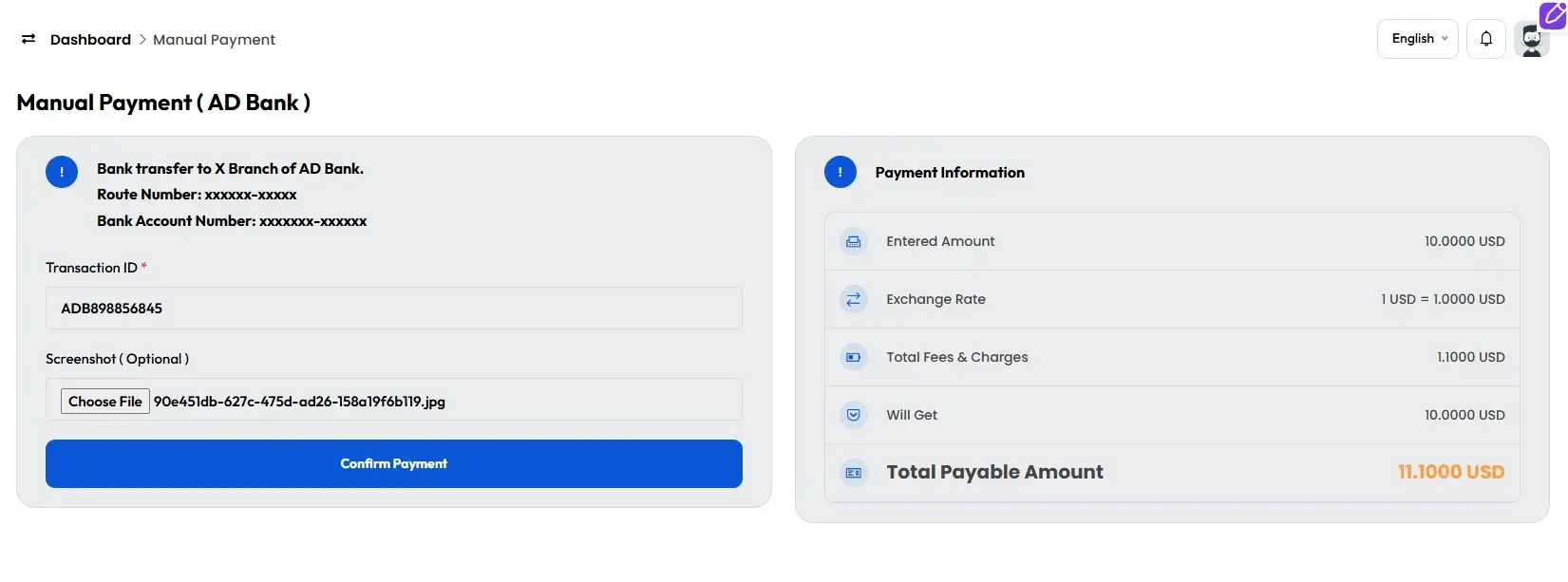
- The user goes to Add Money in their app.
- Enter the deposit amount.
- Selects the manual deposit gateway (e.g., “Bank Transfer”).
- Follows the given instructions and uploads the required information (like transaction ID or receipt image).
3. Admin Approval:
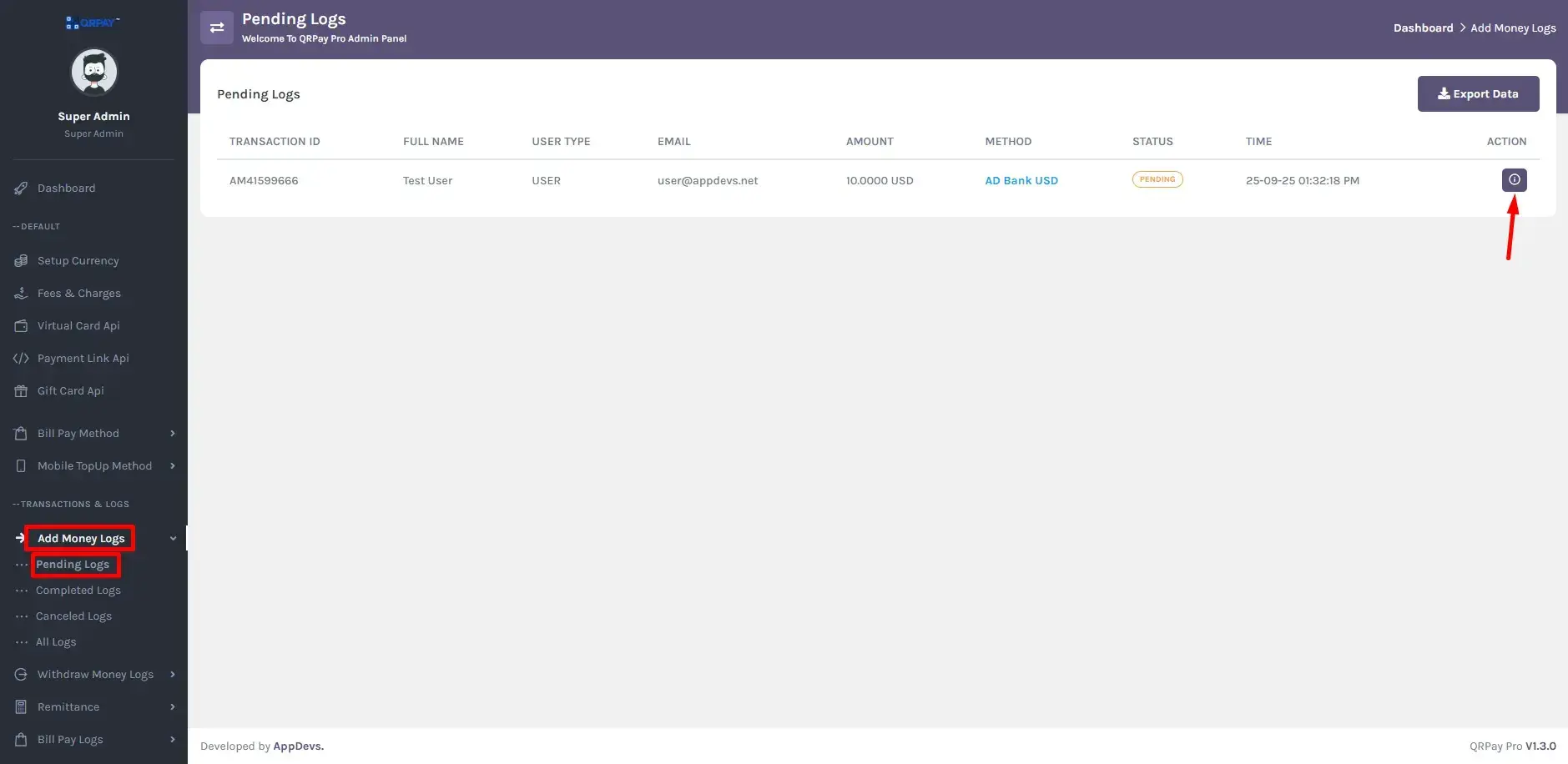
- The request appears in the admin panel as Pending.
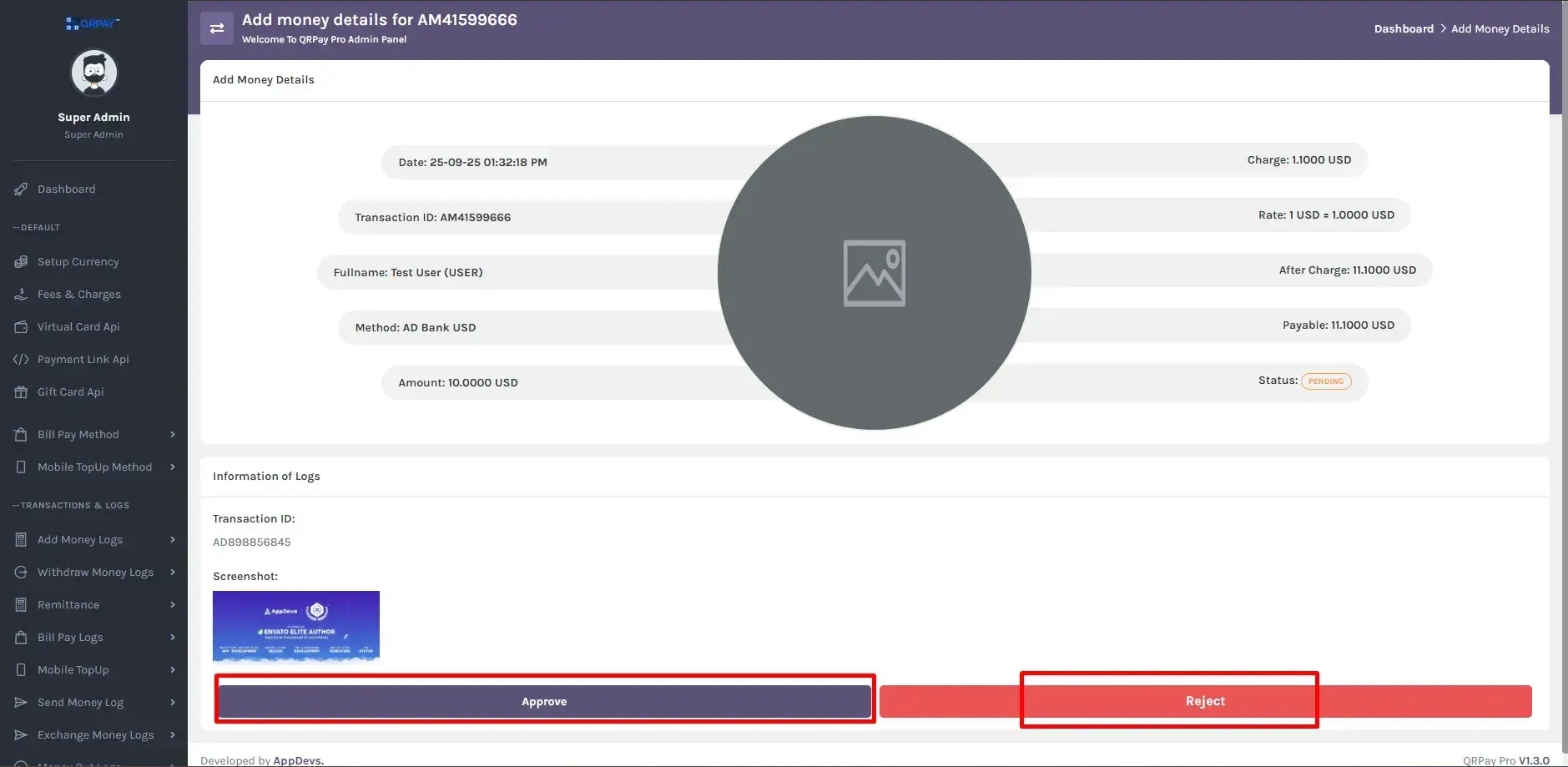
- The admin checks the details, confirms the money has been received, and approves the request.
- Once approved, the money is instantly added to the user’s QRPay wallet.
Real-Life Example: Withdraw Money from a Local Bank
It works the same way for withdrawals:
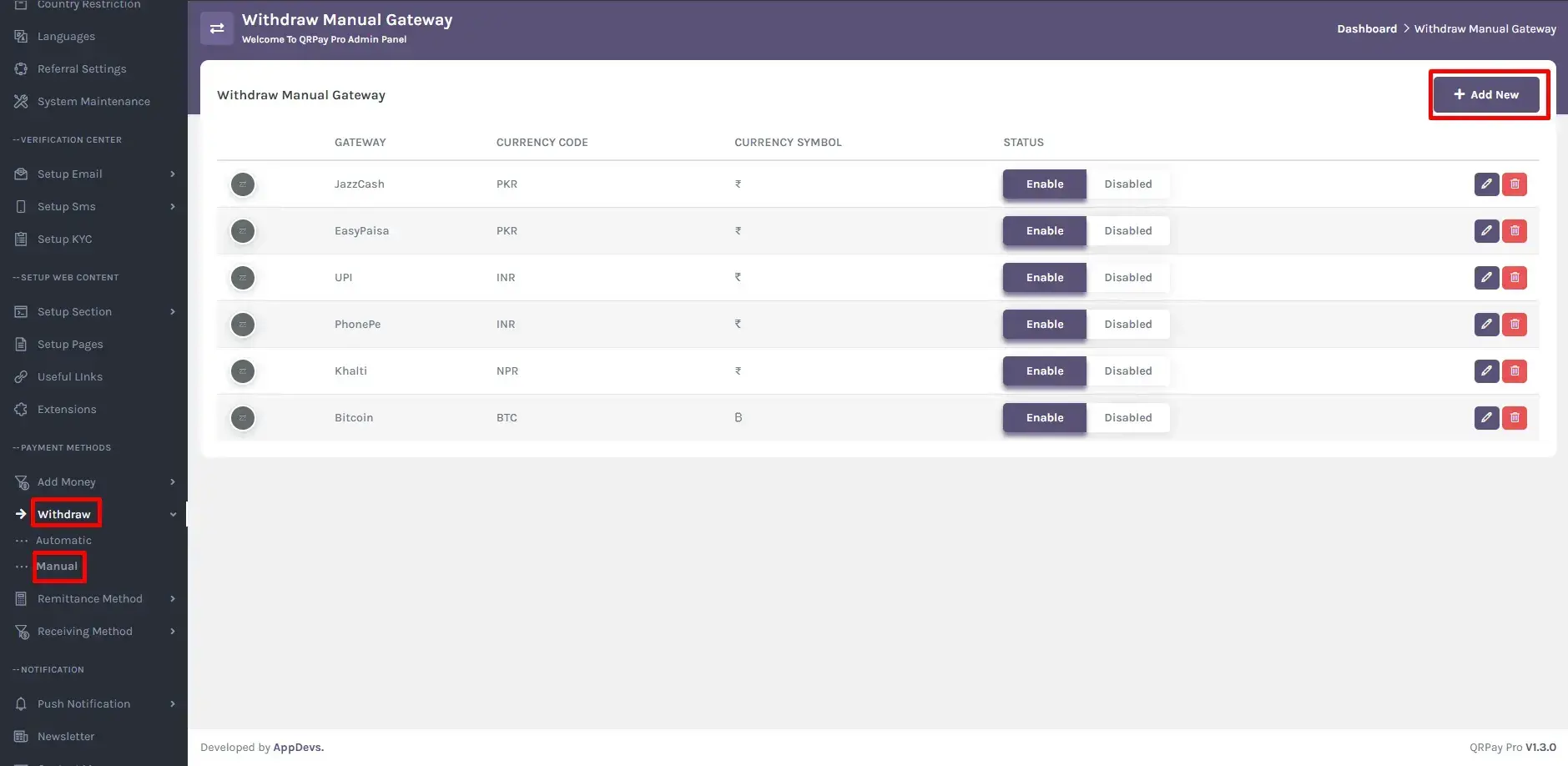
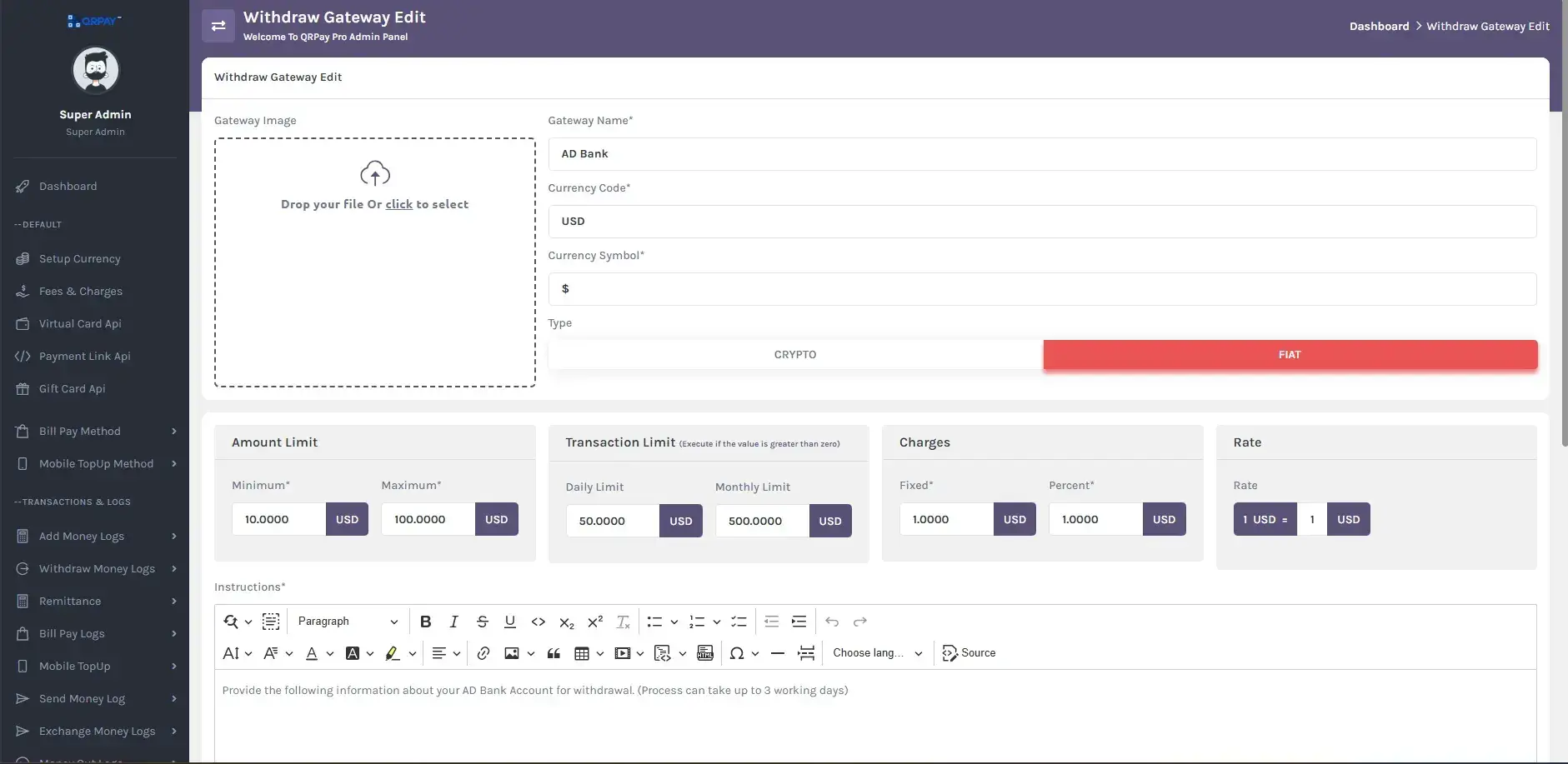
Admin Setup:
- Admin sets up a manual withdrawal gateway.
- Provides details like bank name, account info, or instructions.
- Adds fields for users to provide their account number or any extra data needed.
User Action:
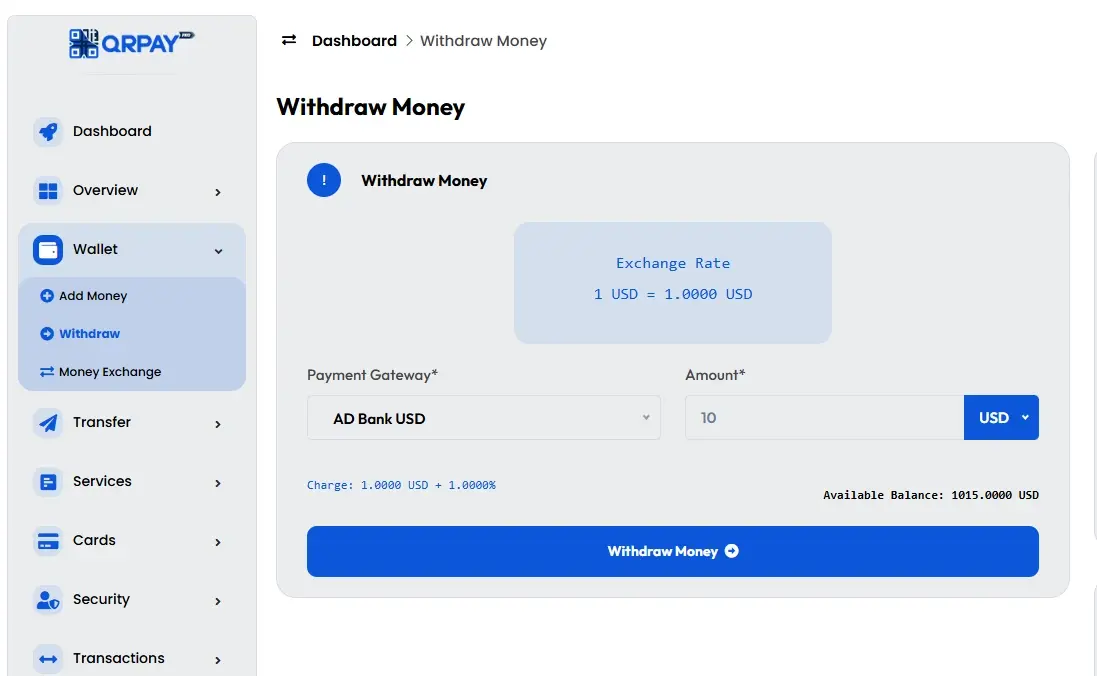
- User goes to Withdraw Money from their wallet.
- Enter the amount.
- Selects the manual withdrawal gateway.
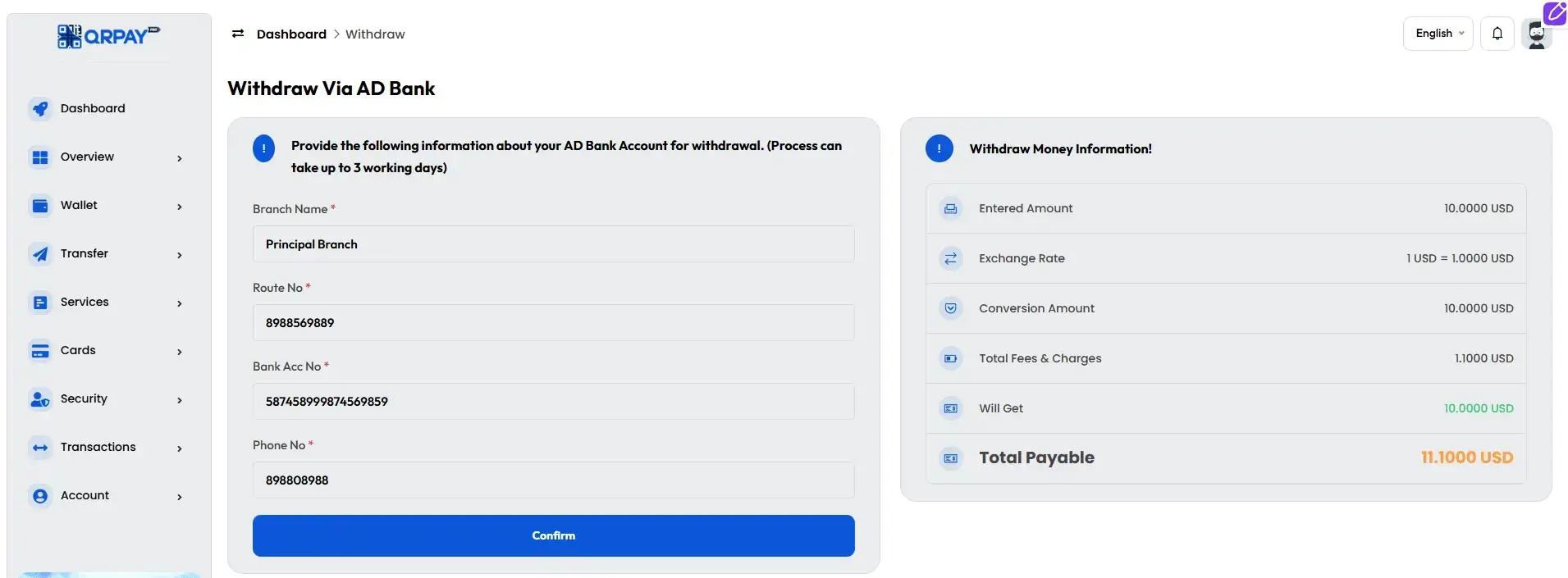
- Provides requested details (like their bank account number).
Admin Approval:
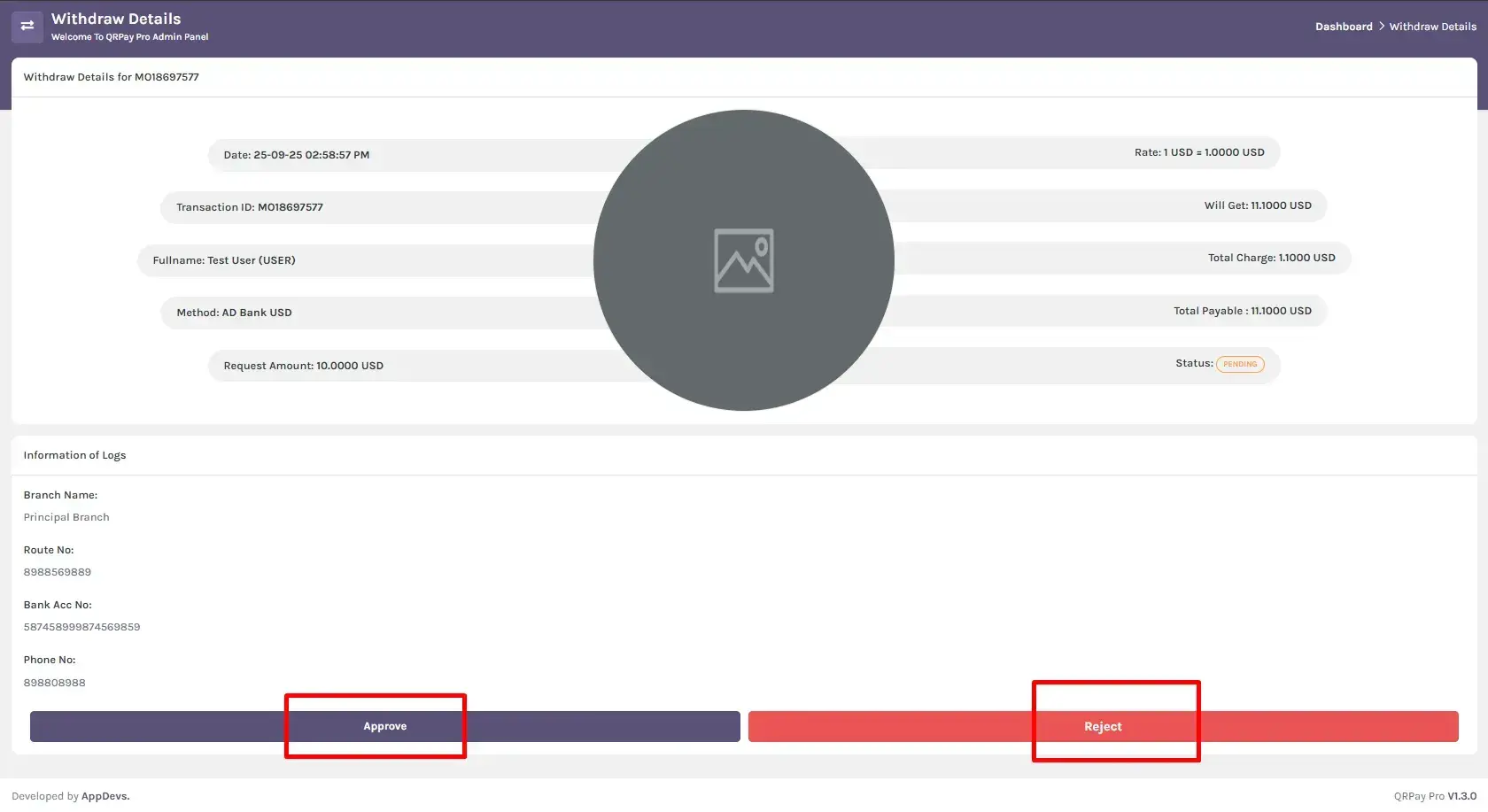
- The withdrawal request shows up as Pending.
- The system deducts the requested amount from the user’s wallet right away.
- The admin manually sends the money to the user’s bank account.
- Once done, the admin approves the request in the system.
- If rejected, the deducted amount is returned to the user’s wallet.
Why Manual Payment Gateway is So Useful
- No API Needed: Perfect for banks or payment services that don’t provide APIs.
- Complete Flexibility: Admin can design the deposit/withdraw method exactly how they want.
- Safe & Transparent: Users see every request, and nothing is finalized until the admin confirms.
- Local Friendly: Enables support for any bank or financial service in your region.
Conclusion
The Manual Payment Gateway may not sound as flashy as automatic integrations, but in reality, it’s one of the most practical and flexible tools inside QRPay Pro. It gives admins the freedom to connect with any local bank or payment service, while still giving users a smooth and secure experience for deposits and withdrawals.
So, if you’ve overlooked this feature until now, it’s time to give it another look — because sometimes, the simplest solutions are the most powerful.