









If you need guidance on setting up the "Tawk.to" extension via the super-admin panel, follow this step-by-step tutorial.
Navigation
To set up Tawk.to using the super-admin panel, follow this navigation path:
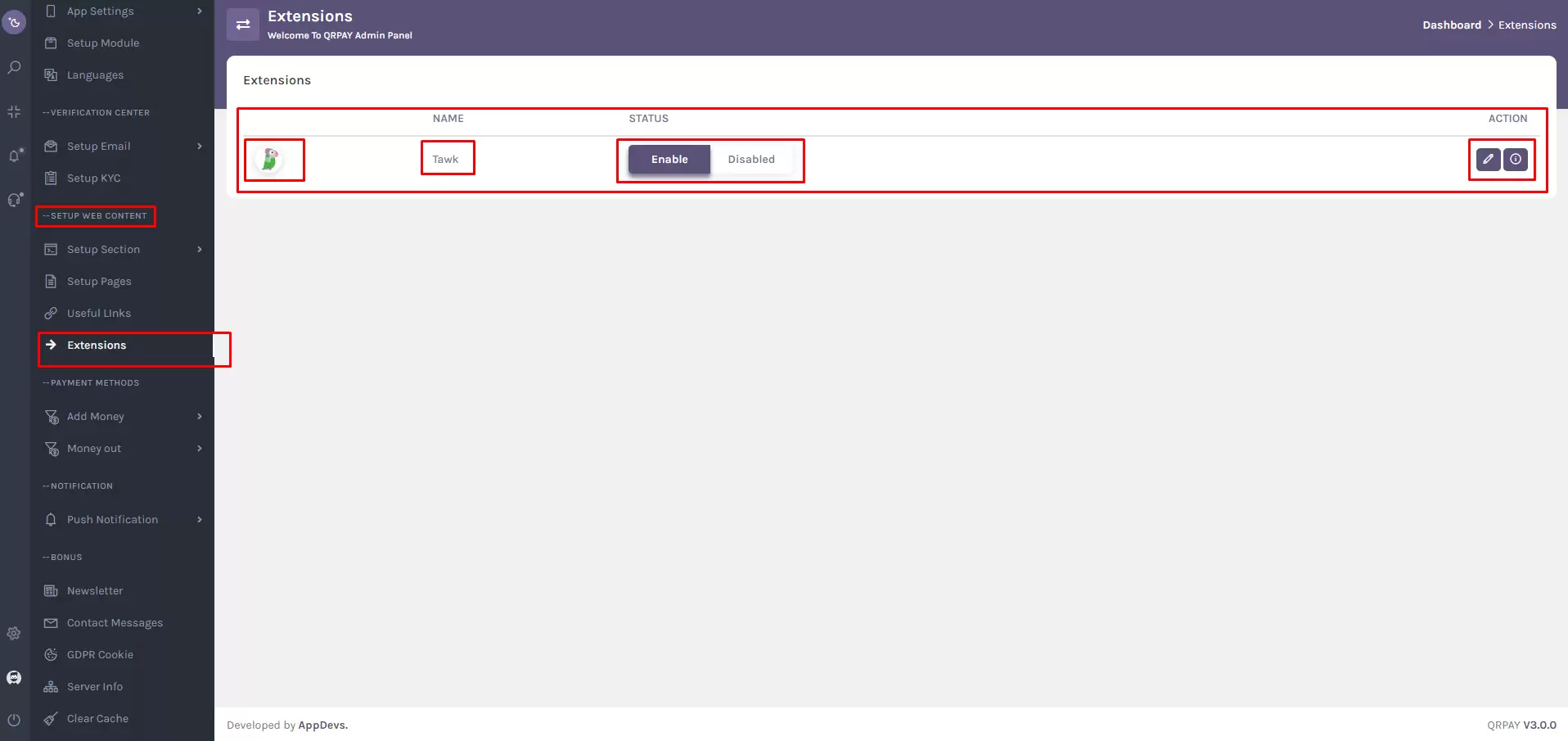
Setup Web Content > Extensions
Alternatively, you can search for Extensions using the sidebar search box in the super-admin panel.
Step-by-Step Guide
1. Access the Super-Admin Panel
Log in to your super-admin panel, where you have access to settings for web content and extensions.
2. Navigate to Extensions
In the Extensions section, locate the list of available extensions. Find the extension named Tawk.to in the list.
This list may contain columns such as:
- Extension Thumbnail
- Extension Name
- Status (Enable/Disable)
3. Edit or View Extension Information
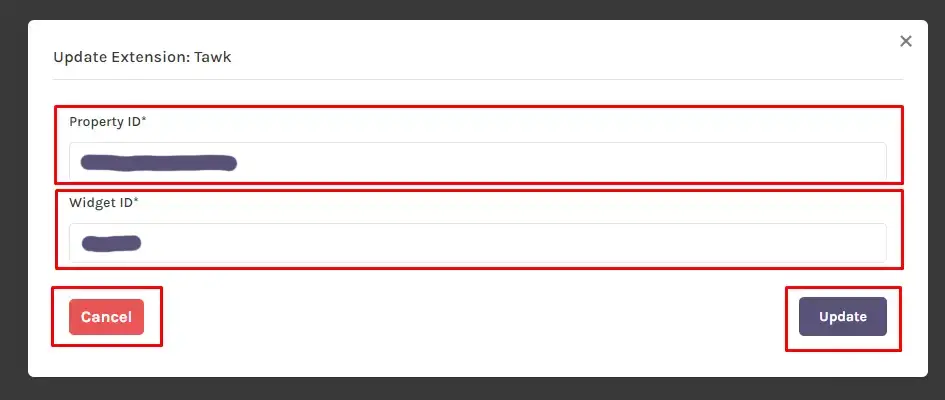
Each extension entry should have action buttons like Edit and Info. Click on the Info button to view detailed instructions about setting up Tawk.to. If modifications are needed, click on the Edit button. This will open a modal titled "Update Extension: Tawk.to."
4. Update Extension Modal
Inside the modal, you’ll find input fields for:
- Property ID
- Widget ID
Obtain these details from your Tawk.to account (explained in the next section).
5. Save or Cancel Changes
After entering the required information, choose one of the following actions:
- Click Cancel to close the modal without saving.
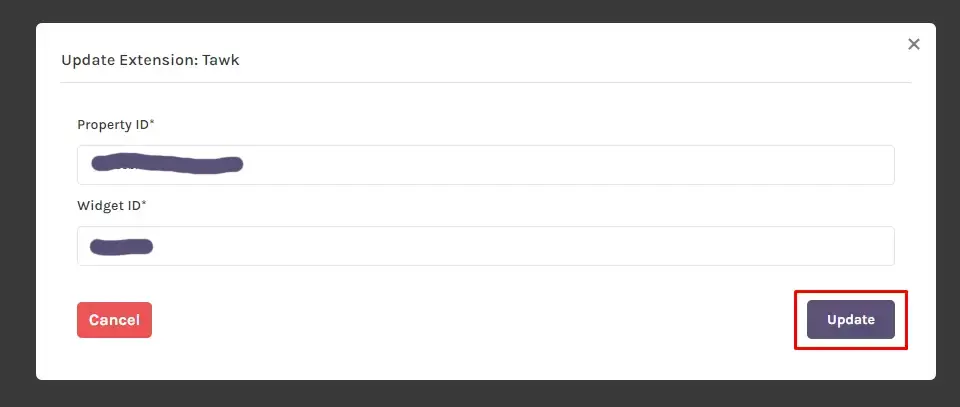
- Click Update to save the changes and activate the Tawk.to extension.
Getting Property ID & Widget ID from Tawk.to
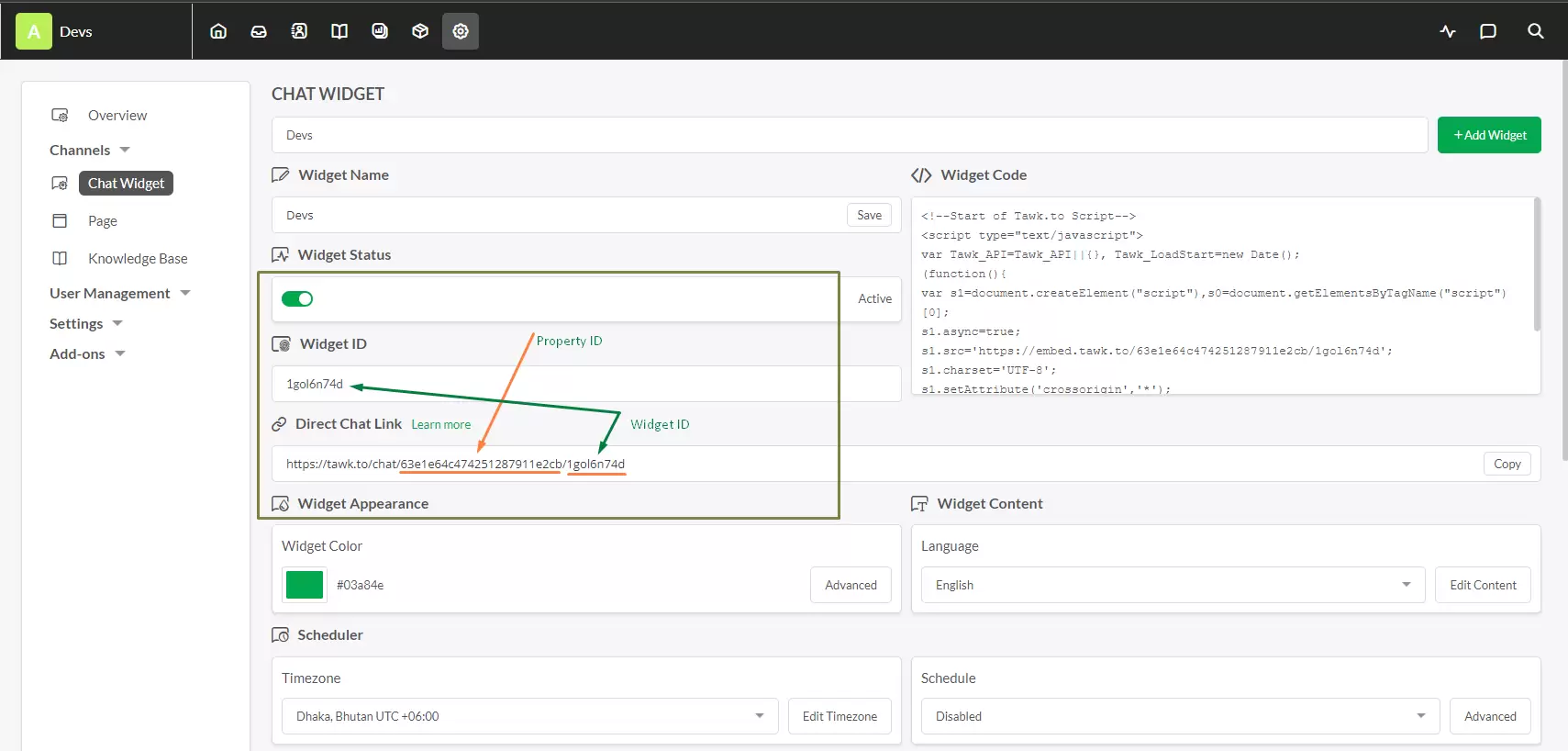
To find and copy your Property ID and Widget ID, follow these steps:
1. Go to your Tawk.to Dashboard.
2. Click on the Settings Icon in the top bar.
3. Select Chat Widget from the sidebar.
4. Follow the screenshot instructions below.
5. Copy the Property ID and paste it into the Property ID field.
6. Copy the Widget ID and paste it into the Widget ID field.
7. Finally, click on the Update button to save the changes.
Final Notes
The steps above might slightly vary based on the version and layout of the super-admin panel. If you encounter any difficulties, refer to the official documentation or contact the support team for assistance.