







This tutorial provides a comprehensive guide on how to configure or set the default currency in your platform using the super-admin panel, specifically through the “Setup Currency” section.
Navigation Path
To begin the configuration:
Go to:
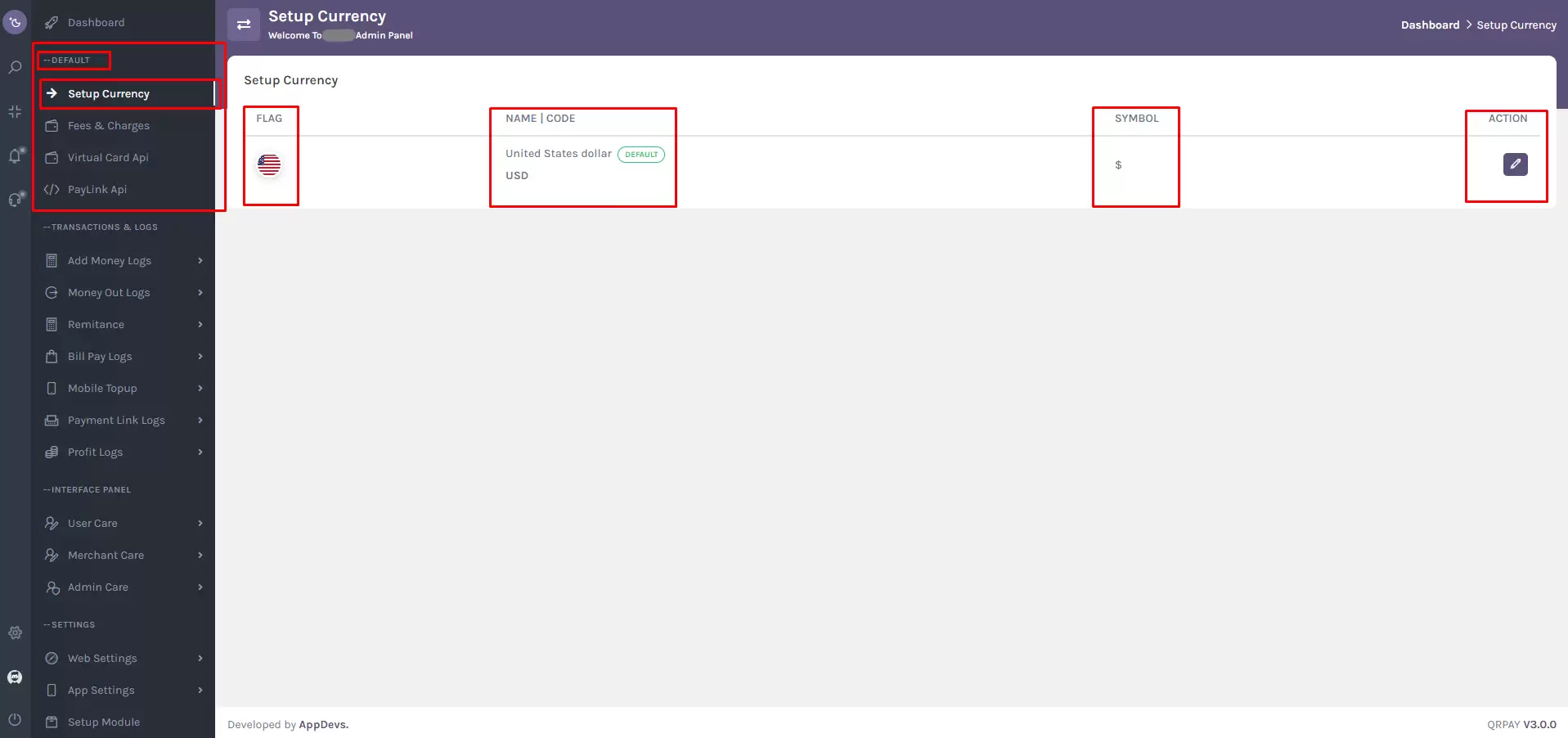
Default > Setup Currency
Alternatively, you can search for “Setup Currency” using the super-admin sidebar search box.
Step-by-Step Guide
1. Access the Super-Admin Panel
Log in to your super-admin panel using valid credentials.
Navigate to the “Default” section from the main dashboard.
2. Open the Setup Currency Section
Inside the “Default” menu, click on “Setup Currency.”
Currency Table Overview
Once inside the Setup Currency section, you'll see a data table displaying the following columns:
- Currency Thumb
- Currency Name/Code
- Currency Symbol
- Action (e.g., Edit)
Editing the Default Currency
To modify or set a new default currency:
3. Click the Edit Button
In the Action column of the currency table, locate the currency you wish to modify and click the “Edit” button.
Edit Currency Modal
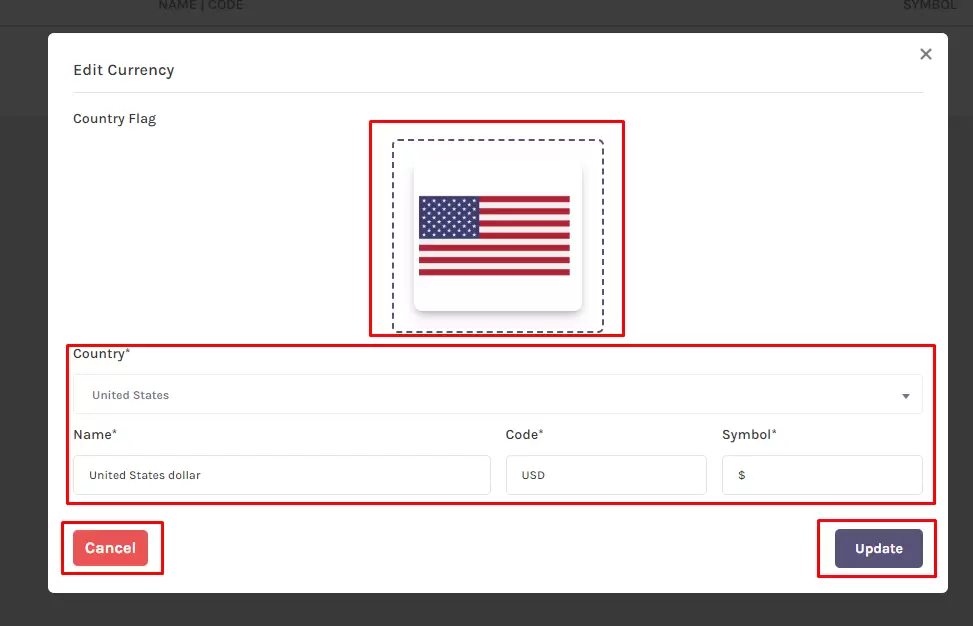
A modal will appear, allowing you to update currency details. Use the following fields:
- Currency Thumb: Use drag-and-drop or click the upload box to add a new currency image/icon.
- Country Selection: Choose the appropriate country from the dropdown list.
- Currency Name: Enter the updated name of the currency.
- Currency Code: Input the corresponding currency code (e.g., USD, EUR).
- Currency Symbol: Input the symbol (e.g., $, €, ৳).
Modal Actions
- Cancel Button: Click this to close the modal without saving changes.
- Update Button: Click to save the updated currency settings as the new default.
Confirmation Message
After updating, a confirmation pop-up will appear stating that the default currency has been successfully updated.
Note:
By completing these steps, you ensure that your platform reflects the desired default currency, aligning with your operational or regional requirements.