






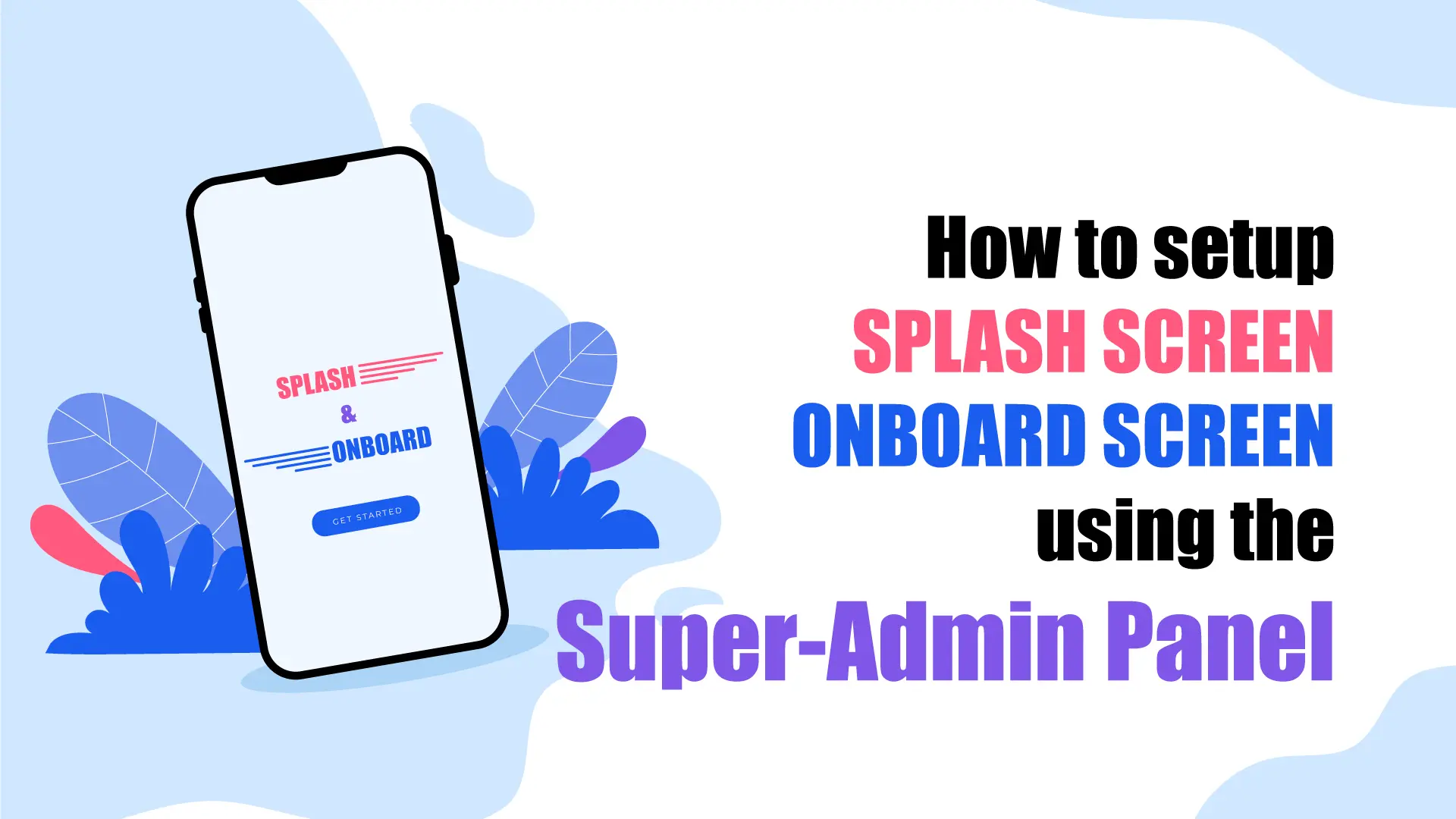
Using the Splash Screen and Onboard features, both accessible from the Super Admin Panel, you can deliver a polished first impression and easily guide users through your app.
Splash Screen
Create an engaging launch experience with a custom Splash Screen.
Navigation:
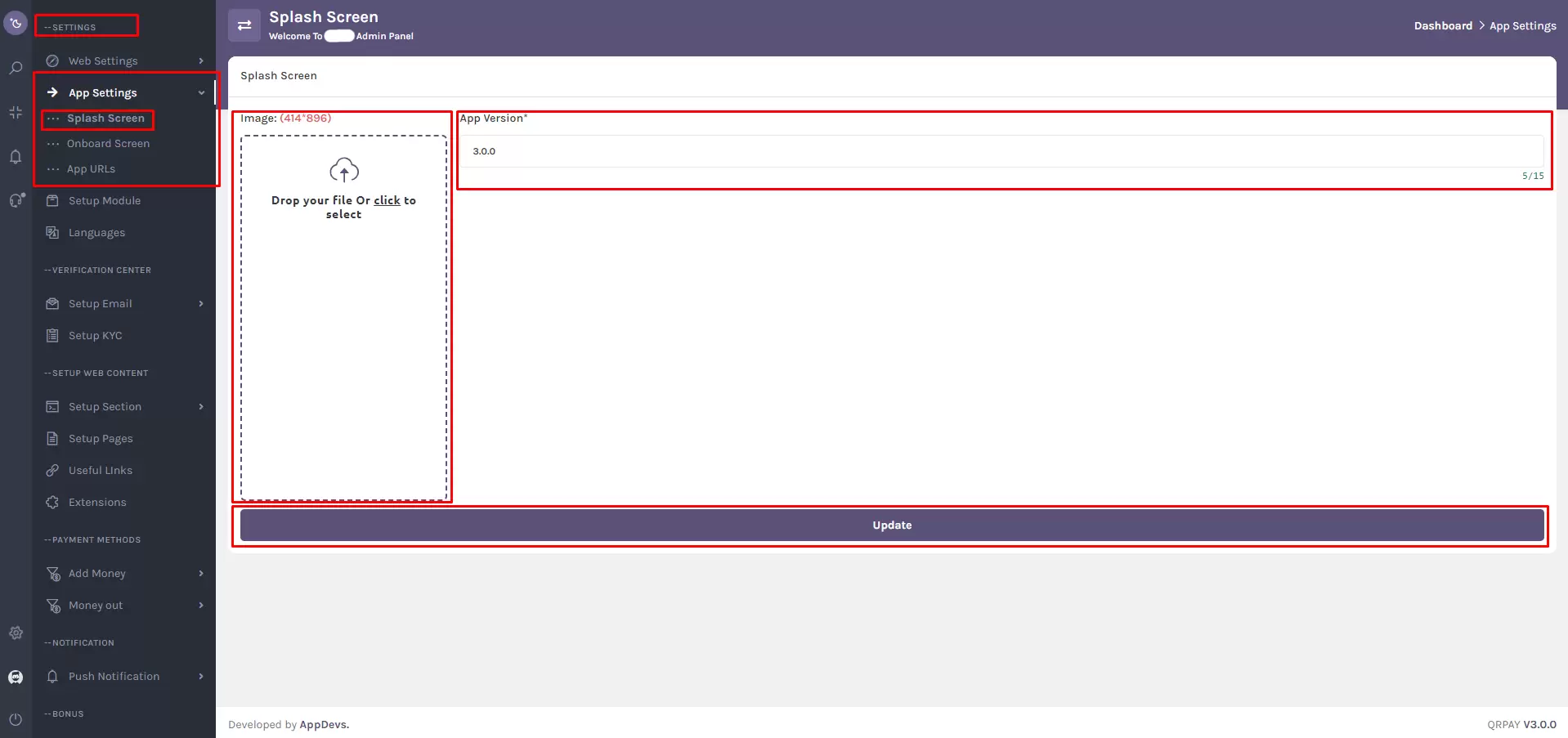
Go to Settings > App Settings > Splash Screen from the Super Admin Panel. Alternatively, use the sidebar search and type "Splash Screen" for quick access.
How to Configure:
1. Image Upload: Use the image input box to upload your splash screen image. Drag-and-drop functionality is supported for convenience.
2. App Version: Enter the latest app version in the provided input field.
3. Apply Changes: Click the “Update” button to save your settings. This will simultaneously update both the Splash Screen image and the App Version.
Onboard
Guide users through your app’s core features with interactive and customizable Onboard Screens.
Navigation:
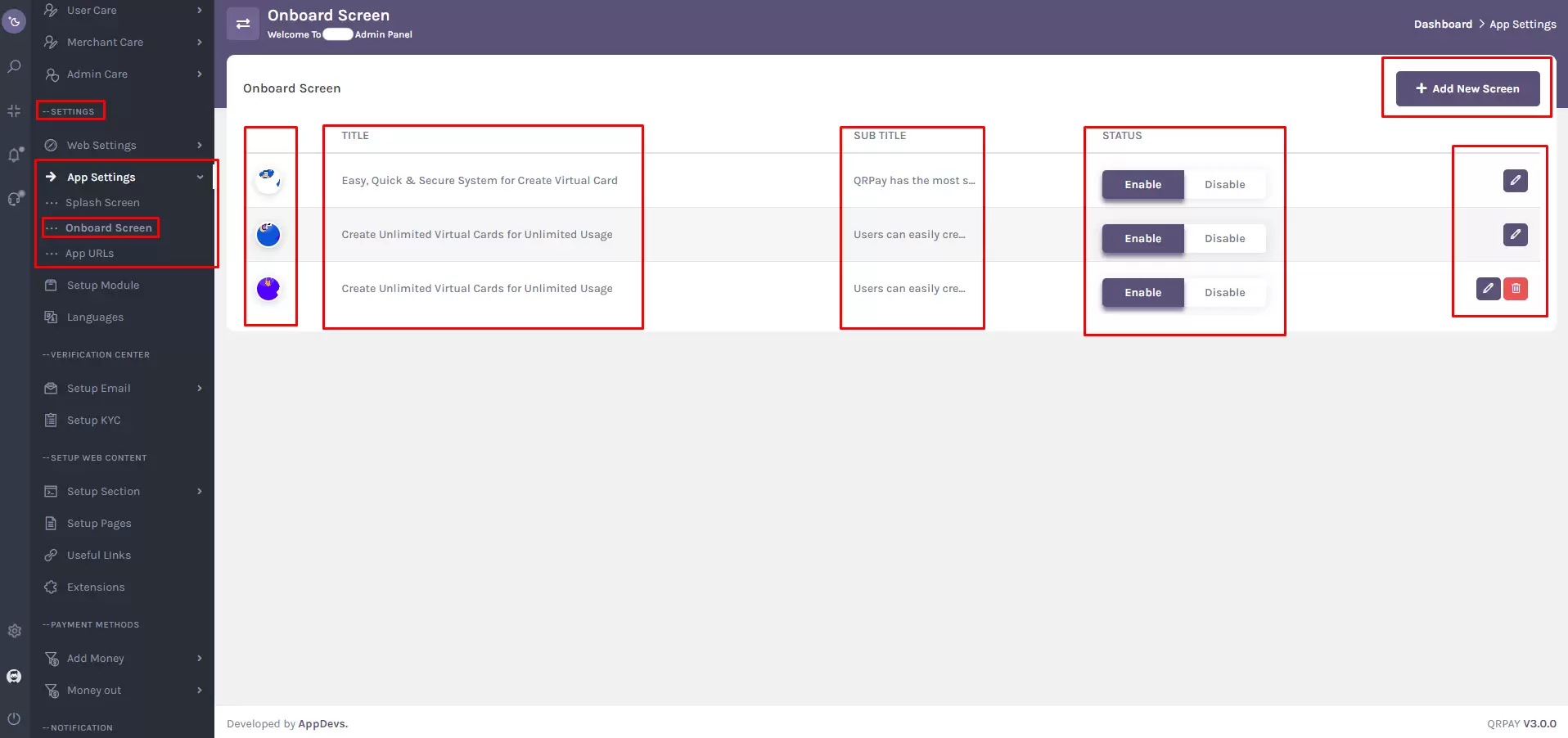
Go to Settings > App Settings > Onboard or use the sidebar search and type "Onboard" for direct access.
Manage Onboard Screens
Your Onboard screen dashboard includes a clean, intuitive Table View with the following columns:
- Onboard Thumb: Displays the thumbnail of each screen.
- Title: Shows the main title of the screen.
- Subtitle: Displays a short description or message.
- Status Switch: Quickly enable or disable any screen.
- Action Buttons:
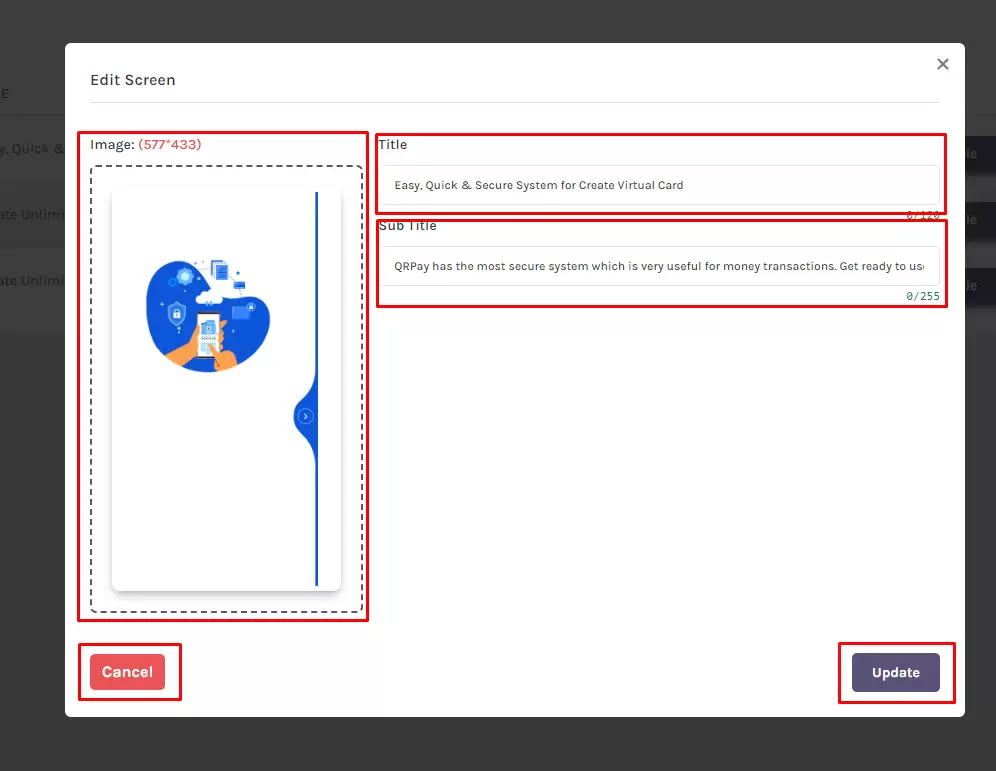
- Edit — Opens the "Edit Screen" modal to update the image, title, or subtitle.
- Delete – Removes the selected onboard screen.
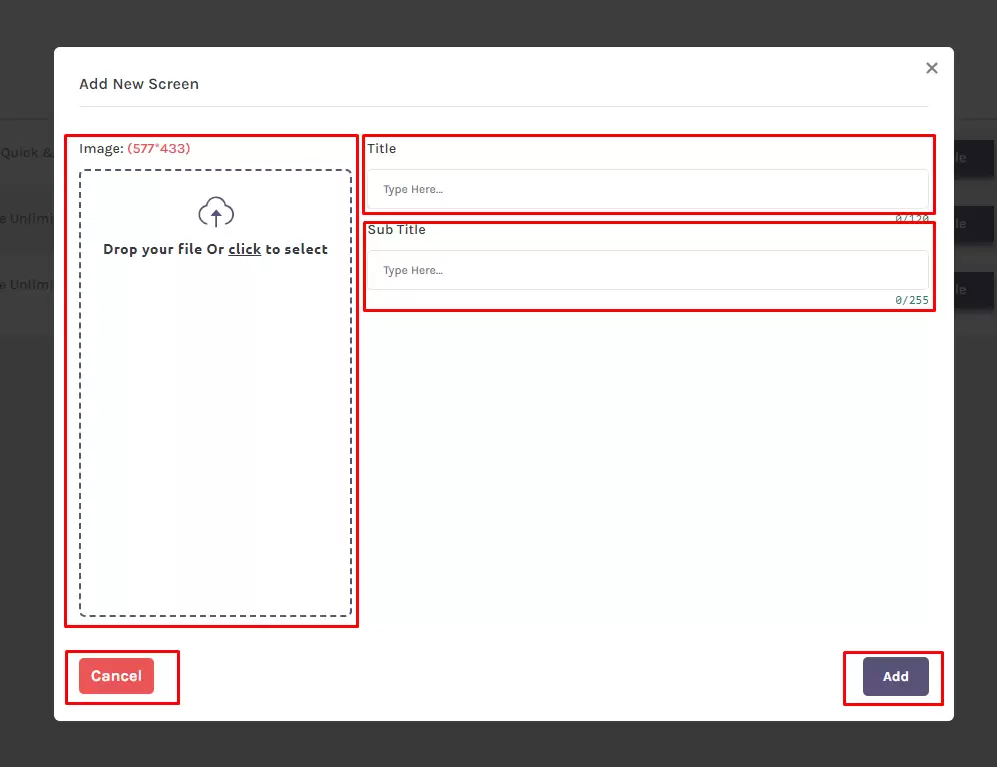
Add New Onboard Screen
1. Click “Add New Screen” to open the modal.
2. Image Upload – Drag and drop or select an image file.
3. Title Input – Add a title for the new screen.
4. Subtitle Input – Enter a short, engaging description.
5. Use the “Add” button to save, or the “Cancel” button to discard changes.
Quick Navigation Summary
- Splash Screen:
Settings > App Settings > Splash Screen - Onboard:
Settings > App Settings > Onboard
Use the search box in the Super Admin sidebar for faster access by typing “Splash Screen” or “Onboard.”
Final Note
With just a few steps, you can fully control your app's first impression and user onboarding flow directly from the Super Admin Panel—no coding required.