








To strengthen your account security, you can update your super-admin password by following these simple steps:
Navigation Path
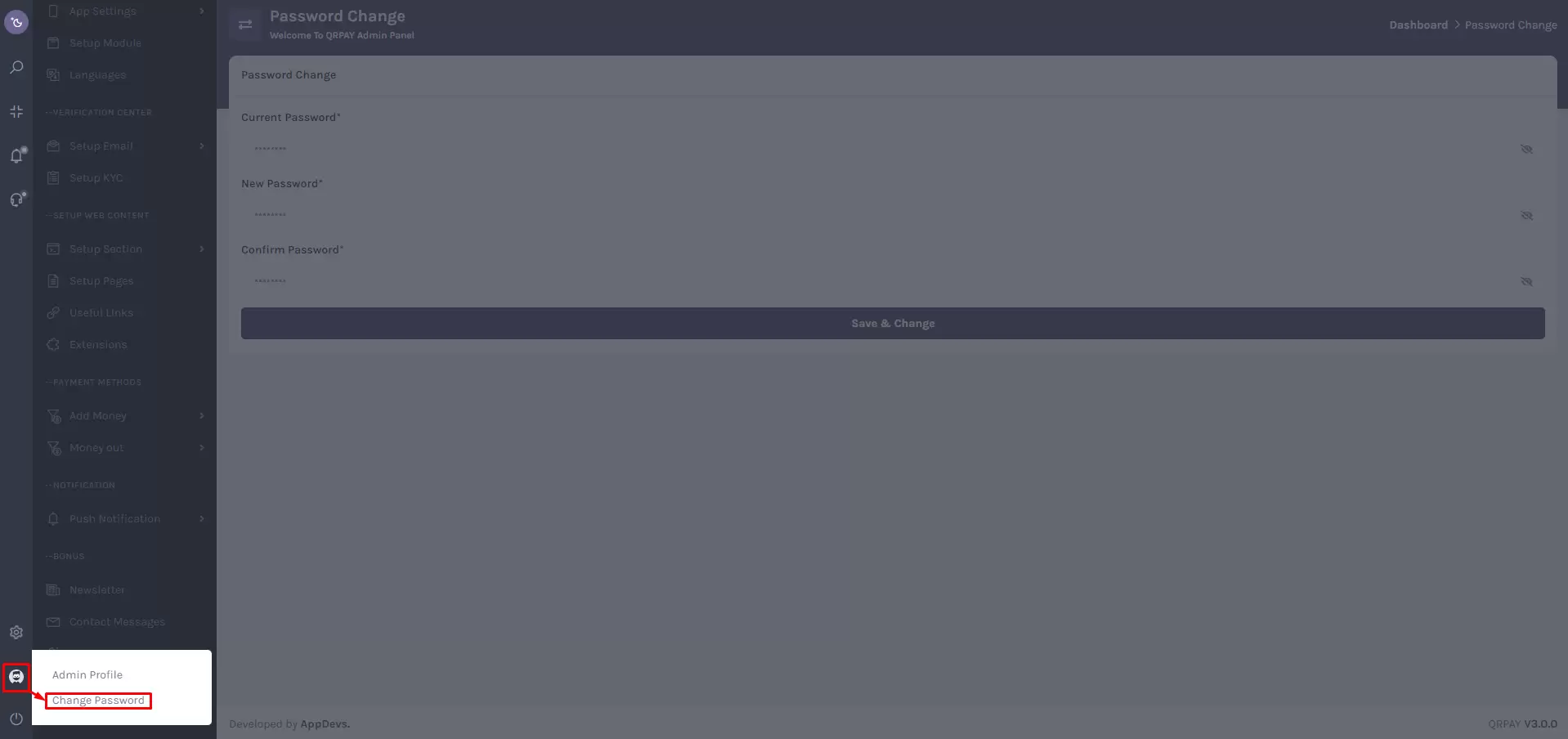
Go to:
Click the "Admin Profile" thumbnail in the sidebar, then select “Change Password.”
Password Change Steps
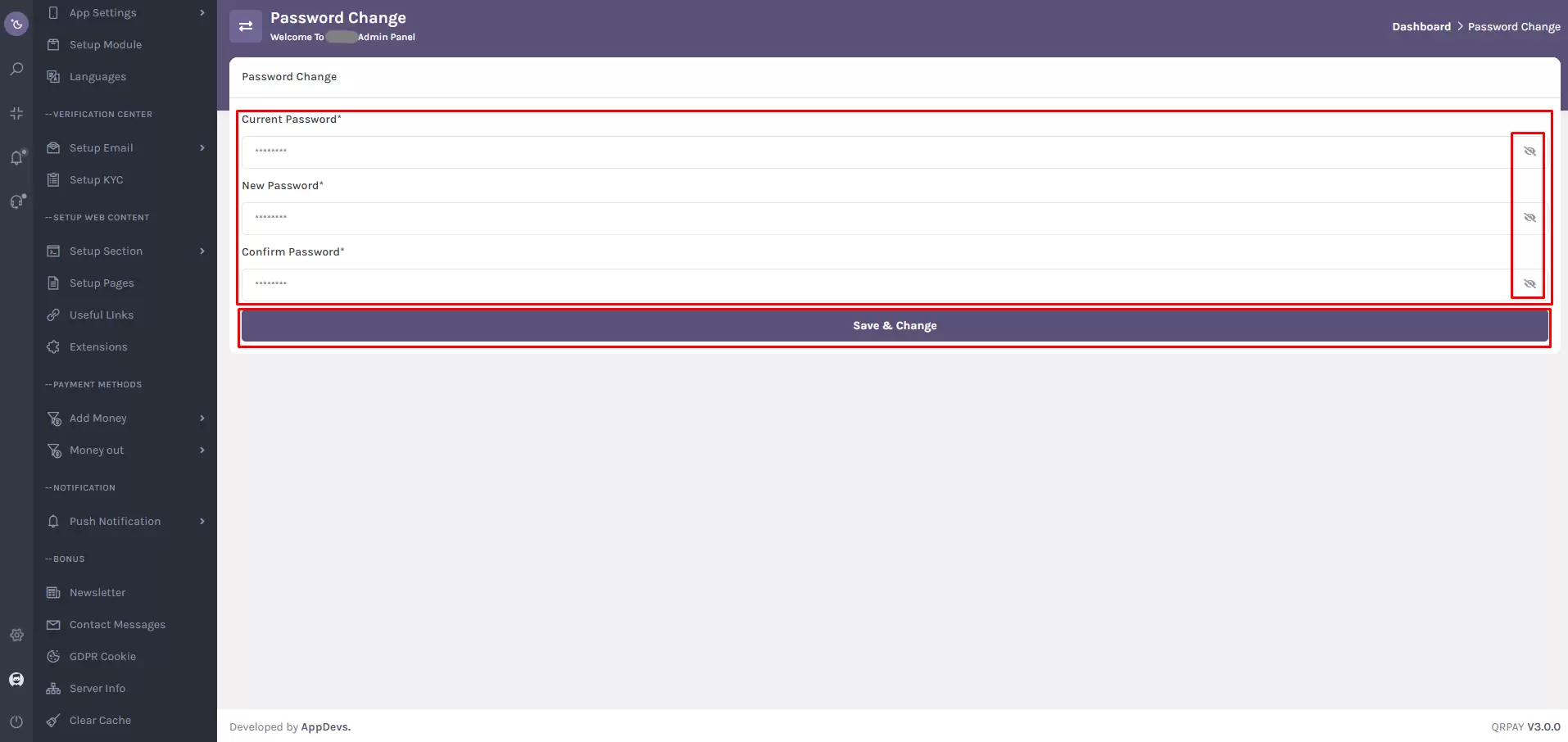
1. Enter Current Password
In the Current Password field, input your existing password.
2. Set a New Password
Type a strong, new password in the New Password field.
Ensure it meets all password strength requirements.
3. Confirm New Password
Re-enter the same password in the Confirm Password field to validate your input.
4. Toggle Password Visibility
Use the eye icon beside each password field to show or hide the entered text.
5. Save & Change
Click the "Save & Change" button to update your password securely.
Security Best Practices
- Use a mix of uppercase, lowercase, numbers, and special characters.
- Avoid using easily guessable passwords (e.g., birthdates, names).
- Update your password regularly for optimal security.
Note:
Changing your password frequently and using a strong combination enhances your super-admin account protection. Contact support if you encounter any issues during the update process.