








In the dynamic realm of the Super-Admin Panel, the Admin Role Management feature is a robust tool for managing organizational hierarchies and access controls. Navigate seamlessly through the Interface Panel, proceed to Admin Care, and then delve into Admin Role. Here, you wield the power to shape administrative roles, set permissions, and oversee all administrators with finesse.
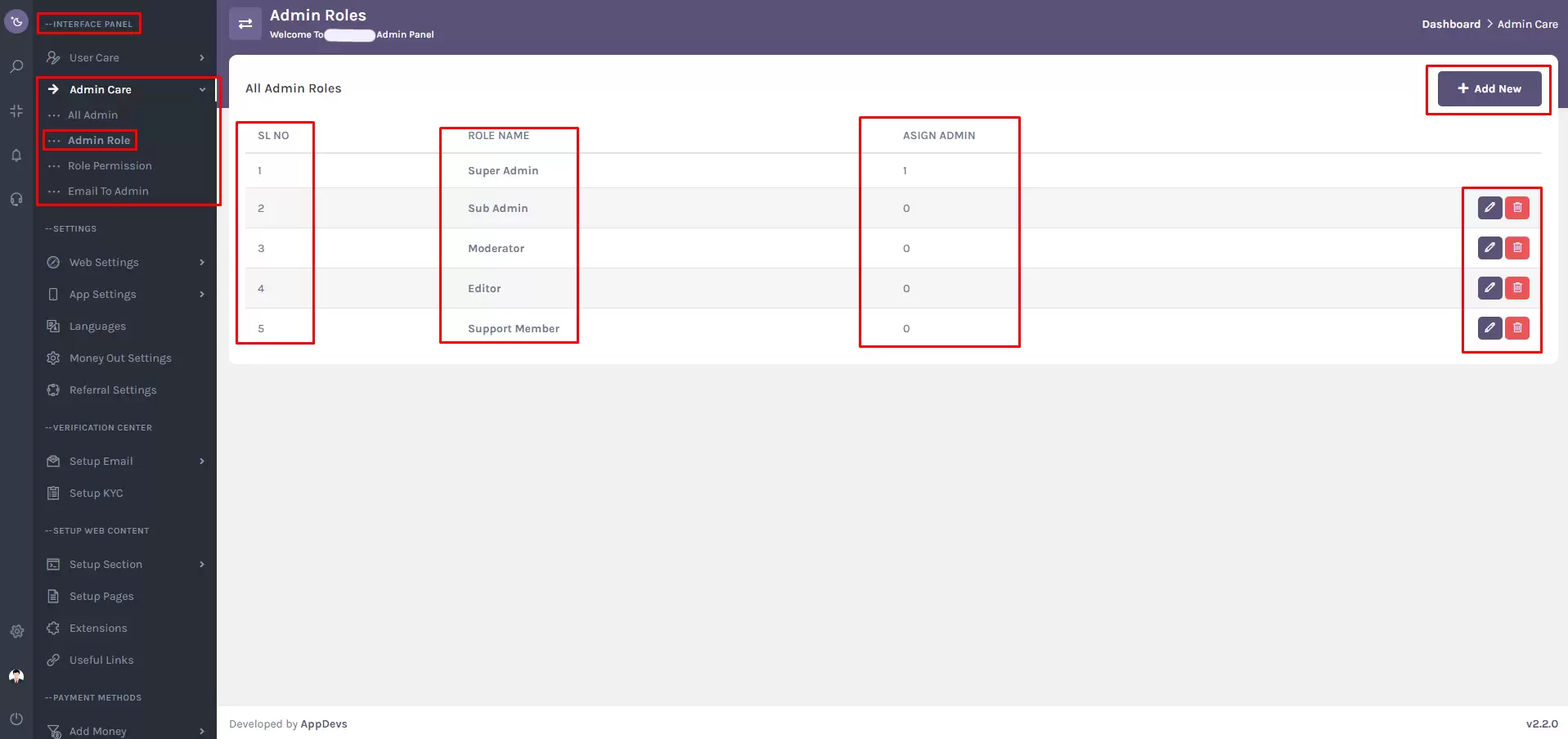
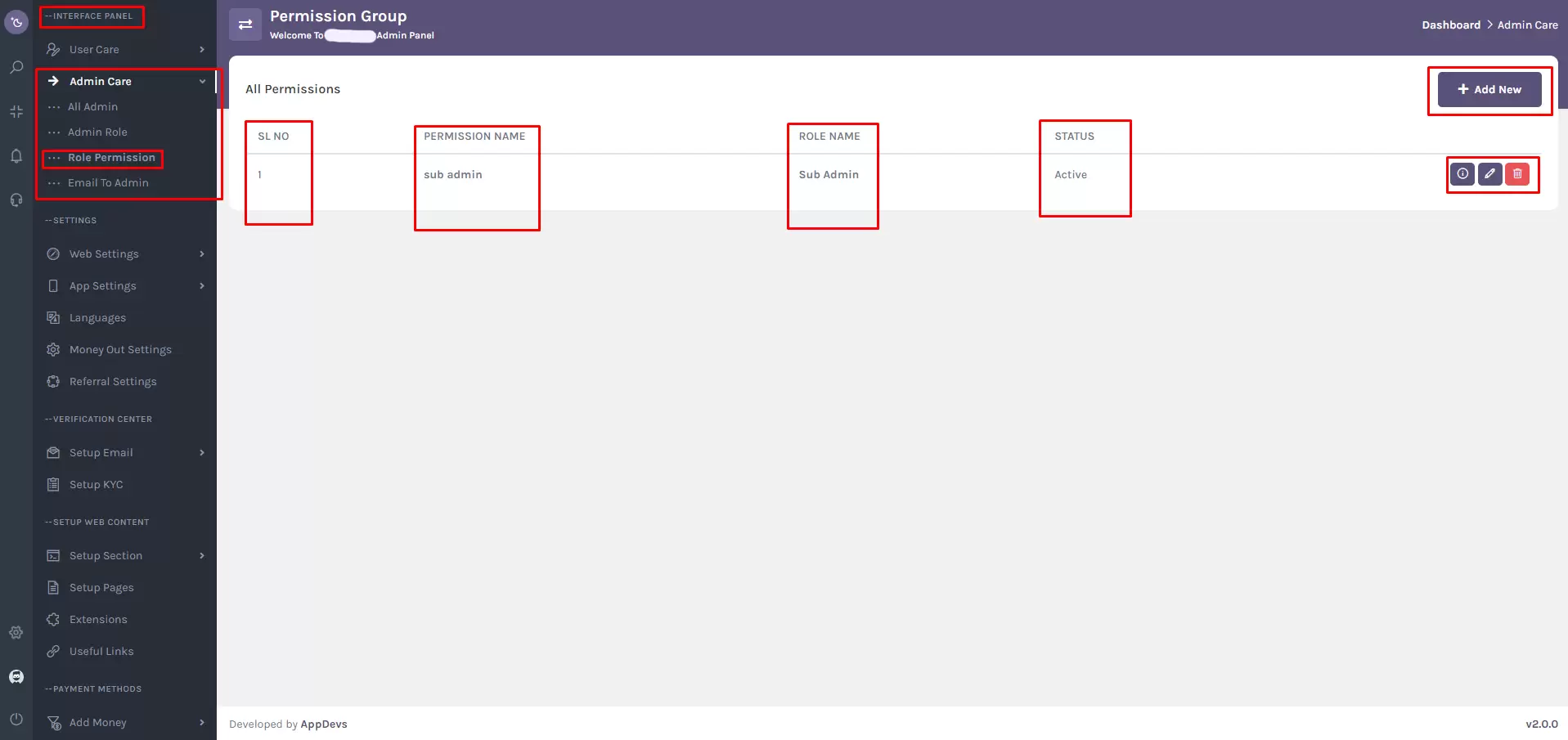
Navigation: Set the admin role management in the Super-Admin panel using the provided navigation path (Interface Panel > Admin Care > Admin Role). Follow these steps, and you can also search for the (Admin Role) from the super-admin sidebar search box.
Admin Roles
In the Super-Admin Panel, efficient management of admin roles is vital for a well-organized system. Follow these steps to handle Admin Roles seamlessly:
- Adding a New Admin Role
- Navigate to the "Admin Role" section.
- Click on the "Add New" button.
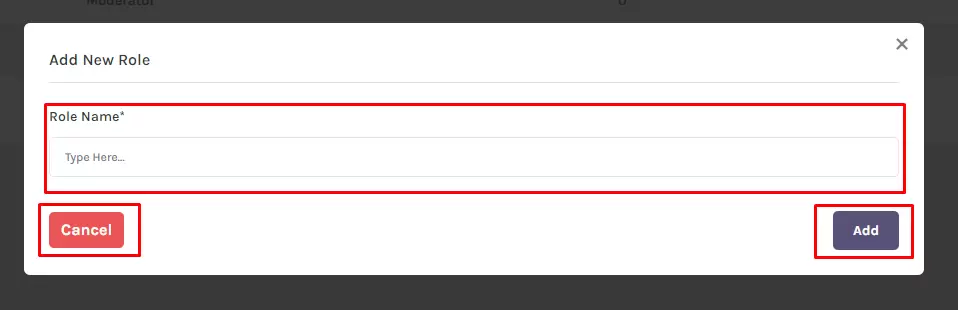
- A modal named "Add New Role" will appear, featuring an input field for the role name.
- Click the "Add" button to create the admin role or "Cancel" to close the modal.
- Managing Admin Roles
- A table displays your added admin roles, including serial number, role name, assigned admin, and actions.
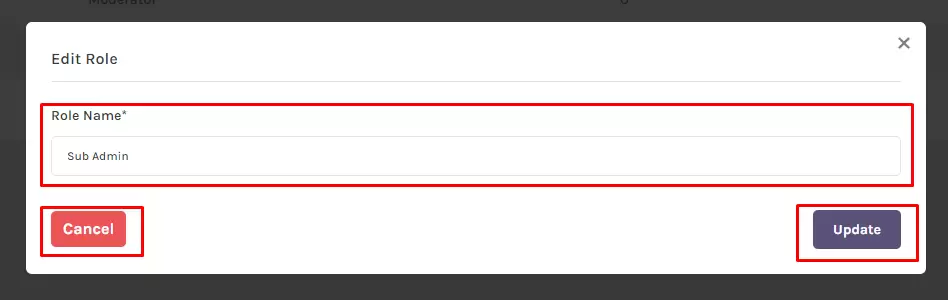
- Two buttons, "Edit" and "Delete," are available. Click "Edit" to modify the role name, and "Delete" to remove the admin role
Role Permissions
- Adding a New Role Permission
- In the "Admin Role" section, click the "Add New" button.
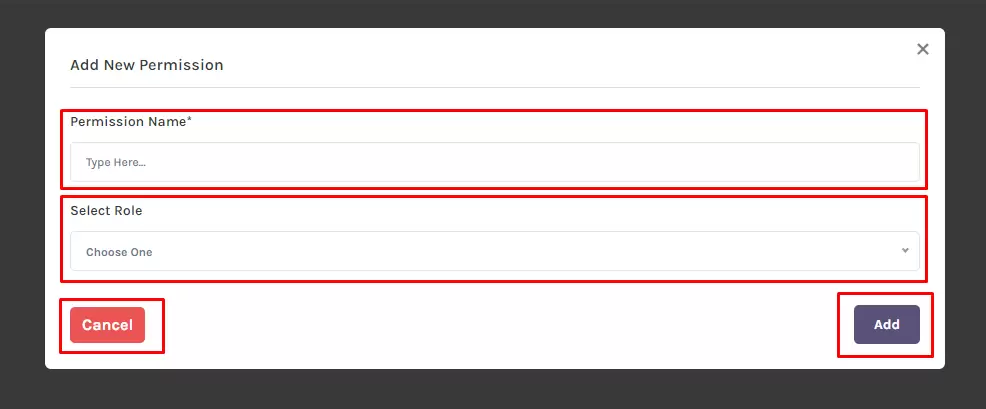
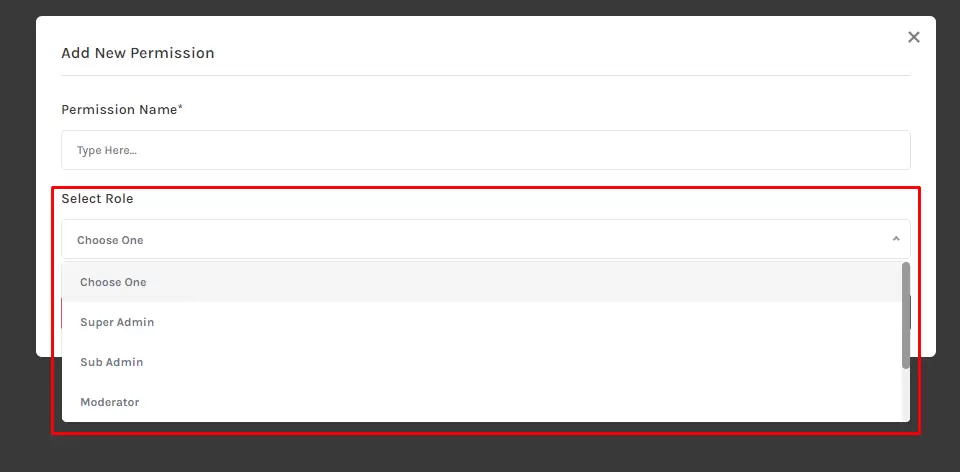
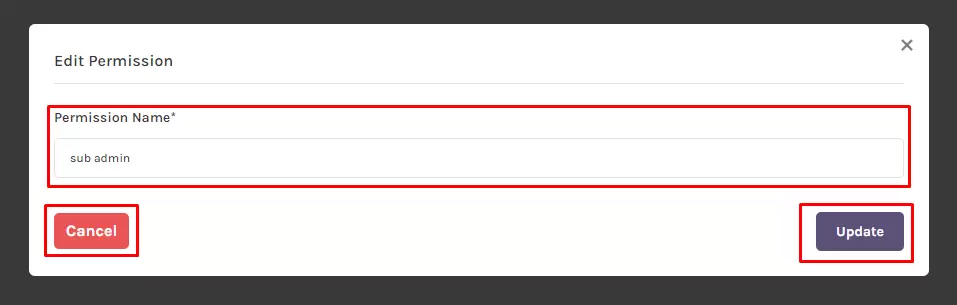
- Access the "Add New Permission" modal, input the permission name, select the associated role, and click "Add" to add the new permission.
- Click "Cancel" to close the modal.
- Managing Role Permissions
- A table displays added role permissions, showing serial number, permission name, role name, status (active or inactive), and actions.
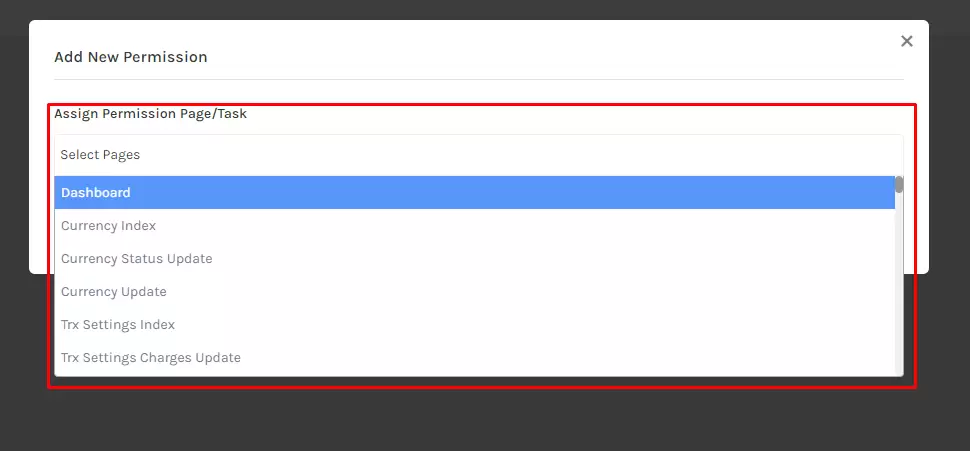
- Three buttons, "Permission," "Edit," and "Delete," are provided. Use them to modify or delete permissions and manage role permissions effectively.
Note: Dashboard permission is required.
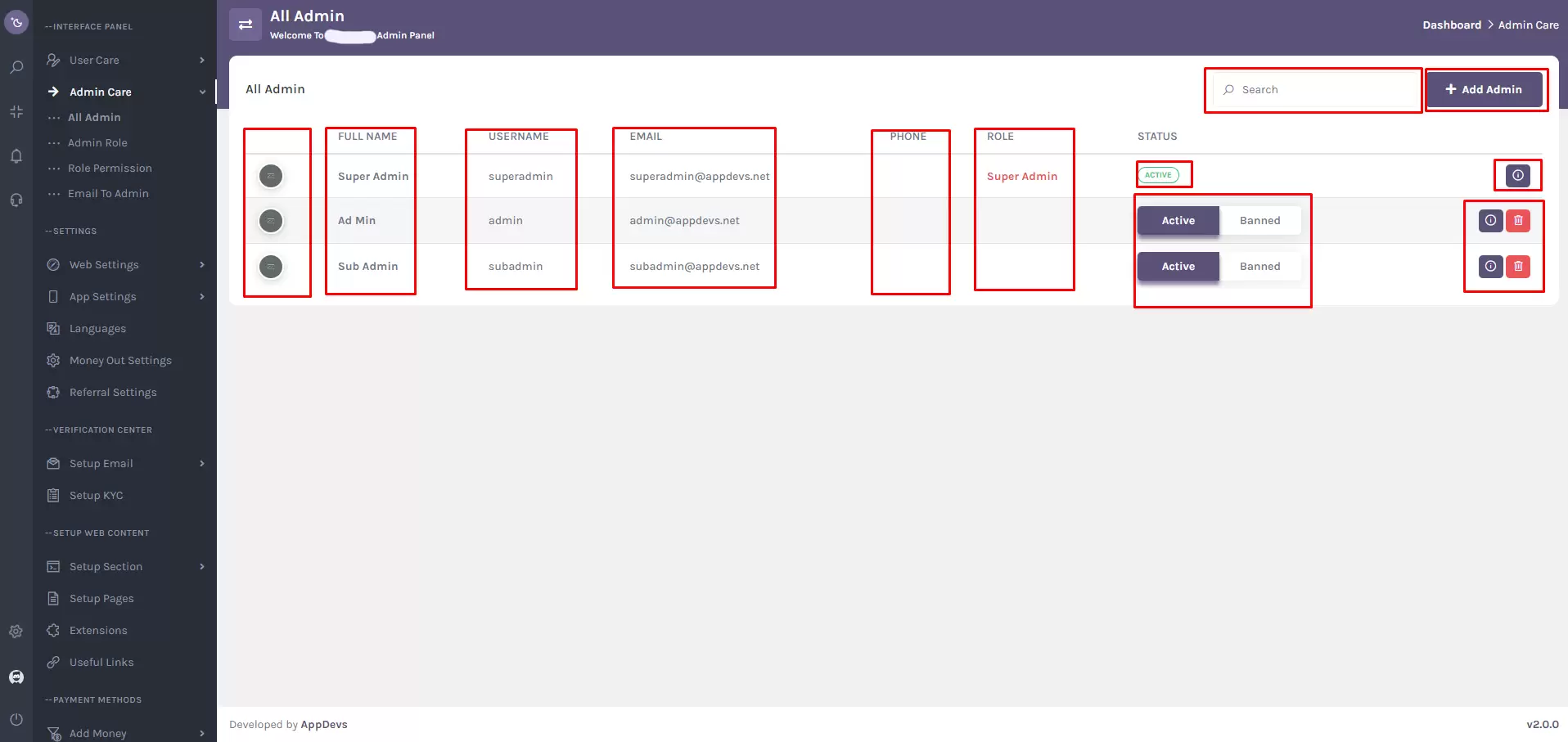
All Admin
- Managing Admin Information
- A table displays admin profiles with details such as profile thumbnail, username, phone number, admin role, and status (active or banned).
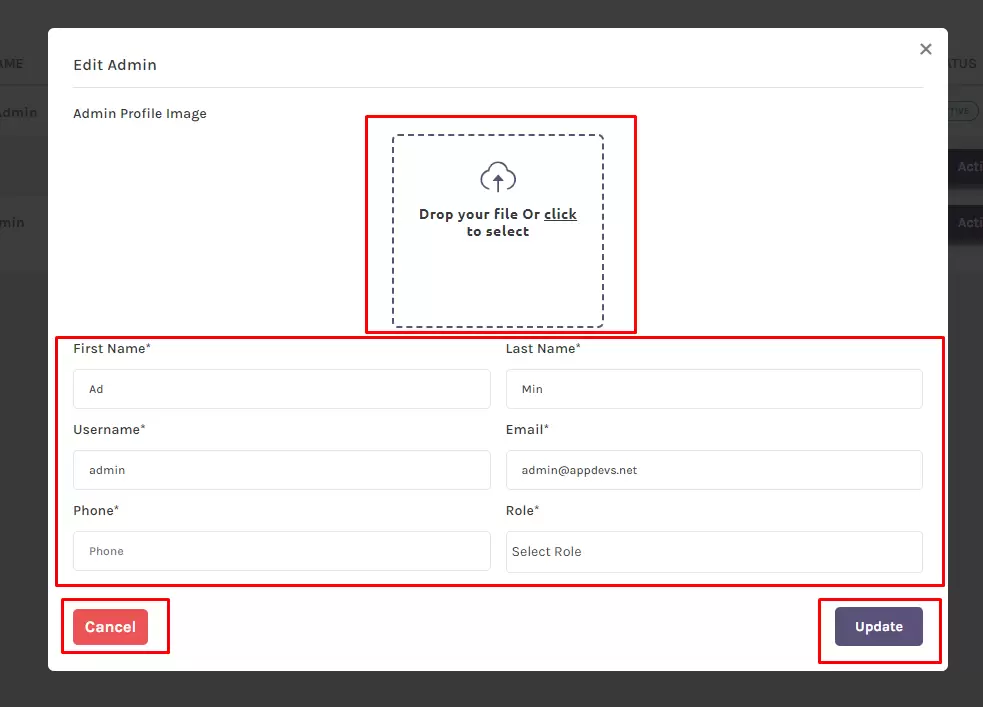
- You can delete or edit admins using the respective buttons, keeping in mind that super-admin status is always active and cannot be changed.
- Search and Add Admin
- Utilize the search bar to find specific admins quickly.
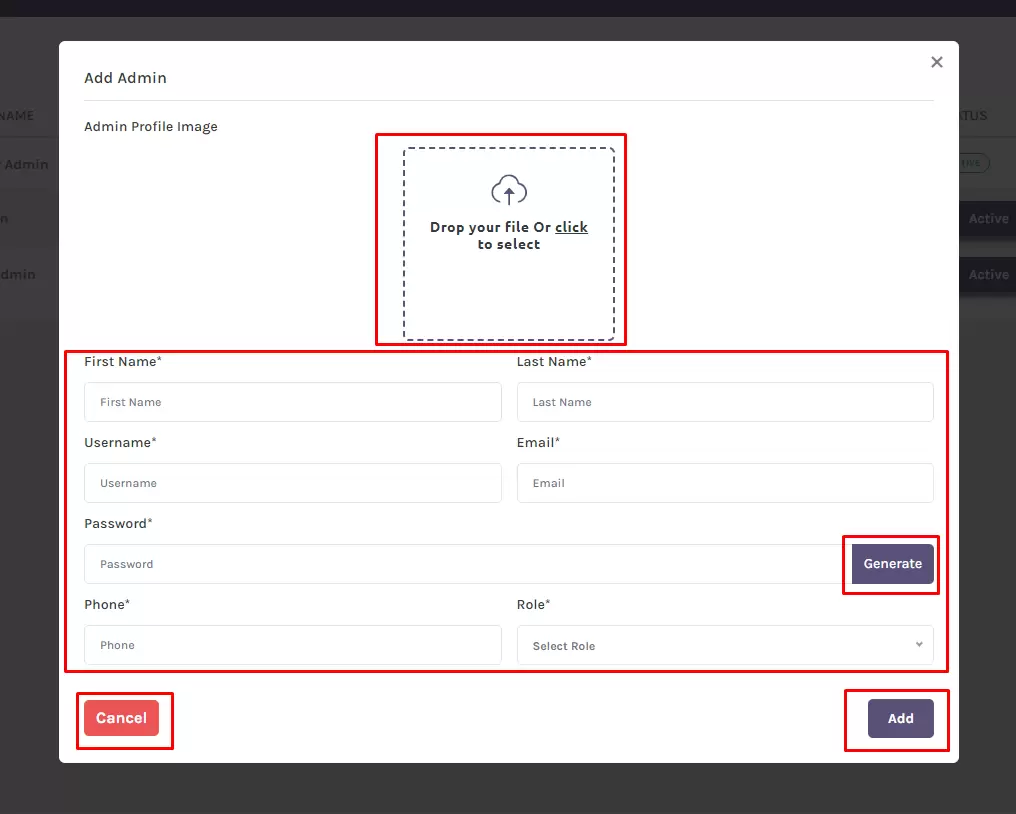
- Click the "Add Admin" button to open the "Add Admin" modal.
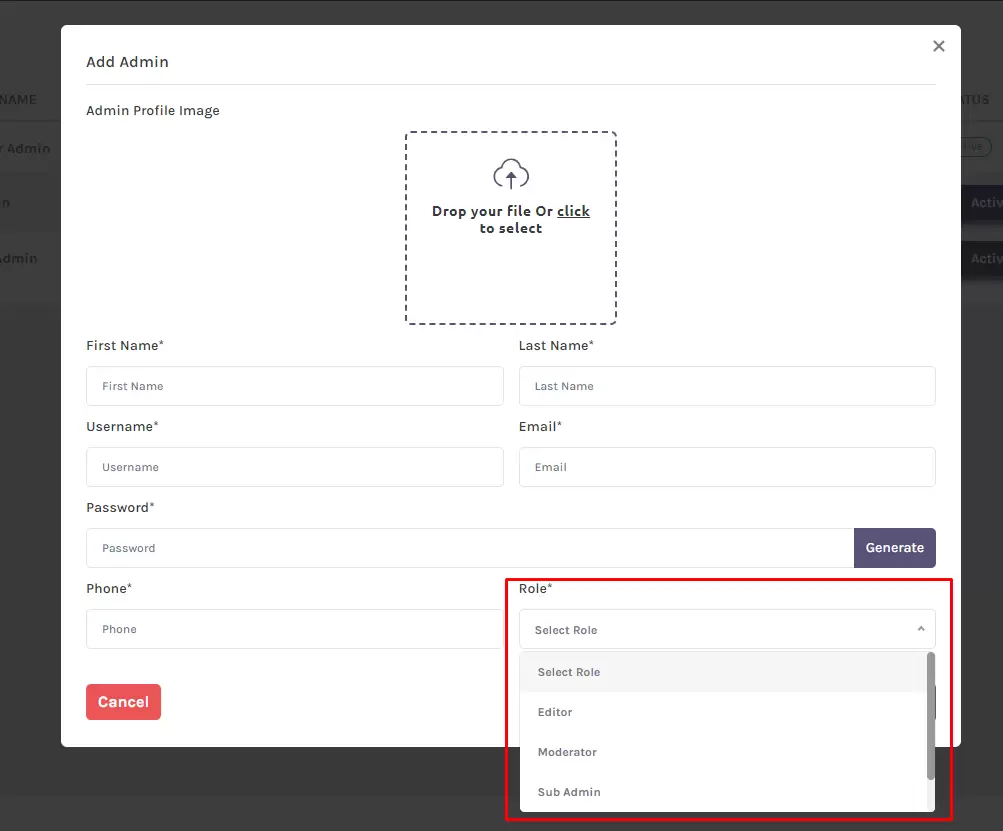
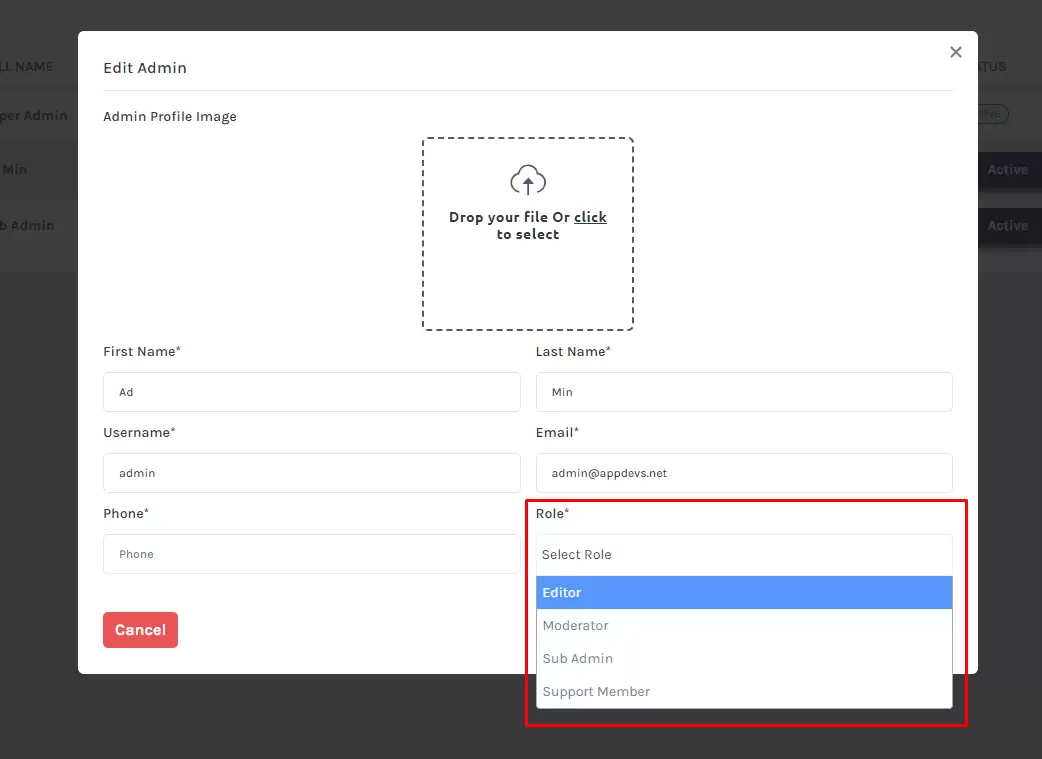
- Input necessary information, including profile image upload, first name, last name, username, email, password (generate it if needed), phone number, and select the admin role.
- Click "Add" to include the new admin or "Cancel" to close the modal.
Summary
Admin Roles:
Create customized roles effortlessly by using the “Add New” function. Use the built-in table to manage existing roles, leveraging the “Edit” and “Delete” options for real-time control.
Role Permissions:
Define and assign specific access controls using the “Add New Permission” function. The permissions table enables clear visibility and precise role management.
All Admin:
Monitor and manage all administrators from a centralized view. Quickly search, edit, or delete admins and seamlessly onboard new members through the Add Admin modal.